
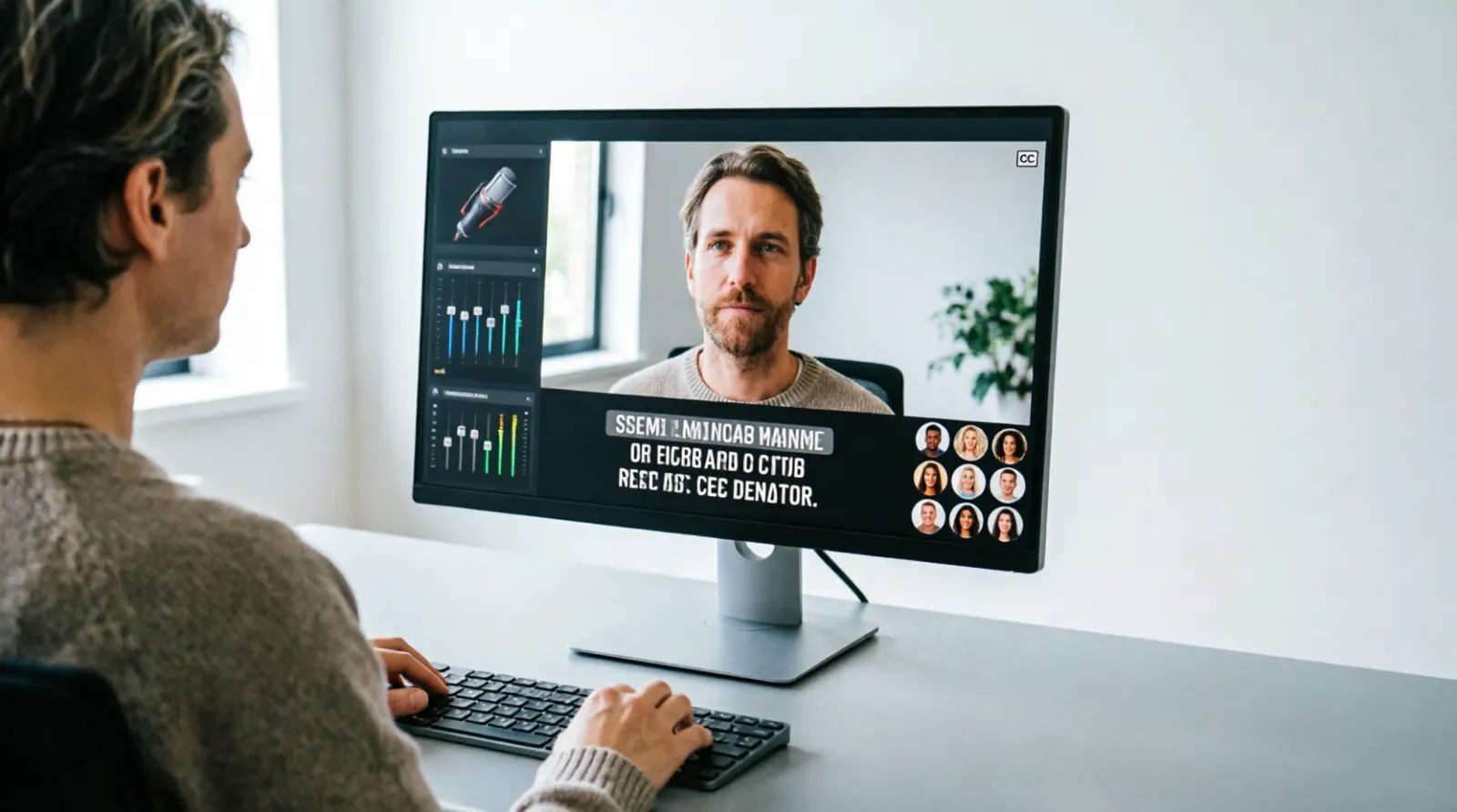
Live captions can make streams, webinars, classes, gaming sessions, and online events easier to follow, especially for viewers who are Deaf or hard of hearing or watching without clear audio. If you need live captions Spanish support or want to learn how to add captions to OBS, the setup depends on whether you want captions visible directly on the stream, available as a viewer-controlled caption track, or translated into Spanish.
OBS Studio does not provide a single built-in caption button that covers every captioning use case. Instead, creators can use caption plugins, browser sources, or external captioning services. Current OBS community resources include both local captioning plugins and browser-based translation tools.
Quick Answer:
If you want live captions Spanish, use a captioning or translation tool that supports Spanish and connect its output to your stream. For how to add captions to OBS, a common approach is to use an OBS caption plugin, a browser source, or a caption file displayed through an OBS text source.
For example, CaptionFlow can generate local live captions from an OBS audio source and display the output through an OBS text source, while browser-based services can add translated subtitles through an OBS Browser Source.
What Are Live Captions in Spanish?
Live captions Spanish can refer to real-time captions displayed in Spanish while someone speaks.
There are two common situations:
- Spanish speech to Spanish captions
The speaker talks in Spanish, and the system creates Spanish captions. - Another language to Spanish captions
The speaker talks in English or another language, and a translation system produces Spanish subtitles.
These are different tasks. Speech recognition turns spoken audio into text, while translation changes that text into another language.
For example:
Spoken: English
Caption output: Spanish
A creator might speak English while Spanish-speaking viewers read the translated captions in real time.
Modern live caption tools can support multiple languages. For example, Windows Live Captions currently lists Spanish from Spain and Mexico among its supported speech recognition languages.
Why Spanish Live Captions Matter for Accessibility
Captions can make live content easier to understand for viewers who cannot hear the audio clearly.
They can help:
- Deaf and hard of hearing viewers
- Spanish-speaking audiences
- Viewers watching without sound
- People in noisy environments
- People learning a language
- International livestream audiences
- Students attending online classes
- Viewers watching webinars or presentations
Captions also make spoken information available in text, which can improve access without changing the main video.
For accessibility, accuracy matters just as much as having captions on screen. Poorly recognized names, technical terms, or phrases can change the meaning of what the speaker says.
How to Add Captions to OBS
There are several ways to add captions to OBS. The best method depends on what you want viewers to see.
Option 1: Use an OBS Caption Plugin
An OBS plugin can listen to an audio source, convert speech into text, and make the resulting captions available to your OBS scene.
One current example is CaptionFlow, an independent third-party OBS plugin. Its documented workflow is:
- Right-click an audio source.
- Open Filters.
- Add CaptionFlow.
- Download a speech recognition model.
- Select a caption output file.
- Add an OBS text source.
- Enable Read from file.
- Point the text source toward the caption file.
- Start speaking and check the output.
CaptionFlow currently lists OBS Studio 31.0.0 as its minimum version and supports Windows and macOS. It processes speech locally rather than sending the audio to a cloud captioning service.
Option 2: Add Captions Through a Browser Source
Another approach is to use an external live caption or translation service that provides a browser-based caption display.
The basic workflow looks like this:
- Open the captioning service.
- Select the spoken language.
- Select the caption or translation language.
- Start the caption session.
- Copy the provided browser source URL.
- Open OBS Studio.
- Add a Browser Source.
- Paste the caption URL.
- Adjust the width and height.
- Position the captions inside your scene.
- Start your stream.
A current OBS community resource, StreamTranslate, describes this browser-source approach for real-time translated subtitles and lists Spanish among its supported languages.
This method can be convenient because you do not need to install an OBS plugin.
Option 3: Use a Dedicated Captioning Service
Professional events may need a more reliable captioning workflow.
A dedicated captioning provider can produce real-time captions and sometimes translation while an event is happening.
This can make sense for:
- Conferences
- Online courses
- Corporate webinars
- Public meetings
- Large livestreams
- Accessibility-focused events
For important events, human captioners can offer advantages when accuracy, names, terminology, and context matter.
How to Display Captions Inside Your OBS Scene
If you want captions to appear directly over your video, OBS needs a visual source for the text.
A basic setup can contain:
- Camera source
- Microphone source
- Background or game capture
- Caption text source
- Optional caption background
Keep the caption area away from important visual information.
For example, if your gameplay has important information near the bottom of the screen, place captions somewhere that does not cover the game interface.
Creating a Text Source for Captions
With a file-based caption workflow, OBS can read changing text from a file.
The general process is:
- Open your OBS scene.
- Add a Text source.
- Enable the option to read text from a file when your chosen caption system outputs a text file.
- Select the caption output file.
- Choose a readable font.
- Adjust the size.
- Add a background or outline if needed.
- Position the caption source.
- Test the caption timing.
CaptionFlow specifically documents using an OBS Text source with Read from file after setting its caption output file.
Making Spanish Captions Easy to Read
Spanish captions should look clean and comfortable to read.
Consider:
- High contrast
- Large enough text
- Short lines
- Sensible line breaks
- Consistent placement
- Clear punctuation
- Enough time to read each caption
- Minimal visual clutter
Avoid using decorative fonts that make accented characters difficult to recognize.
For example, Spanish captions may contain:
¿Dónde estás?
or:
Necesitamos hablar sobre esto.
The punctuation and accented characters should remain accurate.
Live Captions Spanish for English Speakers
If you speak English but want Spanish-speaking viewers to follow your livestream, you need translation rather than simple transcription.
The workflow becomes:
English speech → speech recognition → Spanish translation → Spanish captions
Some current browser-based OBS tools specifically advertise real-time translation and Spanish output.
This setup can be useful for:
- Gaming streams
- Educational streams
- Product demonstrations
- International webinars
- Interviews
- Podcasts
- Community events
Keep in mind that machine translation can make mistakes. Review terminology before using it for important professional content.
Spanish Speech to Spanish Captions
If the speaker already speaks Spanish, translation is unnecessary.
The workflow is:
Spanish speech → speech recognition → Spanish captions
This is generally simpler than translating from another language.
Choose a speech recognition system that supports Spanish and test it with the speaker’s accent, microphone, and environment before going live.
Windows Live Captions, for example, currently supports Spanish speech recognition for both Spain and Mexico.
English Speech to Spanish Captions
For English-to-Spanish captioning, you need both transcription and translation.
The system first recognizes:
Where are you going?
Then translates it into Spanish:
¿Adónde vas?
Depending on the tool, this can happen automatically in real time.
Translation quality can vary with:
- Background noise
- Speaker speed
- Accents
- Idioms
- Names
- Technical language
- Multiple speakers
- Poor microphone quality
For professional broadcasts, test these situations before the event.
Open Captions vs Closed Captions in OBS
This distinction matters.
If you add caption text directly into your OBS video scene, the captions become part of the stream’s visual output. Viewers generally cannot switch them off separately.
These are effectively open captions.
A separate caption track or platform-level caption system may allow viewers to turn captions on or off.
The older OBS closed-captioning plugin listed on the OBS Forums uses Twitch’s built-in caption support, allowing viewers to choose whether captions are displayed.
So ask yourself:
Do I want captions burned into the video?
Use an on-screen OBS text or browser source.
Do I want viewers to control captions separately?
Look for a caption workflow supported by your streaming platform.
OBS Caption Plugins Worth Knowing
OBS has a large third-party plugin ecosystem, and captioning options continue to change. The OBS Forums currently list dedicated caption-related resources, including CaptionFlow and older closed-captioning solutions.
CaptionFlow
CaptionFlow is an independent third-party plugin designed for local, real-time speech recognition in OBS. It supports OBS 31.0.0 or later and provides a documented workflow using an audio filter and text file output. )
Closed Captioning via Google Speech Recognition
The OBS Forums also list a long-standing closed-captioning plugin that uses Google Speech Recognition. Its resource page describes support for Windows, macOS, and Linux and integration with Twitch’s caption support.
Because plugins can depend on specific OBS versions, always check compatibility before installing one. OBS itself maintains plugin compatibility information, and the community plugin directory is updated as new resources appear.
Browser-Based Caption Tools
Browser-based tools can avoid some plugin installation issues.
For example, StreamTranslate currently describes a workflow where you create a caption session, copy its URL, and add that URL as an OBS Browser Source.)
This can be especially useful if you need translated captions rather than only transcription.
How to Choose the Best Caption Method
Your choice should depend on the type of stream you run.
For a casual gaming stream
A simple local caption plugin or browser source may be enough.
For bilingual content
Choose a system that supports both transcription and translation.
For Spanish-only content
Use a speech recognition system that supports Spanish directly.
For professional webinars
Consider a dedicated captioning solution and test it before the event.
For accessibility-first content
Prioritize accuracy, timing, speaker identification, and meaningful sound information rather than visual styling alone.
Common Problems With OBS Captions
Even after setting everything up, captions may not work perfectly.
Captions Do Not Appear
Check:
- The audio source is active.
- The caption tool is listening to the correct source.
- The caption output is updating.
- Your OBS text or browser source points to the correct location.
- The caption source is visible in the current scene.
Captions Are Delayed
Some delay can occur because speech recognition and translation require processing time.
Check your microphone and caption tool first. If you use a cloud-based translation service, network latency can also affect the output.
Spanish Words Are Incorrect
Check the selected language.
If the system expects English but the speaker is using Spanish, recognition accuracy can suffer.
Also test:
- Accents
- Names
- Regional vocabulary
- Technical terms
- Fast speech
Captions Cover the Video
Resize or reposition the caption source.
Keep important visual information visible.
Captions Look Too Small
Increase the font size and test the stream at the resolution your viewers will actually see.
Do not judge caption readability only from your large OBS preview window.
Tips for More Accurate Live Captions
A better microphone can improve caption recognition because speech recognition depends heavily on the quality of the incoming audio.
Try these improvements:
- Speak clearly.
- Reduce background noise.
- Keep the microphone at a consistent distance.
- Avoid talking over other speakers.
- Use a quiet room when possible.
- Test names and technical terms before streaming.
- Select the correct language.
- Check Spanish regional settings when available.
- Monitor captions during the broadcast.
If several people speak at once, even a strong recognition system may struggle.
Test Your Captions Before Going Live
Do not wait until the actual broadcast to discover a caption problem.
Run a private test first.
Say several sentences that include:
- Names
- Numbers
- Places
- Brand names
- Spanish words
- Technical vocabulary
- Questions
- Fast sentences
Then watch the output.
Ask:
Are the words correct?
Are captions appearing quickly enough?
Can I read them comfortably?
Do they cover important visuals?
Does Spanish translation preserve the intended meaning?
A short test can reveal problems that are difficult to notice while preparing your scene.
Accessibility Mistakes to Avoid
Captions should support the viewer, not simply fill the screen with text.
Avoid:
Relying Completely on Unchecked Automatic Captions
Automatic recognition is convenient, but errors can change meaning.
Ignoring Non-Speech Audio
If a meaningful alarm, laugh, or other sound affects the context, consider whether the caption system communicates it.
Using Low Contrast
White text on a bright background can disappear.
Making Captions Too Small
Viewers should not need to strain to read them.
Covering Important Content
Keep captions away from essential visual information.
Ignoring Translation Quality
A technically fast translation can still be confusing if it changes the meaning of the speaker’s words.
Live Captions Spanish for Different Types of Content
Gaming Streams
Spanish captions can help international viewers follow gameplay commentary, jokes, reactions, and instructions.
Keep captions compact so they do not cover important game information.
Online Classes
Captions can help students follow lectures and review terminology.
For educational content, accuracy matters because a single incorrect technical term can confuse learners.
Webinars
Use clear caption placement and test speaker changes before the event begins.
If the webinar includes several presenters, make speaker identification easier whenever your captioning workflow supports it.
Interviews
Interviews often include interruptions and overlapping speech. Test your captioning system with multiple speakers before broadcasting.
Religious and Community Events
Live captions can make services, meetings, and community events more accessible to people who cannot hear the audio clearly.
Multilingual Events
Translation captions can help speakers communicate with audiences who speak different languages.
FAQs
Can OBS add captions?
Yes, OBS can display captions through different workflows, including third-party plugins, text sources, browser sources, and external captioning systems. OBS itself has a large plugin ecosystem with caption-related resources.
Does OBS have built-in live captions?
OBS does not provide one universal built-in live-caption feature that handles every captioning and translation need. Creators commonly use third-party plugins or external services connected through OBS.
How do I add captions to OBS?
A common method is to connect a captioning system to an OBS audio source and then display the resulting text through an OBS Text source or Browser Source. CaptionFlow, for example, documents an audio filter plus text-file workflow.
How can I get live captions in Spanish?
Choose a captioning system that supports Spanish speech recognition if the speaker talks in Spanish. If the speaker uses another language, choose a service that supports translation into Spanish.
Can OBS translate English into Spanish captions?
OBS can display translated captions, but the translation generally comes from an external tool, plugin, or service rather than a single native OBS translation feature. Current OBS community resources include browser-based tools that advertise real-time translation into Spanish.
Are OBS captions free?
Some captioning options are free or open source, while other services charge for cloud processing, translation, or professional captioning. Always check the current pricing and licensing of the specific tool.
Do OBS plugins work with every OBS version?
No. Plugin compatibility can depend on the OBS version and operating system. OBS maintains compatibility information, and individual plugin pages specify their supported versions
Are automatic Spanish captions accurate?
They can be useful, but accuracy varies. Accents, background noise, fast speech, names, and technical vocabulary can produce errors. Test the system with your actual microphone and speaking style before relying on it for an important broadcast.
Can I use captions for Twitch streams?
Yes, depending on the caption workflow and Twitch’s current caption support. One OBS captioning resource specifically describes integration with Twitch’s built-in caption support for live streams and VODs.
Should I use open or closed captions?
Use on-screen captions when you want the text permanently visible as part of the video. Use a separate caption track when your platform and workflow support viewer-controlled captions.
CONCLUSION
Live captions Spanish can make streams and online events more inclusive, while learning how to add captions to OBS gives creators more control over how those captions appear.
For a simple setup, you can connect a caption plugin or external service to an OBS audio source and display the resulting text through a Text or Browser Source. For Spanish content, choose the correct speech language or translation direction, then test the results before going live.
The most important goal is not simply putting words on the screen. Good captions should be accurate, readable, timely, and useful to the people watching.