
Quick Answer:
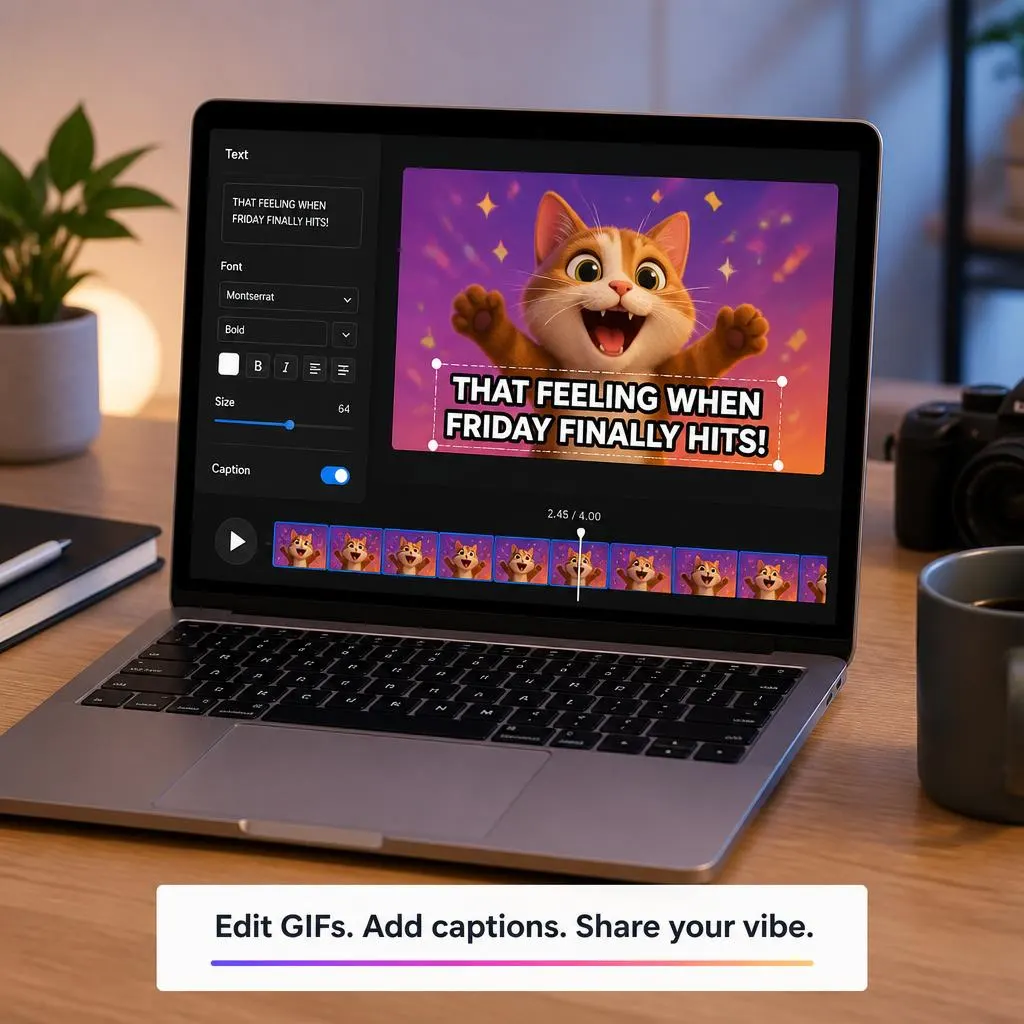
A caption GIF is an animated GIF with text added to explain a reaction, share a joke, label an action, or provide instructions. To add a caption, upload your GIF to an editor such as Canva, GIPHY, or another online GIF tool, add a text layer, adjust its font and position, preview the animation, and export the finished GIF. Keep the caption short, readable, and away from important parts of the animation.
A caption GIF can turn a simple animation into a clearer reaction, funny message, tutorial, or social media post. Whether you want to add a quick punchline, explain what is happening, or highlight an important action, the right text can make your GIF more useful and engaging.
Adding captions does not have to be complicated. With an online GIF editor, you can upload an animated image, add text, customize the font and placement, and preview the result before sharing it. This guide explains how to caption a GIF, where to place the text, how to make it readable, and how to create GIF captions that look clean on both desktop and mobile.
What Is a Caption GIF?
A caption GIF is an animated GIF that includes text within the image. The text can explain a reaction, add humor, describe an action, share a feeling, or guide someone through a process.
Unlike a regular GIF, a captioned GIF gives viewers extra context without requiring a separate explanation. That makes it useful for memes, reactions, tutorials, social media posts, messages, and visual instructions.
A good caption should support the animation rather than cover the main action. Keep the wording short, use readable text, and place it where viewers can see it immediately.
How to Add a Caption to a GIF
Adding text to a GIF usually takes only a few steps. You do not need advanced editing skills if you use a simple online GIF editor.
1. Choose Your GIF
Start with a GIF that matches the message you want to share.
A reaction GIF works well for funny or emotional captions, while a screen recording GIF works better for instructions. Choose a clear animation with enough empty space for your text.
2. Upload the GIF
Open a GIF editing tool and upload your animated image.
Make sure the editor supports GIF files and keeps the animation when you add text. Some tools also let you create a GIF from a video before adding the caption.
3. Add Your Text
Select the text option and write your caption.
Keep the first version short. Viewers should understand the message while the GIF is playing.
Good examples include:
- Me trying to stay calm
- When the plan finally works
- That was not what I expected
- Waiting for Friday
- My honest reaction
- When the email says one more revision
4. Adjust the Font and Size
Choose a font that remains easy to read while the GIF moves.
Bold and simple fonts usually work better than decorative styles. Increase the size enough for mobile viewers to read the caption without zooming.
5. Position the Caption
Place the text where it does not hide the important part of the animation.
The top and bottom of the GIF often work well for reaction GIFs. For tutorials, place the caption close to the action while keeping buttons, faces, and other important details visible.
6. Preview the GIF
Watch the entire animation before exporting it.
Check whether the caption stays readable, appears at the right time, and remains clear throughout the loop.
7. Export and Share
Once the caption looks right, export the finished GIF.
Preview the final file again before posting it to Instagram, Facebook, X, a website, or another platform.
Best Caption Ideas for GIFs
The right wording depends on the mood of your GIF. Short captions usually work best because viewers need to process both the animation and the text.
Funny Caption GIF Ideas
These captions work well with comedy, awkward moments, and relatable reaction GIFs.
- Me pretending everything is fine
- When the plan changes again
- My motivation has left the chat
- When someone says it will be quick
- Me checking my bank account
- That was definitely not planned
- Trying to look productive
- When the Wi-Fi finally comes back
- Me after one productive hour
- When Monday arrives too quickly
Reaction Caption GIF Ideas
Use these with facial expressions, surprised reactions, or emotional GIFs.
- Wait, what just happened?
- That was unexpected
- My honest reaction
- I need a minute
- Exactly what I was thinking
- Okay, this changes everything
- I have so many questions
- Trying to process that
- You cannot be serious
- Well, that escalated quickly
Short Caption GIF Ideas
Short text can make a GIF look cleaner and easier to understand.
- Seriously?
- No way
- Same
- Finally
- Not again
- I knew it
- Here we go
- That face
- Big mood
- Nailed it
How to Make Your Caption GIF Look Better
A good GIF caption does more than add words. It should work with the movement, composition, and mood of the animation.
Keep the Text Short
Long captions can distract viewers from the animation. Use the fewest words needed to communicate your idea.
Use Strong Contrast
Make sure the text stands out from the background. White text may disappear against a bright scene, while dark text may become difficult to see on a dark background.
Avoid Covering Faces
If the GIF includes a person, keep the caption away from their face whenever possible. Facial expressions often carry the main meaning of a reaction GIF.
Match the Caption to the Action
The strongest GIF captions feel connected to what happens on screen.
If someone suddenly looks shocked, a caption such as When you finally see the bill feels more natural than unrelated text.
Check the Mobile View
Many people view GIFs on phones. Make sure the caption remains readable on a smaller screen before publishing it.
Caption GIF Ideas for Social Media
Captioned GIFs can add personality to posts, Stories, comments, and messages.
Use short captions that match the mood of the animation.
- Me choosing another photo for the carousel
- When the post finally goes live
- Trying to pick the perfect caption
- When someone likes the old post
- Me checking the comments
Relatable and conversational captions work well.
- When the family group chat gets active
- Me reading everyone’s opinions
- When someone brings up an old story
- That moment when everyone agrees
- Just sitting here watching the drama
Messaging Apps
Keep the wording natural and conversational.
- This is exactly how I feel
- You already know
- I cannot even explain this
- That made my day
- Sending this instead of a long reply
Easy Ways to Add Text to a GIF
Once you have chosen your GIF and written the caption, the next step is choosing an editing method. The best option depends on whether you are working on a computer, phone, or browser.
Add a Caption to a GIF Online
An online GIF editor is useful when you want a quick solution without installing software.
The general process is simple:
- Upload your GIF.
- Select the text tool.
- Enter your caption.
- Choose a font and size.
- Adjust the text color.
- Move the caption into position.
- Preview the animation.
- Export the finished GIF.
Online editors are especially convenient for simple reaction GIFs, memes, tutorials, and social media content.
Add Text to a GIF in Canva
Canva can work well if you already use it for social media graphics. Upload your GIF to a design, add a text box, customize the typography, and position the caption over the animation.
For a clean result, use a simple font and avoid placing text over faces or important movement.
Canva also offers animated text effects, so you can make the caption appear or move with the GIF when that fits the content.
Add a Caption With GIPHY
GIPHY is another option for working with GIF content. Its GIF Maker includes a captions feature that lets you add text and adjust its placement.
This method works especially well when you plan to share the finished GIF as a reaction, meme, or social post.
Add Text to a GIF on Your Phone
You can also caption a GIF from your phone by using a mobile friendly browser editor or an editing app that supports animated GIFs.
The basic steps remain the same:
- Select your GIF.
- Upload it to the editor.
- Add your text.
- Adjust the font.
- Position the caption.
- Preview the animation.
- Save the finished GIF.
Before sharing, check the GIF at a smaller size. Text that looks readable on a large editing screen may become too small on a phone.
Where Should You Put Text on a GIF?
Caption placement can change how easy your GIF is to understand. Choose an area that does not interfere with the main visual action.
Top of the GIF
The top works well for short jokes, reactions, and meme captions.
Example:
When you realize tomorrow is Monday
Bottom of the GIF
Bottom captions create a familiar meme style and work well when the upper part of the animation contains the main action.
Example:
Me after saying I will go to bed early
Center of the GIF
Center placement can work when the background has plenty of empty space. Avoid this position when the middle contains a face, product, button, or other important detail.
Near the Action
For tutorials, place the caption close to the part of the GIF that needs explanation.
For example:
- Click here
- Open the menu
- Select your image
- Save the changes
This makes the GIF easier to follow without forcing viewers to search for the relevant action.
Caption GIF Styles You Can Try
Different GIFs call for different caption styles. Matching the text style to the animation can make the finished result feel much more natural.
Aesthetic Caption GIFs
Use simple wording and minimal design for soft, cinematic, or visually calm GIFs.
- A little moment worth keeping
- Let the moment speak
- Soft mood, slow moments
- Just enjoying this feeling
- Somewhere between now and forever
- A quiet kind of happiness
- Keeping this moment close
- Nothing but good energy
- Let it unfold
- This moment feels right
Cute Caption GIFs
Cute captions work well with pets, couples, friendship GIFs, and cheerful reactions.
- Too cute to handle
- Sending a little happiness
- This made my whole day
- Tiny moment, huge smile
- Just here being adorable
- Happiness looks good on you
- A little sweetness for your day
- Smiles all around
- This deserves another replay
- Cutest reaction ever
Attitude Caption GIFs
For confident reaction GIFs, keep the wording bold without making it insulting.
- I know my worth
- Confidence looks good on me
- Staying in my lane
- Calm, confident, unbothered
- I said what I said
- No explanation needed
- Walking in with confidence
- My energy speaks first
- Quiet confidence hits different
- I know exactly who I am
Emotional Caption GIFs
Use softer wording for emotional scenes and meaningful reactions.
- Some moments stay with you
- That feeling says everything
- A moment I will remember
- Sometimes words are not enough
- Holding onto this feeling
- Some memories never fade
- This one means a little more
- Feeling everything at once
- A quiet moment with a lot to say
- Some moments need no explanation
How to Make a GIF Caption Easy to Read
Readability matters because viewers have only a short time to understand both the animation and the text.
Use these simple design rules:
- Choose a clear font.
- Keep the font large enough for mobile screens.
- Use strong contrast.
- Keep captions short.
- Leave enough space around the text.
- Avoid placing text over faces.
- Use one or two fonts at most.
- Keep decorative effects subtle.
- Preview the entire animation before exporting.
If the GIF has a busy background, a subtle outline, shadow, or text background can make the words easier to read.
Should You Use Animated Text?
Animated text can make a GIF more dynamic, but it does not always improve the result.
Use static text when the message should remain visible throughout the animation.
Use animated text when the wording needs to match different moments in the GIF.
For example, a tutorial might show:
- Open the editor
- Upload your GIF
- Add your caption
- Export the result
A reaction GIF usually does not need this much movement. One short caption may work better.
Caption GIF Ideas for Memes
Memes usually depend on timing, so keep the text direct and relatable.
- Me pretending I have everything under control
- When the deadline suddenly moves closer
- Opening my inbox after the weekend
- When someone says they have a quick question
- Me trying to remember why I opened this tab
- When the plan actually works
- That moment when you hear your name
- When the food arrives before everyone else
- Me looking for motivation
- When someone says we need to talk
- Trying to stay focused
- When the meeting should have been an email
- Me after making one responsible decision
- When your favorite song comes on
- Trying to act normal
- When the weekend ends too soon
- Me checking the price after adding everything to the cart
- When someone finally understands
- That was not on my schedule
- When the group chat wakes up
Final Check Before You Share a Caption GIF
Before publishing your finished GIF, take a few seconds to review it.
Ask yourself:
- Is the caption easy to understand?
- Can I read it quickly?
- Does the text cover anything important?
- Does the wording match the animation?
- Does it look good on a phone?
- Does the text stay visible at the right time?
- Is the GIF still clear after export?
Common Caption GIF Mistakes to Avoid
A caption can make a GIF more useful, but poor text placement or excessive design can make the animation harder to understand. Keep the message simple and let the GIF remain the main visual element.
Using Too Much Text
A GIF moves quickly, so viewers may not have enough time to read a long paragraph.
Instead of:
- When you finally finish all your work after spending the entire day distracted by everything except the task you were supposed to complete
Try:
- Finally finished!
Covering the Main Action
Do not place captions over faces, important objects, buttons, or other details that viewers need to see.
Move the text to an empty area or reduce its size.
Choosing an Unreadable Font
Decorative fonts can look attractive in a still image but become difficult to read during animation.
Choose a clean font with clear letter shapes, especially for instructional GIFs.
Using Low Contrast
Light text on a light background can disappear quickly. The same problem happens with dark text on a dark scene.
Use enough contrast to keep the caption visible throughout the animation.
Adding Too Many Effects
Animations, shadows, colors, and text effects can compete with the GIF itself.
Use effects only when they improve readability or match the visual style.
Ignoring Mobile Screens
A caption that looks perfect on a large monitor may appear tiny on a phone.
Always preview your finished GIF at a smaller size before sharing it.
Caption GIF Ideas for Different Situations
The best caption depends on the moment your GIF communicates. These examples can help you find the right tone.
Work and Study GIFs
Use these for relatable office, school, homework, or productivity moments.
- When the deadline is suddenly tomorrow
- Me opening my inbox on Monday
- Trying to finish everything before lunch
- When the assignment finally makes sense
- One more task, they said
- Me pretending I understand the meeting
- When the presentation goes perfectly
- Studying five minutes before the test
- When the project finally works
- Waiting for the weekend
- Me checking the deadline again
- When the teacher says there is a surprise quiz
- Trying to stay focused
- When the last task is finally done
- My brain after a long day
Friendship GIFs
These work well for messages, Stories, and posts about close friends.
- My favorite kind of chaos
- Friends who make everything fun
- You already know what I mean
- Same energy, different day
- This is why we cannot behave
- Always making memories
- Life is better with this kind of friend
- The friendship speaks for itself
- We really did that
- Nobody gets me like you do
Relationship GIFs
Keep romantic GIF captions personal and natural.
- You make ordinary moments feel special
- Still smiling because of you
- My favorite person, always
- This feeling never gets old
- You are my happy place
- Every moment with you feels better
- Just us, exactly how I like it
- Love looks good on us
- You still make my heart smile
- Always choosing you
Weekend GIFs
These fit relaxing, partying, traveling, or simply escaping the workweek.
- Weekend mode activated
- Finally off the clock
- No plans, no problem
- This is the energy I needed
- Goodbye, weekday stress
- Making the most of the weekend
- Sleep, relax, repeat
- Weekend plans look perfect
- This is my kind of Saturday
- Protecting my peace this weekend
How to Choose the Perfect Caption GIF
Start with the emotion, then choose the words.
If the GIF shows surprise, use a reaction caption.. If it shows someone relaxing, use something calm and relatable.
A simple formula can help:
What happens + how you feel
For example:
- The plan worked + Finally!
- The weekend arrived + We made it
- Someone says something unexpected + Wait, what?
- Your order arrives + Best day ever
- The meeting ends + Freedom at last
This approach keeps captions connected to the animation instead of making them feel random.
FAQs
Can I add captions to an existing GIF?
Yes. Upload the existing GIF to an editor that supports animated files, add a text layer, position it correctly, and export the edited version.
What is the best caption length for a GIF?
Short captions usually work best. A few words or one short sentence gives viewers enough time to read the message while watching the animation.
Can I put multiple captions on one GIF?
Yes. Multiple captions can work well for tutorials, conversations, or animations with several distinct moments. Keep each line short and give viewers enough time to read it.
Should GIF captions be at the top or bottom?
Both positions can work. The best placement depends on the animation. Choose the area with the least important visual information.
Can I caption a GIF without downloading software?
Yes. Browser based GIF editors can let you upload a GIF, add text, customize it, and export the finished animation without installing desktop software.
Why does my caption disappear before the GIF ends?
Your text layer may not cover the entire animation timeline. Check its duration and extend it if you want the caption to remain visible throughout the GIF.
Why is my caption difficult to read?
The most common causes include small text, poor contrast, a complicated font, or a busy background. Increase the size, improve contrast, or add a subtle outline or background.
Can I add captions to a GIF from my phone?
Yes. A mobile friendly GIF editor or app can let you add text directly from your phone. The exact steps depend on the tool you use.
Can I use caption GIFs on social media?
Yes. Captioned GIFs can work well for reactions, memes, Stories, messages, and other social content. Always check the platform’s current file and upload requirements.
conclusion
A good caption GIF combines a clear message with an animation that supports it. Keep the wording short, choose an easy-to-read font, and position the text without covering the important action.
For funny GIFs, focus on timing and relatability. For aesthetic or emotional GIFs, use fewer words and let the animation carry more of the message.
With a simple GIF editor, you can turn an ordinary animation into a useful reaction, memorable social post, quick tutorial, or personalized message.