
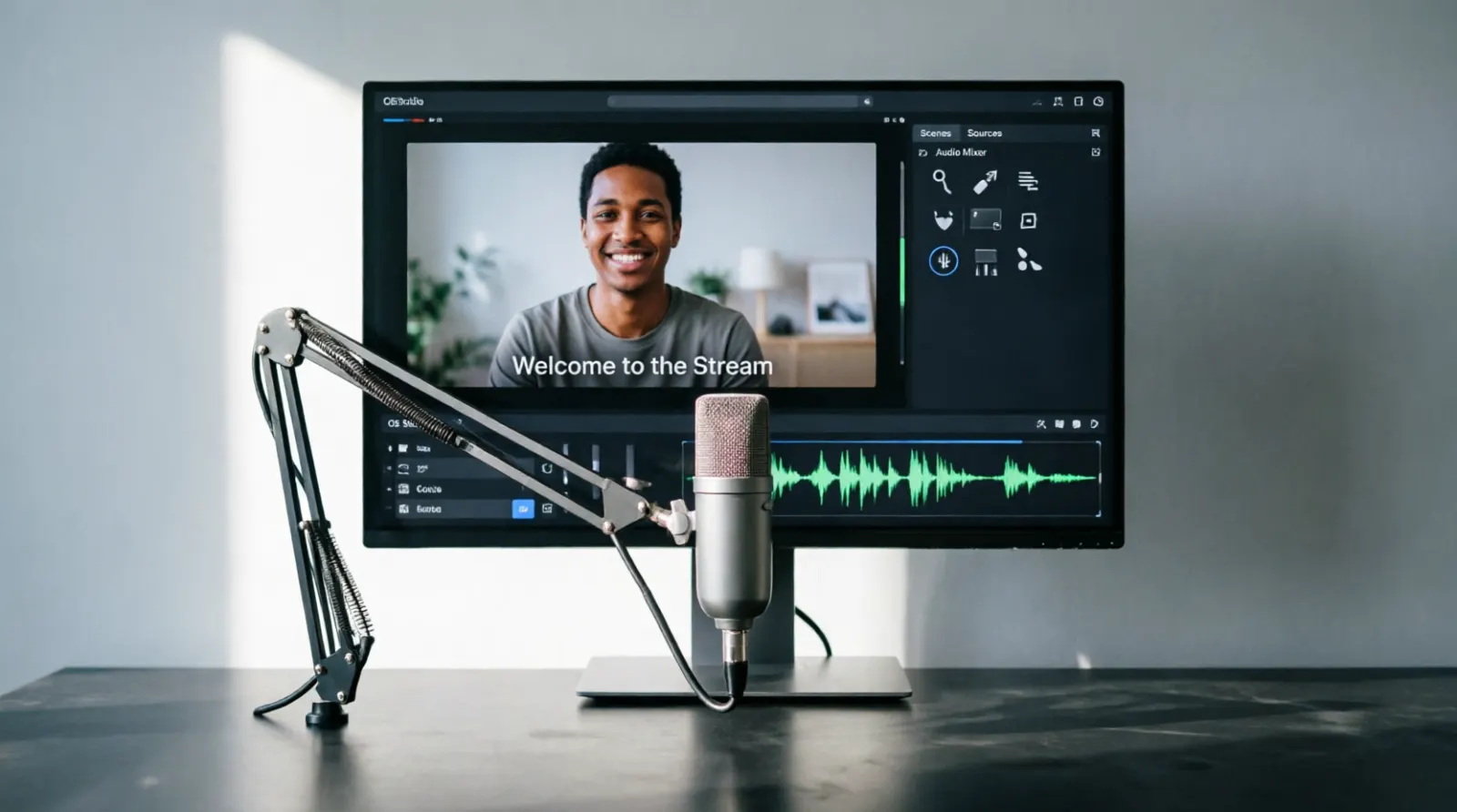
If you want to know how to add captions to OBS, you can set up live captions by combining OBS Studio with a captioning or speech-to-text service. OBS itself focuses on video recording and live streaming, so captions usually come from an external tool, browser source, plugin, or caption overlay.
The best setup depends on where you stream, whether you need automatic speech recognition, and whether you want captions visible to everyone or available through a separate accessibility system.
Quick Answer:
To add captions to OBS, create your captions with a compatible speech-to-text tool, then bring the caption output into OBS using a Browser Source, text source, or supported captioning integration. Test the timing, font size, placement, and accuracy before going live.
A simple workflow looks like this:
- Open OBS Studio.
- Choose or create your streaming scene.
- Set up a speech-to-text captioning tool.
- Connect the caption output to OBS.
- Add the output as a Browser Source or text overlay when supported.
- Position the captions where they will not cover important content.
- Test your microphone and caption timing.
- Start your stream.
What You Need Before Adding Captions to OBS
You do not need complicated equipment for a basic caption setup.
You typically need:
- OBS Studio
- A working microphone
- An internet connection
- A speech-to-text or captioning service
- A browser source, text source, plugin, or other supported integration
- A streaming platform such as YouTube or Twitch
- A test scene for checking captions before going live
Your microphone matters more than many beginners expect. Clear audio gives automatic speech recognition a better chance of producing accurate captions.
Does OBS Have Built-In Captions?
OBS Studio is primarily a broadcasting and recording application. It provides sources, scenes, audio controls, filters, browser sources, and other production features, but you generally need another solution for automatic speech-to-text captions.
That means your caption workflow often looks like:
Microphone → speech recognition → caption output → OBS → livestream
The exact connection depends on the captioning tool you choose.
How to Add Captions to OBS With a Browser Source
A browser source can work well when your captioning service provides a webpage or overlay URL.
Step 1: Open OBS
Launch OBS Studio and open the scene you use for streaming.
If you do not have a scene yet, create one and add your camera, game capture, display capture, or other content.
Step 2: Add a Browser Source
In the Sources panel, select the option to add a new Browser Source.
Give it a clear name such as:
Live Captions
This helps you find the caption layer later.
Step 3: Add the Caption URL
If your captioning service provides a browser-based overlay, enter its URL in the Browser Source settings.
You may also be able to adjust:
- Width
- Height
- Custom CSS
- Refresh behavior
- Background
- Text appearance
The available options depend on the service.
Step 4: Position the Caption Layer
Move the caption source to a location that viewers can read easily.
For a webcam stream, the bottom portion of the screen often works well. For gaming content, avoid covering health bars, subtitles, menus, chat boxes, or important gameplay information.
Step 5: Test Your Voice
Speak naturally into your microphone.
Check whether the words appear correctly and whether the captions keep up with your speech.
Step 6: Adjust the Design
Make captions easy to read against your video.
Consider:
- Large enough text
- Strong contrast
- Simple fonts
- Reasonable line length
- Enough spacing
- A subtle background when needed
How to Add Automatic Captions to OBS
Automatic captions use speech recognition to convert your voice into text.
A typical automatic caption workflow looks like this:
Your voice → microphone → speech recognition → text → OBS overlay
This approach can work well for:
- Gaming streams
- Podcasts
- Tutorials
- Live commentary
- Online classes
- Interviews
- Webinars
- YouTube livestreams
- Casual streams
However, automatic captions can make mistakes. Names, technical terms, accents, background noise, and fast speech can reduce accuracy.
How to Improve OBS Caption Accuracy
Good captions start with good audio.
Use a Clear Microphone
A clean microphone signal gives speech recognition clearer input.
Reduce Background Noise
Fans, music, keyboard noise, and nearby conversations can make transcription harder.
Speak Naturally
Avoid speaking unnaturally slowly just for the caption system. Instead, use a steady speaking pace.
Use a Consistent Microphone Position
Keep your microphone at a consistent distance from your mouth.
Check Technical Words
If your stream includes gaming, coding, science, business, or other specialized vocabulary, automatic transcription may need extra review.
Test Before Going Live
Run a private test and look for repeated caption errors before starting a public stream.
How to Add Captions to OBS for Gaming Streams
Gaming streams create a special captioning challenge because the screen already contains lots of information.
Your captions should remain visible without covering the gameplay.
Try placing captions:
- Along the lower edge of the screen
- Above a webcam frame
- In a dedicated caption area
- Near the bottom center when the game allows it
Avoid placing them over:
- Character health bars
- Inventory screens
- Game subtitles
- Important objectives
- On-screen notifications
- Chat overlays
If your game already displays dialogue subtitles, consider whether your live speech captions need a different position.
OBS Caption Setup for YouTube
If you stream to YouTube, you have more than one possible captioning approach.
You can create captions as part of the visual OBS output, meaning viewers see the caption text directly inside your broadcast video.
You can also explore your streaming platform’s own captioning features when available.
These approaches have an important difference.
OBS overlay captions:
The captions become part of the visual stream output.
Platform captions:
The platform may provide captions separately from the video, depending on its available features and your setup.
If accessibility is your main goal, understand which type your audience actually receives.
OBS Captions for Twitch
Twitch streams can also use caption overlays or compatible captioning services.
For an OBS overlay, the basic process remains similar:
- Create the caption output.
- Obtain the supported browser or overlay source.
- Add it to OBS.
- Place it inside your scene.
- Test it with your Twitch stream setup.
- Check the captions from the viewer’s perspective.
Do not assume that captions visible in your OBS preview will automatically become platform-native accessibility captions. An overlay and a separate caption track serve different purposes.
How to Add Captions to OBS With Text Sources
A standard OBS text source can display text on your scene, but it does not automatically understand your speech.
You need a method that updates the text as you speak.
A basic workflow might use:
Speech recognition → changing text file → OBS text source
This approach can work for certain custom setups, but it requires a tool or script to update the text continuously.
For beginners, a browser-based caption overlay may be easier when the caption service already provides one.
Browser Source vs Text Source for Captions
Both can display text, but they serve different purposes.
| Feature | Browser Source | Text Source |
|---|---|---|
| Displays web-based caption overlay | Yes | No |
| Automatically receives live text | Depends on integration | Requires another system |
| Design flexibility | High | Moderate |
| Easy for beginners | Often | Depends on setup |
| Requires caption provider | Usually | Usually for live speech |
| Useful for custom overlays | Yes | Yes |
For most beginners, start with the option supported directly by the captioning service you choose.
How to Add Captions to OBS Without Covering Your Stream
Caption placement can make or break readability.
Before choosing a location, look at your entire scene.
Ask:
- Where does the main action happen?
- Does the game already use subtitles?
- Where does the webcam appear?
- Is there a chat overlay?
- Does the bottom of the screen contain important information?
- Will captions remain readable on mobile screens?
Keep the caption area consistent throughout the stream.
A viewer should not have to search around the screen every time you speak.
Make OBS Captions Easier to Read
Good caption design does not need to look flashy.
Use a clean visual style.
Choose a Readable Font
Simple sans-serif fonts usually work well for live captions.
Use Strong Contrast
White text over a busy video can become difficult to read. A dark background or outline can help separate the text from the scene.
Avoid Tiny Text
Your stream may appear on a phone, tablet, laptop, or television. Test your caption size at smaller viewing dimensions.
Keep Captions Near the Action
Place captions where they remain easy to find without interfering with the important content.
Avoid Excessive Animation
Captions should help viewers follow speech rather than compete with the stream.
How to Add Captions to OBS for Accessibility
If accessibility is your primary reason for adding captions, focus on more than simply putting words on screen.
Good accessibility captions should communicate the important spoken information clearly. Depending on the content, relevant non-speech sounds can also matter.
For example, a stream might contain:
- Speaker dialogue
- Laughter
- Applause
- An alarm
- A doorbell
- Music
- Important notification sounds
Not every background sound needs a caption. Include information that helps the viewer understand the content.
Closed Captions vs Captions Burned Into OBS
This distinction matters.
If OBS displays your captions directly inside the video output, those captions become part of the broadcast image.
Viewers cannot independently switch that visual text off unless you create another version of the stream.
A true closed-caption system can provide captions separately, allowing compatible players or viewers to control them.
So if someone asks how to add captions to OBS, first decide whether they want:
Visible caption overlay:
Text appears directly on the video.
Separate caption track:
Captions exist independently from the video.
The best solution depends on your accessibility requirements and streaming platform.
How to Add Captions to OBS for a Podcast
Podcasts benefit from captions because viewers may watch without sound or may have hearing-related accessibility needs.
For a podcast scene, you can place captions:
- Under the speaker
- Across the lower third
- Between two speaker panels
- Inside a dedicated caption box
If you interview guests, speaker identification becomes especially useful.
For example:
Alex: Thanks for joining us today.
Jordan: Happy to be here.
Clear speaker identification helps viewers follow conversations with multiple people.
OBS Captions for Interviews
Interviews can create more captioning errors because several people may speak.
Try to:
- Keep microphones separate when possible
- Reduce overlapping speech
- Identify speakers clearly
- Check names and terminology
- Keep captions synchronized
- Avoid excessive text on screen
If two people frequently speak over each other, automatic captions may struggle to produce clean results.
How to Add Captions to OBS for Online Classes
Captions can make educational livestreams easier to follow.
For a class, captions can help with:
- Lectures
- Demonstrations
- Tutorials
- Software lessons
- Presentations
- Q&A sessions
Technical vocabulary deserves special attention. A transcription mistake in a programming command, mathematical term, scientific name, or product name can change the meaning.
Test your caption system using the terminology you expect to use during the lesson.
Common OBS Caption Problems
Captions Do Not Appear
Check that:
- The caption service is running.
- Your microphone is selected correctly.
- The browser source has the correct URL.
- The caption overlay is visible in the source list.
- The source is not hidden.
- Your speech recognition tool receives audio.
Captions Are Delayed
Some delay can occur because speech recognition needs time to process audio.
Try:
- Improving your microphone signal
- Reducing unnecessary processing
- Checking the caption service connection
- Testing your network
- Using a caption system optimized for live speech
Captions Are Wrong
Automatic transcription can mishear words.
Improve the audio first. Then check whether your captioning service supports vocabulary customization or other accuracy controls.
Captions Cover Important Content
Resize or reposition the source.
You can also create a dedicated caption area within your scene.
Captions Look Too Small
Increase the font size and test the stream on a smaller screen.
How to Test Captions Before Going Live
Never wait until your public stream to discover that your captions do not work.
Create a short private test.
Say different types of sentences, including:
- Normal conversation
- Names
- Numbers
- Technical terms
- Questions
- Fast sentences
- Sentences with pauses
- Sentences containing uncommon words
Then review the result.
Check:
- Accuracy
- Timing
- Font size
- Contrast
- Position
- Line breaks
- Speaker identification
- Overall readability
Mistakes to Avoid When Adding Captions to OBS
Choosing a Tool Without Testing It
A caption tool may work well for one person’s voice but struggle with another.
Making Captions Too Small
Tiny text defeats the purpose of making captions easier to read.
Covering Important Content
Do not place captions where they block gameplay, slides, demonstrations, or other essential information.
Assuming Automatic Captions Are Perfect
Always expect occasional recognition errors.
Ignoring Audio Quality
Poor audio can create poor captions regardless of the software you use.
Using Too Many Visual Effects
Your captions should remain readable first and decorative second.
Forgetting the Viewer Experience
Check your stream from the audience’s perspective, not just from the OBS preview window.
A Simple OBS Caption Checklist
Before going live, confirm:
- Your microphone works.
- Your captioning service receives audio.
- Captions appear in OBS.
- The text remains readable.
- The caption source sits above the correct layers.
- Captions do not cover important content.
- The timing feels natural.
- Names and technical words appear correctly.
- Your streaming platform receives the intended output.
- You have tested the setup privately.
How to Choose the Best Caption Method for OBS
The right setup depends on your goal.
- Choose a browser-based caption overlay if you want a relatively straightforward visual caption layer.
- Choose a custom text workflow if you need more control and are comfortable managing an external speech-to-text system.
- Choose platform-supported captioning when your main goal involves separate captions that viewers can control, provided your streaming platform and captioning setup support that workflow.
For accessibility-focused broadcasts, research the specific requirements of your audience, platform, organization, and applicable accessibility standards rather than treating a visual overlay as automatically equivalent to closed captioning.
FAQs
Can I add captions directly in OBS?
OBS can display caption text through supported sources and integrations, but automatic speech-to-text captioning generally requires an additional captioning method or service.
Is OBS good for live captions?
OBS works well as part of a live caption workflow because it can combine video, audio, browser sources, and text overlays. The caption generation itself usually comes from another system.
Can OBS automatically transcribe my voice?
OBS does not primarily function as a speech recognition application. You generally need a compatible speech-to-text tool, plugin, script, or external captioning service.
Can I use captions on OBS for gaming?
Yes. You can add captions as an overlay and position them around your gameplay layout. Test their placement so they do not cover important game information.
How do I make OBS captions readable?
Use a clear font, sufficient size, strong contrast, sensible line breaks, and a consistent location. Test the captions on smaller screens before streaming.
Why are my OBS captions inaccurate?
Automatic speech recognition can misinterpret words because of background noise, microphone quality, accents, fast speech, overlapping speakers, names, and technical vocabulary. Improving audio quality and reviewing the caption system can help.
Can viewers turn off captions added through OBS?
If you add captions as part of the OBS video output, viewers generally cannot turn that visual text off independently. A separate caption system provides a different experience.
Are OBS captions the same as closed captions?
Not necessarily. Captions displayed directly inside the OBS video output become part of the visual stream. Closed captions usually refer to a separate caption track or mechanism that viewers can control.
Can I add captions to OBS for YouTube?
Yes. You can display captions through your OBS stream output, and YouTube may also provide its own caption-related features depending on the livestream setup and current platform capabilities.
Can I add captions to OBS for Twitch?
Yes. A caption overlay can be incorporated into an OBS scene and sent as part of your Twitch video stream. Separate accessibility caption functionality depends on the tools and platform features involved.
Do captions need to include sound effects?
When a sound carries meaningful information, accessibility captions should communicate that information. You do not need to describe every insignificant background noise.
What is the easiest way to add captions to OBS?
For many beginners, a captioning service that provides a ready-to-use browser overlay can be one of the simpler approaches. You can add that overlay to OBS as a Browser Source and customize its position.
conclusion
Learning how to add captions to OBS becomes much easier once you separate caption generation from caption display. OBS handles the broadcast production, while a speech-to-text system can create the words that appear on screen.
For a simple setup, connect your microphone to a compatible captioning tool, bring its output into OBS, position the caption layer, and test everything before going live. Pay close attention to audio quality, timing, readability, and placement.
If accessibility is your main goal, also determine whether you need an on-screen caption overlay or a separate caption track. That distinction can make a significant difference to the viewing experience.