
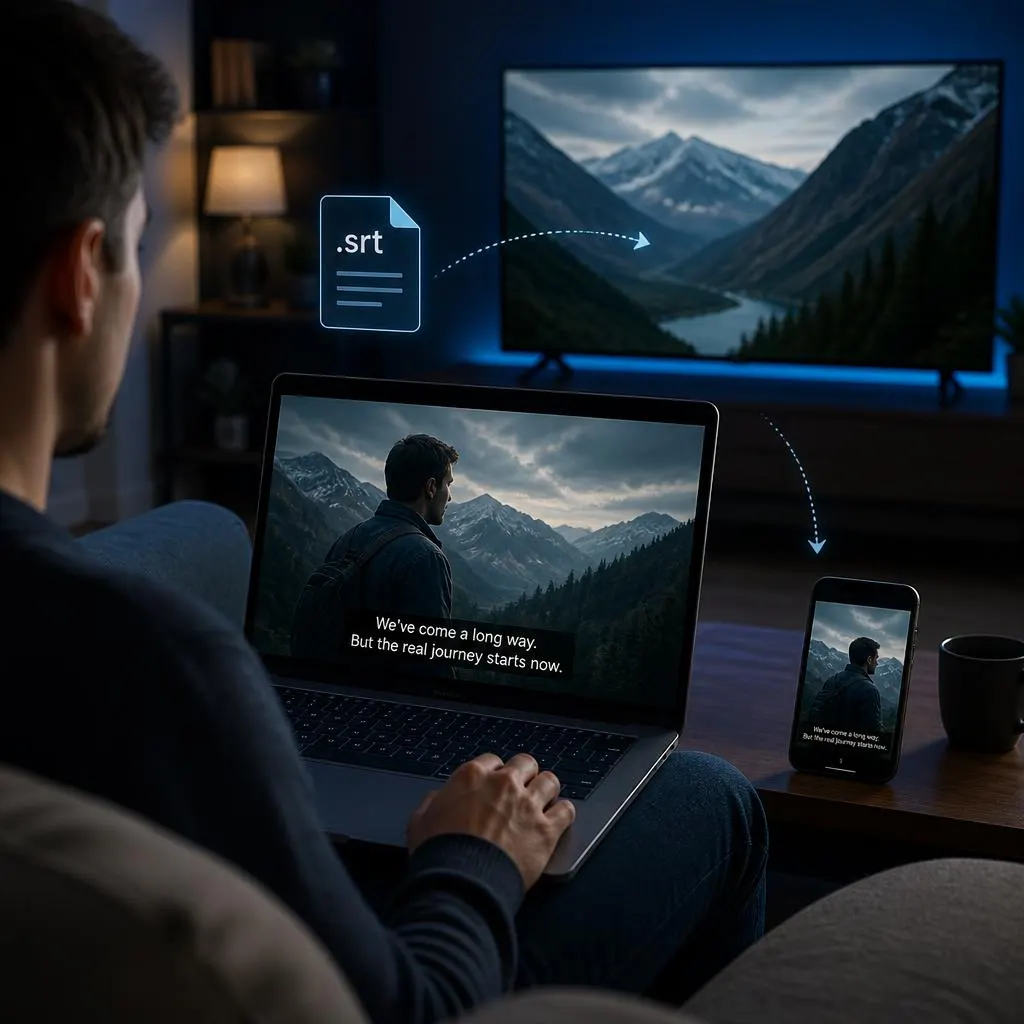
Quick Answer: To add captions in a movie, use your video player’s subtitle settings, a video editing app, or an automatic captioning tool. On a computer, you can add text manually, import a supported subtitle file such as SRT, or generate captions from speech. On a phone, use a compatible video editor or captioning app. The best method depends on your device, video format, and whether you want permanent on-screen captions or subtitles viewers can turn on and off.
Adding captions to a movie helps you follow dialogue, understand unfamiliar accents, and enjoy films in noisy environments. Captions can also make movies more accessible for viewers who are deaf or hard of hearing. Whether you watch movies on a laptop, smart TV, phone, or streaming service, you have several ways to turn captions on or add your own subtitle file.
The easiest method depends on where your movie comes from. Streaming platforms often include built in captions, while downloaded movies may require a separate subtitle file or a video player that supports subtitles. If you want captions permanently displayed in the video, you can use a video editor to embed them.
How Do You Add Captions to a Movie?
You can add captions to a movie in three main ways:
- Turn on built in captions: Open the movie’s playback settings, select the subtitles or captions icon, and choose your preferred language.
- Load a subtitle file: For a downloaded movie, use a compatible player such as VLC Media Player and select an external subtitle file, often in SRT format.
- Embed captions permanently: Use a video editor or subtitle tool to add captions directly to the video so they remain visible on different devices.
If you are watching a movie on Netflix or another streaming service, start by checking its subtitle settings. If you downloaded the movie, loading a matching subtitle file is usually the simplest option.
Choose the Right Method for Your Movie
Before adding captions, identify where you watch the movie and how you want the captions to appear. This helps you avoid unnecessary downloads and complicated editing.
| Where you watch | Best method | What you need |
|---|---|---|
| Netflix or another streaming service | Enable subtitles in playback settings | A movie with available captions |
| Windows or Mac computer | Load a subtitle file in VLC | VLC and a matching SRT file |
| Android phone or tablet | Use the movie player’s subtitle menu | Built in subtitles or a compatible subtitle file |
| Smart TV | Open the audio and subtitle menu | A supported language or subtitle track |
| Your own video project | Add captions in a video editor | A transcript and editing software |
How to Turn On Captions on Netflix
If you are watching a movie on Netflix, you usually do not need to download anything. The platform provides subtitle and caption options for many movies, although the available languages vary by title and device.
Netflix Help Center
Follow these steps:
- Open Netflix and start playing your movie.
- Pause playback or tap the screen to display the controls.
- Select Audio & Subtitles. On a TV, you may need to use the remote to reveal the playback menu.
- Choose the language you want under subtitles.
- Select the option that matches your needs, such as English or English CC, if available.
- Resume the movie and check that the captions appear correctly.
For viewers who want descriptions of sounds as well as dialogue, look for captions designed for deaf and hard of hearing viewers, often labeled CC or SDH. These may include information about music, sound effects, and speakers.
If you prefer larger text or a different background, Netflix also offers subtitle appearance settings on supported devices. The available customization options depend on the device and language.
Netflix Help Center
+1
How to Add Captions to a Downloaded Movie Using VLC
VLC Media Player is a useful option if you have a movie saved on your computer and want to add subtitles without editing the actual video. It supports common subtitle formats, including SRT and several other formats.
Step 1: Install and Open VLC
Download VLC from the official VideoLAN website
Install the player, open it, and play your movie.
Step 2: Find a Matching Subtitle File
You need a subtitle file that matches your movie’s dialogue and timing. SRT is a common choice because it contains subtitle text and timestamps.
For example, your files might be named:
MyMovie.mp4MyMovie.srt
Use a legitimate subtitle source and make sure the subtitle language matches your preference. A subtitle file from a different release or edit of the movie may not synchronize correctly.
Step 3: Load the Subtitle File
While the movie is playing:
- Open the Subtitle menu in VLC.
- Select Add Subtitle File or the equivalent option in your version.
- Browse to the SRT file on your computer.
- Select the file and open it.
- Resume playback and check the dialogue.
The menu wording can vary slightly between VLC versions and operating systems.
Step 4: Make Captions Load Automatically
If you regularly watch movies with subtitles, save the video and subtitle files in the same folder and give them the same base name.
For example:
MyMovie.mkvMyMovie.srt
VLC can often detect the matching subtitle file automatically, depending on your settings.
VLC Fix Guide
+1
Helpful tip: If captions do not appear, open the Subtitle menu again and check whether the correct subtitle track is selected.
How to Add Captions to a Movie on Android
You can add or enable captions on an Android phone, but the exact steps depend on whether you are using a streaming app or watching a downloaded movie.
Method 1: Enable Built In Captions
For movies on streaming apps:
- Open the app and start the movie.
- Tap the screen to display playback controls.
- Look for the CC icon, subtitle icon, or Audio & Subtitles menu.
- Select your preferred language.
- Return to the movie.
If the movie does not offer captions in your preferred language, you may need to choose another language or use a different version that includes the appropriate subtitle track.
Method 2: Use a Subtitle File
For downloaded movies, try these steps:
- Open the movie in a video player that supports external subtitles.
- Find the subtitle option in the playback menu.
- Choose the option to load an external subtitle file.
- Browse to the SRT file if your player allows file selection.
- Select the file and check the timing.
Some Android players offer this feature, while others only support subtitles already included in the video.
If your player cannot load an external file, try a compatible player rather than repeatedly changing your phone settings.
How to Add Captions to a Movie on a Smart TV
Adding captions on a smart TV is usually straightforward when the movie already includes subtitles.
- Open the streaming app or media player.
- Start playing the movie.
- Press the remote’s up or down button, or use the on screen controls.
- Open the subtitles, captions, or audio settings.
- Select the available language.
- Return to playback.
On some TVs, you can also adjust the caption size and style. The options depend on the television, connected streaming device, and app. Netflix, for example, documents different subtitle appearance controls for supported TVs and other devices.
Netflix Help Center
+1
If you are playing a movie from a USB drive, check whether your TV supports external SRT files. Some models recognize a subtitle file with the same base name as the movie, while others may require subtitles to be embedded in the video.
How to Add Captions Permanently to a Movie
Sometimes you want captions to remain visible even when the movie plays on a device that does not support a separate subtitle file. In that case, you can burn the captions into the video.
This process is also called hardcoding subtitles or burning in captions.
Follow These Steps
- Choose a video editor or subtitle tool that supports your video format.
- Import your movie.
- Add a caption track or import a prepared subtitle file.
- Review the dialogue and correct any transcription errors.
- Adjust the timing so each caption appears with the right words.
- Customize the font, size, placement, and background if the editor allows it.
- Export a new video with the captions permanently visible.
- Watch the exported file from beginning to end to check for errors.
Remember that permanent captions cannot normally be switched off because they become part of the video image. Keep an unedited copy of your movie in case you want to make changes later.
Soft Subtitles vs. Hardcoded Captions
The two approaches serve different purposes.
- Soft subtitles: Stored as a separate track or file. Viewers can usually turn them on or off, and some players let them choose another language.
- Hardcoded captions: Permanently visible in the video image. They are useful when you need captions to appear consistently across different playback devices.
For personal viewing, soft subtitles are usually easier to manage. For a finished video that must always display captions, hardcoding may be more appropriate.
How to Create Captions When a Movie Has No Subtitles
If a movie has no subtitle track or matching subtitle file, you can create captions from its dialogue. This takes more work than turning on existing subtitles, but it gives you greater control over accuracy and timing.
Option 1: Write the Dialogue Manually
Play the movie in short sections and type the spoken words into a subtitle editor. Add timestamps for when each caption should appear and disappear.
For example, a simple SRT file looks like this:
1
00:00:02,000 --> 00:00:04,000
Are you ready to leave?

2
00:00:04,500 --> 00:00:06,500
Yes, let's go.
The first number identifies the caption. The timestamps define its display time, and the final line contains the dialogue. Blank lines separate subtitle entries.
Save the file with an .srt extension and test it with your movie. This example is only a formatting demonstration, not captions from a real film.
Option 2: Use Automatic Transcription
Speech recognition tools can generate a transcript from a movie’s audio. Some tools also synchronize the words with the video.
A practical workflow looks like this:
- Import a video you are authorized to process.
- Generate a transcript using a compatible transcription tool.
- Review the transcript and correct misheard words, names, and punctuation.
- Synchronize each caption with the spoken dialogue.
- Export the subtitles in a format such as SRT.
- Load the file into your movie player and review the result.
Automatic transcription can struggle with background music, overlapping voices, accents, quiet dialogue, and fictional names. Always proofread the output before relying on it.
Option 3: Create Captions in YouTube Studio
If you own or manage a video uploaded to YouTube, YouTube Studio lets you add subtitles and captions by uploading a file, entering text manually, or using supported synchronization features. You can also review available automatic captions.
YouTube Help
+1
To add captions to your own video:
- Sign in to YouTube Studio.
- Open Subtitles from the left menu.
- Select the video.
- Choose Add language and select the caption language.
- Select the option to add subtitles.
- Upload a supported caption file, enter the text manually, or use an available synchronization option.
- Review the timing and text, then save or publish.
These instructions apply to videos you manage. Uploading a copyrighted movie without permission may violate copyright rules, so use content you have the rights to distribute.
How to Fix Movie Captions That Are Out of Sync
Sometimes the words appear too early or too late. This usually happens when the subtitle file belongs to a different version of the movie, the video has been edited, or the subtitle timing needs adjustment.
Try these fixes in order.
1. Check Whether You Have the Correct Subtitle File
Compare the movie’s duration, edition, and release with the subtitle file. Extended editions and alternate releases can have different timing.
A file that matches the movie’s title but not its exact version may still be incorrect.
2. Adjust the Subtitle Delay
Some video players provide subtitle synchronization controls. Use them to move the captions earlier or later until the words match the dialogue.
Make a small adjustment, play the scene again, and repeat if necessary. The exact controls depend on your player.
3. Try Another Subtitle File
If the captions start correctly but drift further out of sync as the movie continues, the file may use different timing or frame rate assumptions. Finding a file that matches your movie is often better than making repeated manual adjustments.
4. Check the Movie’s Playback Speed
If you changed playback speed, verify that your player handles subtitles correctly at that speed. Also check whether the video file itself has been edited or converted.
5. Restart the Player
Close and reopen the movie after changing subtitle settings. If captions still fail to appear, try another compatible player to determine whether the problem comes from the file or the application.
How to Make Movie Captions Easier to Read
Good captions should help viewers follow the story without distracting them from the action.
- Choose a readable size. Text should remain clear on the screen you use most often.
- Use strong contrast. White text with a dark outline or background can improve readability against bright scenes.
- Keep captions near the bottom. This is a familiar position, although the placement should avoid covering important on screen text.
- Check the timing. Captions should appear when dialogue begins and remain long enough to read.
- Break long dialogue into sensible lines. Shorter phrases are easier to follow than a large block of text.
- Preserve speaker meaning. Use punctuation and speaker identification when needed to make conversations clear.
- Include important sounds when appropriate. Captions for deaf and hard of hearing viewers may describe meaningful sound effects, music, and other audio cues.
If you are preparing captions for a public audience, review both accuracy and accessibility. A transcript that contains the right words but appears too quickly can still be difficult to use.
Common Mistakes to Avoid When Adding Movie Captions
A few small mistakes can prevent captions from working properly. Check these points before spending time editing the video.
Choosing the Wrong Subtitle Language
A subtitle file may be available in multiple languages. Confirm the language before loading it, especially if the movie includes dialogue in more than one language.
Using an Unrelated Subtitle File
Files with similar names do not necessarily match. Check the movie edition and timing rather than relying on the title alone.
Forgetting the File Extension
If you use an SRT file, make sure it really ends in .srt. A file accidentally saved as .srt.txt may not be recognized by some players.
Expecting Captions to Be Permanent
Loading an external subtitle file usually does not change the original movie. If you transfer the video to another device, you may need to transfer the subtitle file too.
Making Captions Too Small
Small text can be hard to read on a TV or from a distance. Preview the movie on the screen you intend to use.
Trusting Automatic Captions Without Reviewing Them
Speech recognition can misinterpret names, dialogue, and sound effects. Review the transcript and correct errors before sharing the finished video.
Downloading Files From Untrustworthy Websites
Use reputable sources, avoid suspicious downloads, and respect copyright restrictions. A subtitle file should not require you to install an unknown executable program.
FAQs
1. How do I add captions to a movie for free?
You can enable built in captions on supported streaming services or use VLC to load a matching subtitle file for a downloaded movie. Both methods can work without paying for a separate captioning service.
2. Can I add captions to a movie without downloading software?
Yes. If the streaming service already offers captions, select them in the playback settings. If you need to create captions for a video, a browser based caption editor may be an option, depending on its features.
3. What is the difference between captions and subtitles?
Subtitles usually display spoken dialogue, often to help viewers understand another language. Closed captions can include dialogue and meaningful non speech audio information, such as music or sound effects. The exact distinction depends on the platform and its labeling.
4. Which file format is best for movie subtitles?
SRT is a common and convenient format for external subtitles. Other formats, such as ASS and SSA, support additional styling features. The best format depends on the video player and the features you need.
5. Why does my movie have no captions?
The movie may not include a caption track, the platform may not offer your language, or the player may not recognize an external subtitle file. Check the playback menu first, then confirm that your player supports the subtitle format you have.
6. Can I add English captions to a foreign language movie?
Yes. You can select an available English subtitle track or load a compatible English subtitle file. If no suitable file exists, you can create or translate subtitles and synchronize them with the dialogue.
7. Can I add captions to a movie on my iPhone?
Yes. Start by checking the movie app’s subtitle menu. For a video file, use a compatible player or editing app that supports external subtitles or caption creation. The available options vary by app.
8. How can I add captions to a movie permanently?
Import the movie into a video editor, add a subtitle track, correct the timing, and export the video with captions burned into the image. The captions will then remain visible even in players that do not support separate subtitle tracks.
9. Can I change the font and size of movie captions?
Often, yes. Some streaming services and video players offer controls for text size, color, outline, and background. Other players use a fixed subtitle style, so customization may be limited.
10. What should I do if captions appear too early or too late?
Check whether the subtitle file matches your exact movie version. If it does, adjust the subtitle delay using your player’s synchronization controls. If the captions continue to drift, try a better matched file.
11. Can I generate captions automatically?
Yes. Speech recognition tools can transcribe dialogue and sometimes synchronize it with the video. You should review the output because automatic captions can contain mistakes, particularly when the audio is unclear.
12. Do captions work when I cast a movie to a TV?
They can, but support depends on the streaming service, casting method, TV, and subtitle format. Captions enabled in a streaming app may transfer correctly, while an external subtitle file may require support from the playback device.
Conclusion
The best way to add captions depends on whether you are streaming a movie, playing a downloaded file, or preparing a video for other viewers.
- For streaming movies, check the built in subtitle menu first.
- For downloaded movies, try VLC with a matching SRT file.
- For movies without subtitles, create a transcript and synchronize the dialogue.
- For permanent captions, use a video editor to burn subtitles into the video.
- For the best viewing experience, check accuracy, timing, language, and readability before watching the entire movie.
Learning how to add captions in a movie does not have to be complicated. Start with the simplest method available on your device, and move to subtitle files or video editing only when you need more control.