
Quick answer:
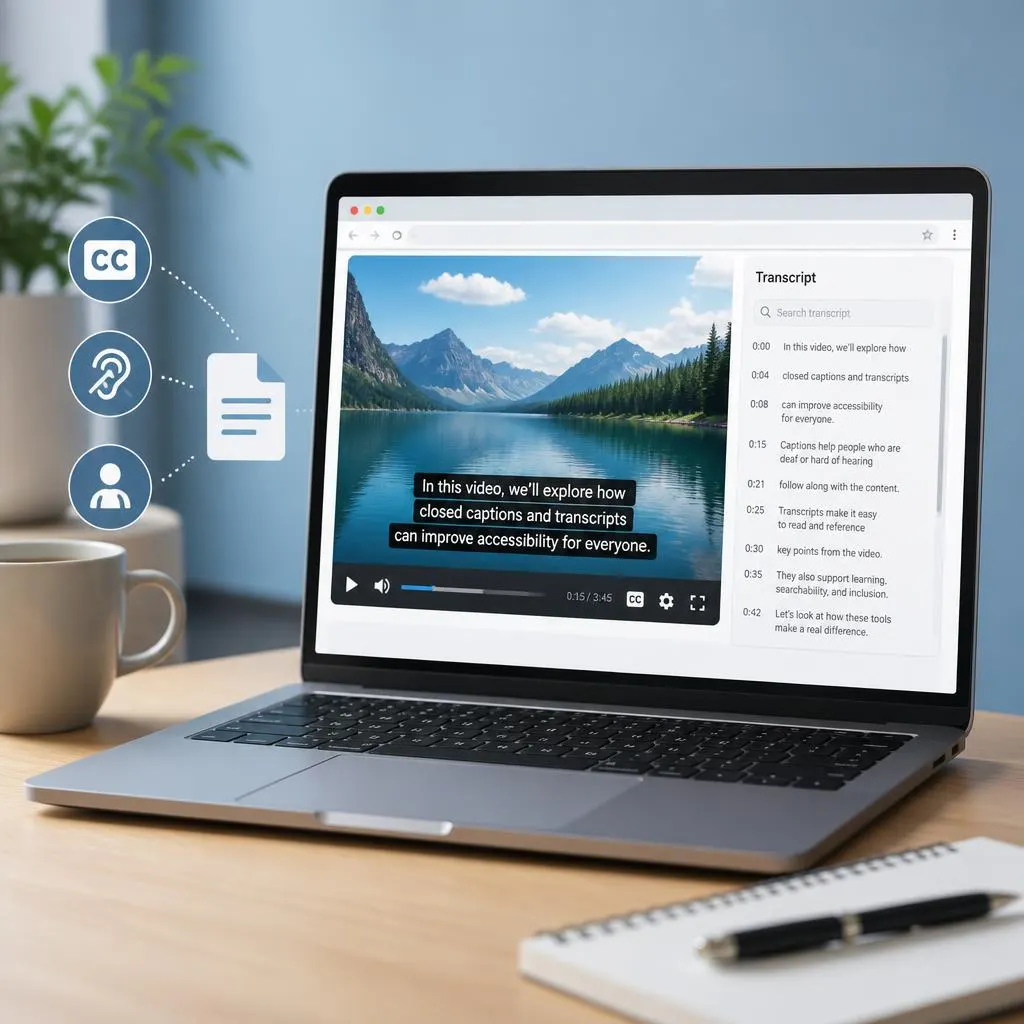
A Chrome closed captioning extension with transcripts helps you read spoken words while watching videos and, with supported tools, save or search the text later. Chrome Live Caption provides real time captions, while extensions such as TubeTranscriber and GetTranscript offer transcript features for supported videos. Choose a tool based on caption accuracy, transcript downloads, website compatibility, and privacy.A Chrome closed captioning extension with transcripts can make online videos easier to follow, understand, and review. Whether you watch educational videos, attend online meetings, learn a new language, or need help understanding spoken content, the right browser extension can provide captions, generate transcripts, or let you revisit important information without replaying an entire video.
However, not every captioning extension offers the same features. Some display live captions while you watch, while others convert speech into downloadable text. A few also support transcript searching, timestamps, and accessibility features.
This guide explains what to look for in a Chrome closed captioning extension with transcripts, how captions differ from transcripts, which features matter most, and how to choose a tool for your needs.
What Is a Chrome Closed Captioning Extension With Transcripts?
A Chrome closed captioning extension with transcripts is a browser add-on or browser-integrated tool that helps display spoken words as text and, when supported, creates a written record of the speech.
Closed captions usually appear directly over a video. They may include dialogue, speaker identification, and meaningful sounds that help viewers understand what is happening. Transcripts present spoken content as readable text, sometimes with timestamps, speaker labels, or searchable sections.
Depending on the extension, you may be able to:
- Read captions while watching videos in Chrome.
- Generate transcripts from supported audio or video.
- Review lessons, interviews, and recorded meetings.
- Search a transcript for a specific word or topic.
- Copy text into study notes.
- Follow spoken content more easily when audio is unclear.
- Improve access to online media for people who are deaf or hard of hearing.
The key difference: captions help you follow speech while watching, whereas transcripts make the spoken content available as a separate text record. Some extensions offer both, but others provide only one feature.
Why Use a Chrome Extension for Captions and Transcripts?
Built in captions can be helpful, but they do not always provide the transcript tools you need. A dedicated extension may add features for studying, reviewing, or working with spoken content across supported websites.
Here are some common reasons to use one.
Accessibility for Deaf and Hard of Hearing Viewers
Accurate captions can make videos more accessible by displaying dialogue and relevant sound information. Captions are particularly useful when a video has background noise, multiple speakers, or audio that is difficult to hear.
For the best experience, look for tools that preserve punctuation, distinguish speakers where possible, and let you adjust text size or contrast.
Easier Learning and Note Taking
Students can use transcripts to revisit a teacher’s explanation, search for a definition, or review a lesson before an exam. A transcript can also help when a speaker explains several complicated ideas quickly.
Instead of replaying a full lecture, you can search the text for a keyword and jump to the relevant part if timestamps are available.
Better Understanding of Unclear Speech
Accents, unfamiliar terminology, fast speech, and poor audio quality can make videos challenging to follow. Captions provide another way to understand the message.
Automatic speech recognition can still make mistakes, especially with names, technical vocabulary, and overlapping voices. Review important details against the original recording.
More Efficient Meeting and Interview Reviews
Transcripts can help users review recorded discussions, interviews, presentations, and training sessions. Depending on the extension and source platform, the transcript may include timestamps or speaker labels.
Always check whether recording, transcription, and exporting are permitted by the meeting platform and the people involved.
Best Chrome Closed Captioning Extensions With Transcripts
The best choice depends on whether you need live captions for accessibility, a searchable transcript for studying, or exportable subtitles for video editing. These options serve different purposes, so check their current features and permissions before installing them.
1. Chrome Live Caption
Best for live captions
Chrome’s built in Live Caption feature generates captions for supported audio and video playing in the browser. Google says audio and captions are processed locally on your device and are not stored or sent away from it. This makes it a useful first option when you mainly need to read speech as you listen.
Best for: accessibility, videos, podcasts, and other browser audio.
Limitation: It is primarily a live captioning feature, not a complete transcript management and export tool.
Official instructions.
Google Chrome Help
Best for study notes
TubeTranscriber offers timestamped YouTube transcripts, text search, interactive playback, filler word removal, and export options. Its Chrome Web Store listing also describes on device AI summaries.
Best for: students, researchers, and people reviewing long educational videos.
Limitation: Its listed features focus on YouTube rather than every website in Chrom.
Best for summaries
SubKun provides readable YouTube transcripts, AI summaries, and a feature for asking questions about a video. Its listing describes transcript downloads and additional features under its paid plan.
Best for: people who want to review a video quickly or turn a lecture into study material.
Limitation: Some capabilities require a paid plan, and its privacy disclosures should be reviewed before .
Best for multiple media platforms
VocaScript describes synchronized subtitles, transcript exports, and support for several media platforms. Its listing also explains that processing may involve third party service providers.
Best for: people who work with transcripts from different types of online media.
Limitation: Check its current site support, privacy settings, and transcription conditions before relying on it.
Best for subtitle files
GetTranscript focuses on exporting available video transcripts in formats such as plain text, Markdown, SRT, VTT, and JSON. It also describes support for accessible transcript data on certain Microsoft Stream recordings.
Best for: video editors, content creators, and people who need text or subtitle files.
Limitation: It cannot generate a full transcript from audio when no accessible captions are available.
Chrome Web Store
These are examples rather than a universal ranking. Features, pricing, supported websites, and extension permissions can change. Always verify the current listing before installation.
Chrome Live Caption vs. a Transcript Extension
Chrome already includes a captioning feature, so you may not need another extension for basic accessibility.
| Feature | Chrome Live Caption | Transcript extension |
|---|---|---|
| Displays speech as you listen | Yes, for supported audio | Depends on the tool |
| Creates a separate readable transcript | Not its main purpose | Often |
| Searches past spoken words | Not a core feature | Sometimes |
| Exports TXT, SRT, or VTT | Not its main purpose | Some extensions |
| Works across different sites | Supports a range of browser audio | Depends on permissions and supported sites |
| Uses local processing | Google documents local processing for Live Caption | Varies by extension |
Google’s instructions explain how to enable Live Caption through Chrome’s accessibility settings.
Which should you choose? Start with Chrome Live Caption if you only want to follow speech. Choose a transcript extension if you also need to save, search, copy, or export spoken content.
How to Turn On Closed Captions in Google Chrome
You can try Chrome’s built in captioning feature before installing a third party extension. The following steps apply to supported desktop versions of Chrome.
Open Chrome, select the three dot menu in the upper right corner, and choose Settings.
Select Accessibility in the settings menu. Look for the Live Caption option.
Switch on Live Caption. Chrome may download the language files required for captioning.
Play supported media and look for the caption bubble. You can move the bubble to a convenient position.
For the latest instructions and supported languages, consult
What if Chrome Live Caption Does Not Work?
Try these troubleshooting steps:
- Make sure Live Caption is enabled in Accessibility settings.
- Turn up the media volume and confirm the video is actually playing audio.
- Check whether the spoken language is supported and download its language pack if needed.
- Update Chrome to a current version.
- Test a different video to determine whether the problem affects one website or all media.
- If you need a saved transcript rather than a live caption bubble, try a transcript tool that supports the website.
Remember that live captions and saved transcripts are different features. Turning on Live Caption does not automatically mean you can download a complete transcript.
What Features Should a Good Captioning Extension Have?
The right extension should match your reason for using captions. These features can help you compare options without getting distracted by unnecessary extras.
Accurate Speech Recognition
Look for readable punctuation, correct sentence breaks, and support for the languages you need. Automatic transcription is not perfect, so check names, numbers, and specialized terminology.
Searchable, Timestamped Transcripts
A timestamped transcript helps you find a particular moment without searching through the entire video manually. Search functionality is particularly valuable for lectures, tutorials, interviews, and webinars.
Transcript Copying and Export
If you plan to create notes or edit subtitles, check whether the extension lets you copy the transcript or export it as a file.
Common formats include:
- TXT for simple notes and documents.
- SRT for many video editing and subtitle workflows.
- VTT for web video captions.
- Markdown for structured notes.
- JSON for structured text and software workflows.
Not every extension supports every format. Choose the formats that fit your intended use.
Language and Translation Support
Some tools recognize speech in multiple languages, while others offer translation as an additional feature. Caption language, transcript language, and translation language are not necessarily the same.
If you regularly watch videos in another language, verify that the extension supports the source language and the language into which you want to translate.
Privacy and Permission Controls
An extension may need access to a video page, audio, transcript data, or an external transcription service. Some process data locally, while others send information to remote servers.
Before installing, check:
- Which websites the extension can access.
- Whether audio or transcripts leave your device.
- Whether the developer stores transcripts or account information.
- Whether third party AI services process your content.
- Whether the requested permissions match the advertised features.
The Chrome Web Store provides accessibility and privacy guidance for users evaluating browser tools.
How to Choose an Extension for Your Specific Needs
Different users need different captioning features. Use these recommendations as a starting point.
For deaf and hard of hearing viewers
Start with accurate live captions, adjustable readability where available, and support for relevant speech and sound information. Chrome Live Caption is a sensible first option for supported audio.
For students and teachers
Choose timestamped transcripts, text search, copying, and note taking features. Summaries can help with revision, but check the original video for exact wording.
For video creators
Look for subtitle exports, speaker labels, editing compatibility, and the ability to review or correct recognition errors before publishing.
For language learners
Prioritize readable captions, timestamps, repeat listening, and language support. Comparing the spoken audio with the transcript can help you learn unfamiliar vocabulary.
For confidential meetings
Prefer a tool with clear data handling policies and suitable local processing or approved organizational controls. Confirm that you have permission to transcribe the conversation.
How to Install a Chrome Captioning Extension Safely
Installing an extension is straightforward, but reviewing its permissions first can prevent unwanted access to your data.
- Open the officialcrome web store.
- Search for the extension by its exact name.
- Read the description and verify that it supports your video platform and transcript requirements.
- Check recent updates, user reviews, the developer’s identity, and the privacy disclosures.
- Select Add to Chrome if you decide to install it, and review the permissions Chrome displays.
- Open a supported video, activate the extension, and test both captions and transcript features.
- Remove the extension if it requests unnecessary access or does not meet your needs.
Avoid installing extensions from unfamiliar download websites when an official store listing is available. Also remember that an extension’s privacy statements are developer disclosures, not a guarantee that every aspect of its implementation has been independently verified.
Common Problems With Chrome Captioning Extensions
Even a useful extension can fail on particular videos or websites. Understanding the likely cause can save time.
The Video Has No Captions
Some transcript tools extract existing caption tracks rather than generating new speech recognition. If a video has no accessible captions, such a tool may not produce a transcript.
Look for an extension that explicitly supports transcription from audio when captions are missing.
Captions Appear but Cannot Be Saved
A live caption feature may display text temporarily without offering a complete downloadable transcript. You need a tool that explicitly supports transcript copying or export if you want a permanent text record.
The Transcript Contains Errors
Automatic transcription can misinterpret names, accents, technical words, or overlapping speakers. Replay the relevant section and correct the text before using it for important work.
The Extension Does Not Work on Every Website
Browser extensions often support selected platforms or particular video players. Check the supported sites before assuming that an extension will work on every tab.
Captions Are Delayed or Difficult to Read
Speech recognition can introduce delays. Overly small text, poor contrast, or rapid dialogue can also reduce readability. Try adjusting available caption settings or testing a different captioning method.
A Paid Feature Is Locked
Some extensions offer basic transcripts for free but charge for AI transcription, summaries, higher usage limits, or downloads. Check the current pricing and free usage limits before building your workflow around one tool.
Closed Captioning and Transcript Accessibility Tips
A transcript is useful, but accessible video content requires more than converting speech into text. If you create videos, online lessons, or training materials, keep these practices in mind.
- Review captions for accuracy. Correct errors that change the meaning of the speaker’s words.
- Include meaningful sound information. Captions should communicate relevant sounds, such as a warning alarm or a loud crash, when those sounds help viewers understand the content.
- Identify speakers when necessary. Speaker labels can make conversations easier to follow, particularly when voices sound similar.
- Make captions readable. Use appropriate text size, contrast, timing, and line breaks.
- Keep captions synchronized. Captions should appear close to the moment the corresponding speech occurs.
- Check the final video. Automated transcription may miss important words, punctuation, and sound cues.
A transcript can provide a valuable text alternative, but it does not automatically replace synchronized captions. Viewers who rely on captions may need access to the text while the video plays.
FAQs
1. What is the best Chrome closed captioning extension with transcripts?
The best option depends on your goal. Chrome Live Caption is useful for live speech captions. Tools such as TubeTranscriber focus on searchable video transcripts, while GetTranscript emphasizes exporting available captions into different text and subtitle formats.
2. Does Google Chrome have a built in closed captioning feature?
Yes. Chrome includes Live Caption, which generates captions for supported audio and video. You can enable it under Settings, then Accessibility. Availability and supported languages can vary by platform and version.
3. Can I get a full transcript from a YouTube video in Chrome?
Yes, when the video has accessible captions or the extension can transcribe its audio. Some extensions display timestamps, let you search the transcript, and offer copying or downloads. The available features depend on the tool and video.
4. Are Chrome Live Captions the same as a transcript?
No. Live Caption displays recognized speech as you listen. A transcript is a separate text record that you can read, search, or save if the tool supports those actions.
5. Can Chrome extensions create transcripts when a video has no captions?
Some can. They use speech recognition to generate a transcript from the audio. Others only extract existing caption tracks and cannot create new ones. Check the extension’s description before installing it.
6. Are closed captioning extensions free?
Some are free, while others offer free basic features and paid upgrades. Premium features may include AI transcription, unlimited usage, summaries, translation, or file exports. Check the current pricing on the official listing.
7. Can I download captions as an SRT file?
Yes, if the extension supports SRT export. SRT files contain timed subtitle entries that many video editors and media players can use. Some extensions offer only plain text or VTT exports.
8. Do Chrome captioning extensions work on every website?
No. Chrome Live Caption supports a range of browser audio, but individual extensions may be limited to specific websites, video players, or media types. Verify platform compatibility before installing a tool.
9. Are Chrome closed captioning extensions safe?
Safety depends on the developer, permissions, and data practices. Review the privacy policy, check which sites the extension can access, and determine whether audio or transcripts are sent to external services. Avoid giving an extension broader permissions than its features reasonably require.
10. Can I use captions to learn English?
Yes. Captions can help you connect spoken words with written language, recognize unfamiliar vocabulary, and follow pronunciation. A transcript with timestamps makes it easier to replay difficult sentences and review new expressions.
11. Can a transcript extension help with online meetings?
Some tools support meeting recordings or particular conferencing platforms, but compatibility varies. Check whether the extension works with your meeting service and whether your organization permits its use. Obtain any required consent before recording or transcribing a conversation.
12. Do transcripts always include speaker names and sound effects?
No. Speaker identification and sound descriptions depend on the source captions and the extension’s capabilities. Automatic speech recognition may identify dialogue without reliably describing non speech sounds. Review the output when accessibility is important.
Conclusion
A Chrome closed captioning extension with transcripts can make online content easier to understand, review, and reuse. Start with Chrome Live Caption if you need immediate speech captions. If you want searchable text, timestamps, or downloadable files, choose an extension that specifically offers those features.
Before making your choice, check platform compatibility, transcription accuracy, export options, and privacy practices. The right tool should make spoken content more accessible without creating unnecessary work or exposing information you want to keep private.