
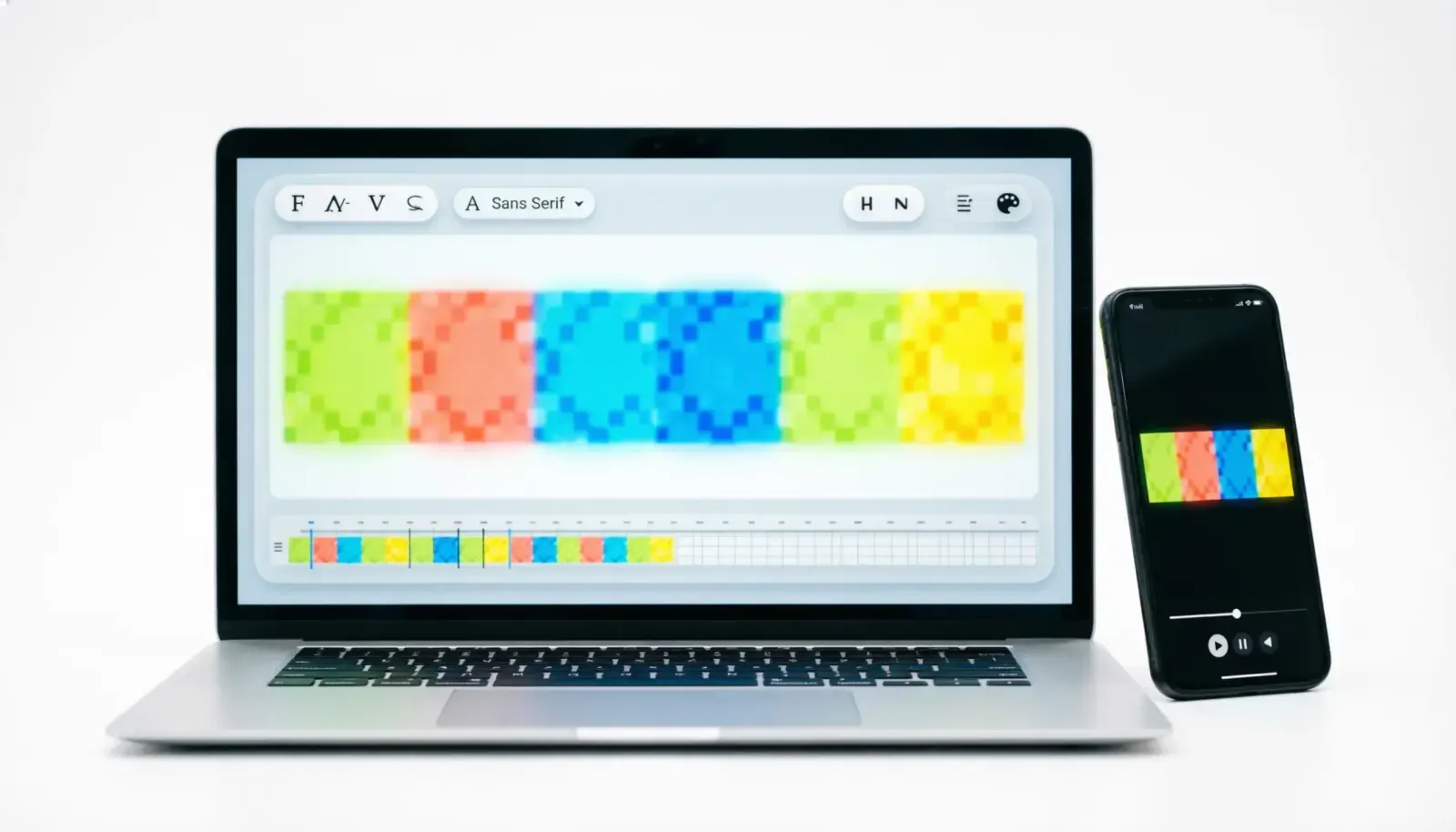
GIFs have become one of the most popular ways to communicate online. Whether you’re replying to a funny message, sharing a reaction on social media, or creating marketing content, adding a caption to a GIF can make it even more engaging. A well-written caption adds context, delivers your message clearly, and helps your GIF stand out on platforms like Instagram, Facebook, X, WhatsApp, Discord, Reddit, and more.
If you’re searching for how to add caption to GIF, you’ve come to the right place. This guide explains multiple ways to caption a GIF using online tools, mobile apps, desktop software, and built-in editing features. You’ll also discover best practices, common mistakes to avoid, and plenty of ready-to-use GIF caption examples.
Quick Answer: How Do You Add a Caption to a GIF?
The easiest way to add a caption to a GIF is by using an online GIF editor or a mobile editing app.
The basic process is simple:
- Upload your GIF.
- Select the Text tool.
- Type your caption.
- Adjust the font, size, color, and position.
- Save or export the edited GIF.
Most modern GIF editors let you customize your caption without affecting the animation.
What Does “Add Caption to GIF” Mean?
Adding a caption to a GIF means placing text directly onto an animated GIF. The caption may stay visible throughout the animation or appear only during specific frames.
People add captions to GIFs for many reasons:
- Explain a reaction.
- Make memes funnier.
- Add subtitles.
- Create social media content.
- Improve accessibility.
- Personalize messages.
- Increase engagement.
A short caption often turns a simple GIF into something memorable and shareable.
Why Add Captions to GIFs?
A caption does much more than add text. It gives your GIF meaning and helps viewers understand the message immediately.
Benefits include:
- Makes reactions clearer.
- Adds humor.
- Improves storytelling.
- Increases social media engagement.
- Makes GIFs more accessible.
- Helps viewers understand silent animations.
- Creates branded content.
Even a few words can completely change the tone of a GIF.
Best Ways to Add a Caption to a GIF
There isn’t just one method. The best option depends on your device and editing needs.
Popular methods include:
- Online GIF editors
- Mobile GIF editing apps
- Desktop editing software
- Social media editing tools
- Meme generators
- Video editors that support GIF export
Most users prefer online editors because they require no installation and work in any modern browser.
How to Add a Caption to a GIF Online
Online GIF editors are ideal if you want a quick solution.
Follow these steps:
- Open a GIF editing website.
- Upload your GIF.
- Select the text option.
- Type your caption.
- Customize the font and colors.
- Position the text.
- Preview the animation.
- Download the finished GIF.
Many online editors also allow you to:
- Add multiple text boxes.
- Animate text.
- Change background colors.
- Add stickers or emojis.
- Resize the GIF for social media.
How to Add a Caption to a GIF on iPhone
If you’re using an iPhone, several editing apps make the process simple.
General steps:
- Save the GIF to your Photos app.
- Open a GIF editing app.
- Import the GIF.
- Tap the Text option.
- Write your caption.
- Adjust the text style.
- Save the edited GIF.
Some apps even let you animate the text separately for a more dynamic effect.
How to Add a Caption to a GIF on Android
Android users can also caption GIFs using editing apps available on the Play Store.
Typical steps include:
- Open a GIF editor.
- Import your GIF.
- Add a text layer.
- Customize the font.
- Move the caption where it looks best.
- Export the new GIF.
Many Android apps support:
- Shadow effects
- Outline text
- Animated captions
- Multiple fonts
- Emoji support
How to Add a Caption to a GIF on Windows
Desktop editing provides greater control over your GIF.
Basic process:
- Open a GIF editing program.
- Import your GIF.
- Insert a text layer.
- Style the caption.
- Preview the animation.
- Export the finished GIF.
Desktop software is useful for:
- Marketing graphics
- Business presentations
- Educational content
- Professional memes
- Social media campaigns
How to Add a Caption to a GIF on Mac
Mac users can edit GIFs using browser-based tools or dedicated applications.
The workflow is nearly identical:
- Upload the GIF.
- Add text.
- Customize the appearance.
- Export the animation.
Many Mac-friendly editors also support transparent GIF backgrounds and high-quality exports.
Best Online Tools to Add Captions to GIFs
Many websites allow you to edit GIFs without installing software.
Popular types of tools include:
- GIF makers
- Meme generators
- Image editors
- Online animation editors
- Social media design platforms
When choosing an editor, look for features such as:
- Easy text editing
- High-quality GIF export
- Multiple font options
- Drag-and-drop interface
- No watermark (if possible)
- Fast processing
Tips for Writing Better GIF Captions
A great caption should enhance the GIF instead of distracting from it.
Keep these tips in mind:
Keep It Short
Most GIFs loop quickly. A short caption is easier to read before the animation repeats.
Match the Emotion
Your caption should reflect the feeling shown in the GIF.
Funny GIFs deserve funny captions.
Reaction GIFs need expressive text.
Celebration GIFs work best with positive captions.
Choose Readable Fonts
Avoid decorative fonts that are difficult to read.
Simple fonts usually perform better.
Use High Contrast
Make sure your text stands out from the background.
White text with a dark outline is a popular choice.
Don’t Cover Important Parts
Place the caption where it won’t hide faces or important actions.
Common Mistakes to Avoid
Many first-time editors make simple mistakes that reduce the quality of their GIF.
Avoid these problems:
- Writing captions that are too long.
- Using fonts that are difficult to read.
- Choosing colors that blend into the background.
- Covering important parts of the animation.
- Using too many text effects.
- Saving the GIF with low quality.
- Forgetting to preview the animation before exporting.
A clean, simple caption almost always looks more professional.
Add a Caption to a GIF for Instagram
Instagram is one of the most popular places to share GIFs through Stories, Reels, Direct Messages, and posts. Adding a caption helps your audience understand the message instantly and makes your content more engaging.
To caption a GIF for Instagram:
- Create or edit your GIF using a GIF editor.
- Add your text before exporting.
- Save the edited GIF or convert it to a short video if needed.
- Upload it to Instagram.
- Add your post caption or Story text if you want additional context.
For Instagram, keep your GIF caption:
- Short
- Funny
- Easy to read
- Centered around the main action
Add a Caption to a GIF for Facebook
Facebook supports GIF sharing in posts, comments, and Messenger.
For the best results:
- Use clear, bold text.
- Avoid very small fonts.
- Keep captions under one sentence.
- Use colors that stand out against the GIF.
A simple caption often performs better than a long explanation.
Add a Caption to a GIF for WhatsApp
GIFs make WhatsApp conversations more fun and expressive.
To add a caption:
- Edit the GIF before sending it.
- Save the updated version.
- Share it in your chat.
- Add a message underneath if you want extra context.
Short captions work best because they are easier to read on mobile devices.
Add a Caption to a GIF for Discord
Discord users often share reaction GIFs during conversations.
Great Discord GIF captions include:
- Same here.
- I saw that coming.
- Me every Monday.
- Mission accomplished.
- Mood unlocked.
- That’s enough internet today.
Keep captions lighthearted and easy to understand.
Add a Caption to a GIF for Reddit
Reddit communities appreciate creative but simple GIF captions.
Before posting:
- Match the subreddit rules.
- Keep captions relevant.
- Avoid clickbait.
- Stay respectful.
A funny but natural caption usually gets more positive reactions than an overly dramatic one.
Best Apps to Add Captions to GIFs
If you edit GIFs regularly, installing a dedicated app can save time.
Look for apps that include:
- Text overlays
- Animated fonts
- Multiple font styles
- Color customization
- Stroke and shadow effects
- High-quality GIF export
- Watermark-free downloads
- Easy sharing to social media
Many modern editing apps also let you combine stickers, emojis, and text into a single animated GIF.
How to Make Your GIF Captions Stand Out
A great caption doesn’t just explain the GIF. It improves it.
Follow these simple tips:
Use Simple Language
Short, natural wording is easier to read than long sentences.
Match the Timing
If your editor allows frame-by-frame editing, make the caption appear at the perfect moment.
Think About Mobile Users
Most people view GIFs on their phones.
Use:
- Larger fonts
- Strong contrast
- Short lines
- Clear spacing
Stay Consistent
If you’re creating content for a brand, use the same colors, fonts, and style across all GIFs.
Consistency helps people recognize your content.
Accessibility Tips for GIF Captions
Captions don’t only improve entertainment. They also help make your content more accessible.
Consider these best practices:
- Use readable fonts.
- Avoid flashing text.
- Keep captions large enough to read.
- Use high color contrast.
- Give viewers enough time to read each caption.
- Avoid placing text over busy backgrounds.
Accessible GIFs reach a wider audience and provide a better viewing experience.
GIF Caption Ideas
Need inspiration? Here are ready-to-use captions for your next animated GIF.
Funny GIF Captions
These captions work well for reaction GIFs and humorous posts.
- Same energy every Monday.
- That wasn’t part of the plan.
- Mission failed successfully.
- Me pretending everything is fine.
- Current mood unlocked.
- This explains everything.
- I tried my best.
- Zero regrets.
- Life keeps surprising me.
- Why am I like this?
Cute GIF Captions
Use these captions for happy moments and adorable animations.
- Smiles look good on everyone.
- Sending positive vibes.
- Happiness delivered.
- Today feels amazing.
- You made my day.
- Little moments matter.
- Stay kind.
- Keep smiling.
- Life feels brighter today.
- Good vibes only.
Reaction GIF Captions
Perfect for replies and conversations.
- Exactly my reaction.
- Couldn’t agree more.
- That says it all.
- Speechless.
- You read my mind.
- I knew it.
- Absolutely.
- Not again.
- That’s impressive.
- Here we go again.
Social Media GIF Captions
Great for Instagram, Facebook, Threads, and X.
- Mood for today.
- Weekend energy.
- Just living life.
- One GIF says it all.
- Today’s highlight.
- Another unforgettable moment.
- This deserves a replay.
- Feeling unstoppable.
- Smiling through the chaos.
- Here’s today’s vibe.
Common GIF Caption Problems and Solutions
Even experienced creators run into issues when editing GIFs.
The Text Looks Blurry
Try using:
- Higher export quality.
- Larger font sizes.
- Better resolution.
The Caption Covers Important Details
Move the text:
- To the top.
- To the bottom.
- Into unused space.
The GIF File Is Too Large
Reduce:
- Dimensions.
- Frame rate.
- Animation length.
Many editors also include compression tools.
The Caption Doesn’t Match the GIF
Before exporting, ask yourself:
- Does the caption fit the emotion?
- Is it easy to understand?
- Would someone reading it immediately understand the joke or message?
If not, rewrite it with fewer words.
GIF Caption Examples for Different Occasions
The right caption depends on the mood, audience, and platform. Below are more copy-and-paste GIF captions you can use or customize for your own animated images.
Funny GIF Caption Examples
These captions are perfect for memes, reaction GIFs, and lighthearted posts.
- That’s exactly how I feel.
- Well, that happened.
- Plot twist unlocked.
- Me every single morning.
- I wasn’t ready for that.
- Still processing.
- Mission accomplished.
- This never gets old.
- Living for moments like this.
- Mood activated.
Motivational GIF Captions
Use these captions for inspirational animations and positive social media posts.
- Small steps lead to big results.
- Keep moving forward.
- Believe in yourself.
- Progress is progress.
- Every day is a fresh start.
- Stay focused.
- Success begins with action.
- Dream big, work hard.
- Keep smiling through the journey.
- Your next opportunity is closer than you think.
Business and Marketing GIF Captions
Businesses can use GIFs to attract attention while keeping their message short and memorable.
- New product just dropped.
- Limited-time offer.
- Big news coming soon.
- Thank you for your support.
- Stay tuned for more.
- Don’t miss out.
- We’re excited to share this.
- Your favorite deal is back.
- Fresh updates are here.
- Let’s make today productive.
Celebration GIF Captions
Perfect for birthdays, achievements, holidays, and special moments.
- Time to celebrate.
- Cheers to new beginnings.
- Every win deserves a celebration.
- Here’s to another milestone.
- Today is worth remembering.
- Celebrate every little victory.
- Happiness looks good on you.
- Good times start now.
- Another reason to smile.
- Let’s make memories.
Best Practices for Creating Engaging GIF Captions
Whether you’re creating GIFs for personal use, social media, or marketing campaigns, following a few best practices can make a noticeable difference.
Keep Your Message Clear
A caption should support the animation, not compete with it. Use simple words that people can understand instantly.
Focus on Readability
Choose fonts that are clean and easy to read. Avoid using too many colors or decorative effects that make the text difficult to see.
Match the Caption to the Animation
Your text should reflect what’s happening in the GIF. Funny animations deserve playful captions, while informative GIFs benefit from clear and direct wording.
Optimize for Mobile Screens
Most GIFs are viewed on smartphones, so use larger text and avoid placing captions too close to the edges.
Test Before Sharing
Always preview your GIF before posting it. Check that the animation loops smoothly, the caption is readable, and nothing important is hidden.
Frequently Asked Questions
Can I add a caption to any GIF?
Yes. Most GIF editing tools allow you to upload an existing GIF and add custom text before exporting it.
What’s the easiest way to add a caption to a GIF?
Using an online GIF editor is usually the fastest option. Upload the GIF, add your text, customize the design, and download the edited version.
Can I change the font and color of my caption?
Yes. Most GIF editors let you customize the font style, size, color, outline, alignment, and position.
Will adding text reduce GIF quality?
Not if you use a good-quality editor and export the GIF using appropriate settings. Choosing a low-quality export option may reduce image clarity.
Can I add multiple captions to one GIF?
Yes. Many editors allow multiple text layers, making it easy to display different captions during different parts of the animation.
Are GIF captions useful for accessibility?
Yes. Captions provide context for viewers and can make animated content easier to understand, especially when there is no audio or when the message depends on visual cues.
Can I use captioned GIFs on social media?
Absolutely. Captioned GIFs work well on platforms like Instagram, Facebook, X, Threads, Discord, Reddit, WhatsApp, Slack, and many others.
Conclusion
Knowing how to add a caption to a GIF allows you to create more engaging, informative, and entertaining content. Whether you’re making a funny meme, responding with a reaction GIF, promoting your business, or sharing content on social media, the right caption can make your animation more memorable.
Keep your captions short, easy to read, and relevant to the animation. With the wide range of online tools and editing apps available today, anyone can create professional-looking GIFs in just a few minutes.
Experiment with different fonts, colors, and styles until you find a look that matches your personality or brand. A simple caption often has the biggest impact.