
Quick Answer:
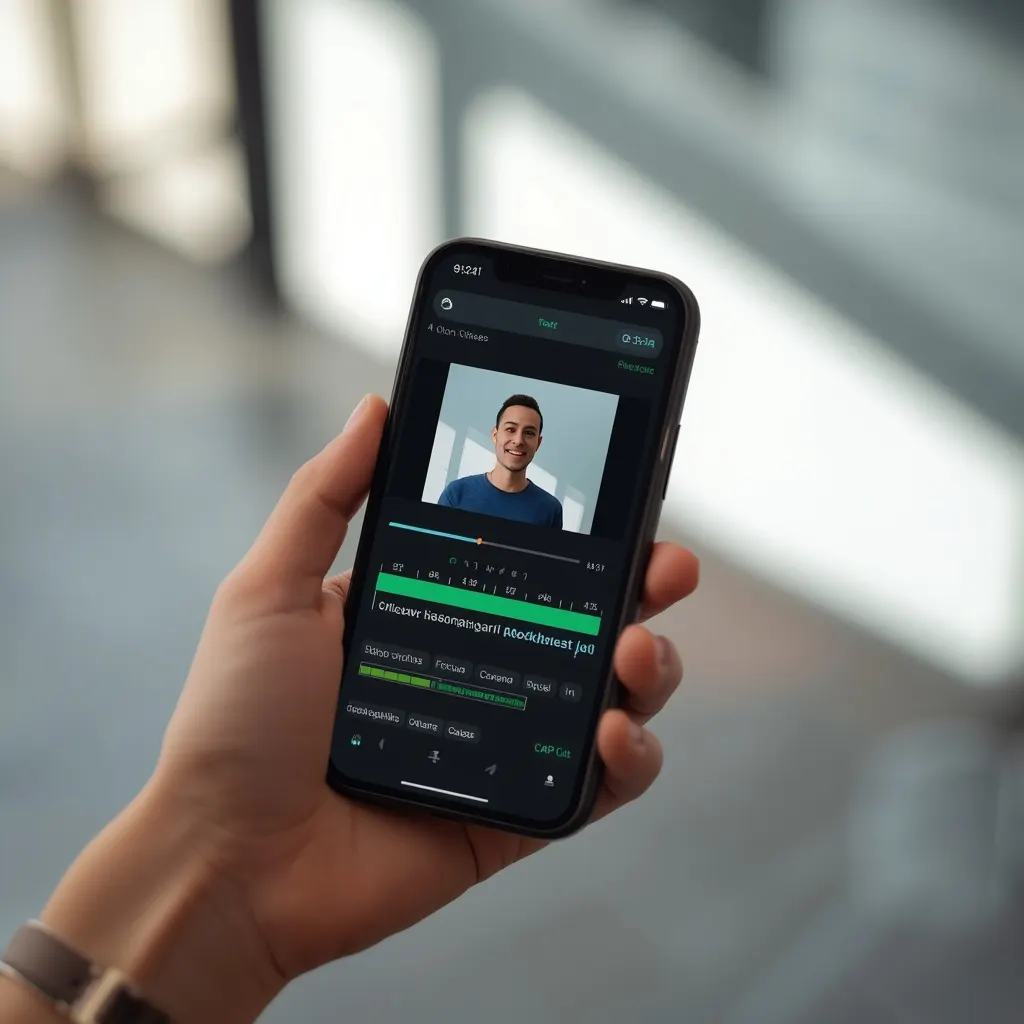
CapCut auto captions let you automatically turn spoken words in your videos into on-screen subtitles. Simply upload your video, select Auto Captions, choose the language, and generate the text. You can then correct mistakes, customize fonts and colors, add animations, and adjust subtitle timing to create eye-catching captions that make your videos easier to follow and more engaging.
CapCut auto captions make it easier to turn spoken words into subtitles for videos without typing every sentence manually. Whether you create Instagram Reels, TikTok videos, YouTube Shorts, tutorials, or talking head content, automatic captions can help viewers follow your message, even when they watch with the sound off.
CapCut uses speech recognition to generate captions from your video’s audio. You can then correct mistakes, adjust timing, change text styles, and position subtitles to match your content. The process is straightforward once you know where to find the right tools.
This guide explains how to use CapCut auto captions on mobile and desktop, fix transcription errors, customize subtitle styles, troubleshoot common problems, and export videos with captions that look clean and professional.
What Are CapCut Auto Captions?
CapCut auto captions are automatically generated subtitles that convert spoken dialogue into on screen text. Instead of entering every word manually, you let CapCut analyze the audio and create individual caption segments.
You can review the generated text, edit incorrect words, change fonts and colors, and adjust how long each caption appears.
Auto captions are particularly useful for:
- Instagram Reels and TikTok videos.
- YouTube Shorts and longer YouTube videos.
- Educational videos and online tutorials.
- Interviews, podcasts, and talking head content.
- Product demonstrations and social media advertisements.
- Videos recorded in noisy environments, provided the speech remains understandable.
Automatic transcription is not always perfect. Names, accents, technical terms, background music, and unclear speech can lead to errors, so always review the captions before publishing.
How to Add Auto Captions in CapCut
The exact buttons and menus may vary depending on your device and CapCut version, but the general process is similar across supported versions.
Step 1: Open CapCut and Import Your Video
Open CapCut on your phone, tablet, or computer. Start a new project and select the video you want to edit.
If your video contains multiple clips, arrange them in the correct order before generating captions. This makes it easier to review the subtitles against the finished edit.
Step 2: Find the Auto Captions Tool
Look for the Captions or Text section in the editing interface. On mobile, you can commonly find an Auto Captions option in the bottom editing toolbar. Desktop layouts may organize the feature differently.
Select the automatic captioning option to begin.
Step 3: Choose the Spoken Language
Select the language that matches the speech in your video. Depending on your version, you may also see options for selecting an audio source or configuring caption generation.
Choosing the correct language improves the chances of accurate transcription. If your video switches between languages, check whether your version supports the language combination you need.
Step 4: Generate the Captions
Tap or click the Generate, Start, or equivalent confirmation button.
CapCut will analyze the audio and create subtitle segments along the editing timeline. Processing time depends on the video’s length, your device, and the available processing method.
Step 5: Review and Correct the Text
Play the video from beginning to end while reading the subtitles.
Correct misspelled words, missing punctuation, incorrect names, and phrases that do not match the speaker. Pay particular attention to the opening seconds because viewers often decide quickly whether to keep watching.
Step 6: Customize the Caption Style
Choose a readable font, suitable text size, and contrasting color. You can also explore outlines, backgrounds, animations, and other styling options available in your version.
Keep the design consistent across the video. Captions should make the speech easier to understand rather than compete with the visuals.
Step 7: Export Your Finished Video
Preview the complete edit, confirm that the captions match the speech, and export the video using the resolution and frame rate appropriate for your project.
For most social media videos, make sure the subtitles remain visible within the platform’s viewing area and do not overlap important faces, buttons, or on screen graphics.
How to Use CapCut Auto Captions on Mobile, Desktop, and Web
CapCut offers captioning options across supported platforms, but the layout and available controls can differ. Choose the instructions that match the device you use to edit videos.
CapCut Auto Captions on iPhone and Android
The mobile app is convenient if you record and edit videos directly on your phone.
- Open CapCut and create a new project.
- Import your video and open the editing timeline.
- Find Captions or the corresponding Auto Captions option.
- Choose the spoken language and audio source if prompted.
- Tap Generate or Start and wait for processing.
- Tap the generated caption segments to correct text and adjust their appearance.
- Preview the video and export it when everything looks right.
If you cannot find the Captions option, check the available tools in your editing toolbar. The menu arrangement may change after app updates. CapCut’s official provides additional platform specific instructions.
CapCut Auto Captions on Desktop
Desktop editing is useful when you need to review longer videos, manage a detailed timeline, or make precise adjustments with a keyboard.
Follow these steps:
- Launch CapCut Desktop and open your project.
- Import your video and place it on the timeline.
- Open the Text or Captions section.
- Select Auto Captions.
- Choose the correct spoken language and audio source.
- Generate the captions and wait for the text segments to appear.
- Select individual segments to edit their wording, timing, and style.
- Review the full video and export your final edit.
Desktop versions may provide additional timeline and subtitle management controls. The exact tools depend on the installed version and region.
CapCut Auto Captions Online
You can also create subtitles in CapCut’s web editor without installing the desktop application.
- Open the cap cut
- Sign in if required and start or open a project.
- Upload your video.
- Open Captions in the editor’s sidebar.
- Select Auto Captions or Recognise.
- Choose the spoken language and generate the subtitles.
- Correct transcription errors and customize the captions.
- Export the finished video.
Because web editing depends on browser performance and internet access, keep your connection stable while uploading, processing, and exporting.
How to Make CapCut Auto Captions Look Professional
Accurate subtitles are only part of a polished video. Good caption design makes the text easier to read without distracting viewers from the speaker or the action.
1. Choose a readable font
Use a simple font with clear letter shapes. Decorative fonts might suit a short title, but they often make long subtitles harder to read.
2. Create strong contrast
White text with a dark outline or subtle background works across many video scenes. Test the captions against both light and dark footage.
3. Keep each caption manageable
Break long sentences into natural phrases. Two short lines are usually easier to follow than a large block of text.
4. Use animation sparingly
Word highlighting and simple entrance effects can emphasize speech. Avoid excessive movement that makes viewers work harder to read.
Best Caption Styles for Different Videos
Your caption style should support the video’s purpose rather than follow every trend.
- Talking head videos: Use clean, high contrast subtitles with consistent placement.
- TikTok and Reels: Try bold, readable text with restrained word highlighting.
- YouTube tutorials: Prioritize clarity and keep captions visible long enough to read.
- Podcasts: Use simple subtitles that distinguish speakers when needed.
- Travel and lifestyle videos: Choose a clean, understated style that complements the footage.
- Funny videos: Highlight a punchline when it helps the joke land, but keep the full dialogue accurate.
- Educational videos: Use consistent formatting and avoid covering important demonstrations or diagrams.
How to Apply a Consistent Style to Multiple Captions
If every subtitle has a different font or color, your video can feel unfinished. Where your version supports batch styling, select multiple caption segments or use the option to apply a style to all captions.
Set the font, size, color, and position first. Then play several sections to confirm the style remains readable across different scenes. Some advanced editing options may differ between mobile, desktop, and web.
How to Edit and Fix CapCut Auto Captions
Automatic captions can save time, but reviewing the transcript is essential. Speech recognition can misunderstand words that sound similar, especially when people speak quickly or use unfamiliar terminology.
Correct Words That CapCut Misheard
Select the caption segment containing the error and edit the text. Listen to the original audio before changing the wording, particularly when the sentence could have more than one meaning.
Check these details:
- Names of people, brands, places, and products.
- Numbers, prices, dates, and measurements.
- Technical terms and abbreviations.
- Contractions and punctuation.
- Words spoken with strong regional accents.
- Sentences containing background music or overlapping voices.
Adjust Caption Timing
If a subtitle appears too early or remains on screen after the speaker finishes, adjust its timing using the available timeline controls.
Make sure the text appears close to the start of the spoken phrase and disappears when the phrase ends. Avoid displaying a long sentence all at once if the speaker delivers it slowly.
For a natural result, review captions at normal playback speed rather than relying only on the timeline.
Fix Captions That Are Too Long
Long caption segments can cover a large part of the screen and become difficult to read. Divide them into smaller, meaningful phrases when the editor allows it.
For example, a sentence explaining three steps might work better as three separate caption segments than as one continuous paragraph.
Keep each phrase grammatically natural. Breaking a sentence at an awkward point can make the subtitles confusing even when every word is correct.
Translate Captions Into Another Language
CapCut offers bilingual subtitle workflows in supported versions and regions. These can help creators add translated captions to videos for audiences who speak different languages.
To try this feature:
- Open your video project.
- Find Auto Captions or the bilingual caption option.
- Choose the original spoken language.
- Select the target translation language if the option is available.
- Generate the subtitles and review both versions.
- Correct names, expressions, and phrases that do not translate naturally.
Machine translation can miss humor, cultural references, and context. Review the translated text before publishing, especially for educational, commercial, or sensitive content.
Why Are CapCut Auto Captions Not Working?
If captions fail to generate, appear in the wrong language, or stop processing, check the following common causes. CapCut’s official troubleshooting guidance identifies audio quality, language settings, connectivity, and software issues as possible reasons.
Auto captions keep loading
Try a stable internet connection, wait for processing to finish, and retry if the operation fails. Restart the editor if necessary.
Captions appear in the wrong language
Reopen the caption settings and choose the language actually spoken in the video. Generate the captions again if needed.
CapCut misses words
Check the audio volume, reduce background noise if possible, and ensure the speech is clear. Correct the remaining errors manually.
The Auto Captions option is missing
Update CapCut, inspect the Text or Captions menu, and check whether the feature is available in your version or region.
Captions disappear after editing
Check whether the subtitle clips remain on the timeline and whether they extend across the correct part of the video. Preview the project before exporting.
If the problem continues, reopen the project, check for an app update, and retry with a short test video. This can help determine whether the issue comes from the original file or the editing setup.
How to Export a Video With CapCut Auto Captions
Once your subtitles look correct, you need to decide how you want them to appear in the finished video.
Export With Captions Visible in the Video
For Instagram Reels, TikTok, and YouTube Shorts, you can export the video with captions visually embedded in the footage. This is often called burned in captions.
Before exporting:
- Review every caption for spelling and timing errors.
- Check that the subtitles do not cover faces or important visuals.
- Preview the beginning and end of the video.
- Select your preferred resolution and frame rate.
- Export and watch the saved file to confirm that the captions appear correctly.
This approach makes the text visible wherever the video plays, without requiring a separate subtitle file.
Export Separate Subtitle Files
If you need editable subtitle text for another video editor or publishing workflow, check whether your CapCut version supports subtitle export.
CapCut’s available subtitle import and export options can vary by platform. Its documentation specifically describes importing SRT subtitle files through the desktop and web editors. Check the current interface before relying on a particular export option.
A separate subtitle file is useful when you need to adjust subtitles independently of the video or prepare captions for a compatible publishing platform.
Common Mistakes to Avoid With Automatic Captions
Even a well generated transcript can look unprofessional if you skip the final review. Avoid these mistakes when preparing your next video.
- Trusting every generated word: Listen to the audio and correct errors before publishing.
- Using text that is too small: Check readability on a phone screen, not just on your computer.
- Choosing low contrast colors: Ensure the words remain visible against changing backgrounds.
- Adding too many effects: Keep animations subtle enough that viewers can follow the dialogue.
- Ignoring caption timing: Synchronize each phrase with the speaker’s actual words.
- Covering important content: Leave faces, demonstrations, and key on screen details unobstructed.
- Skipping the export preview: Watch the saved video to catch mistakes that may not be obvious in the editor.
- Forgetting translated text needs review: Correct awkward phrases instead of assuming the translation is perfect.
A short final quality check can make a noticeable difference in the finished video.
FAQs
Are CapCut auto captions free?
CapCut provides auto caption tools, but access to specific features can depend on the version, region, and current plan. Check the options displayed in your account before assuming every caption style or advanced feature is free.
Can I use CapCut auto captions on my phone?
Yes. Supported versions of CapCut for iPhone and Android include automatic caption generation. Import a video, open the caption tools, select the spoken language, and generate the subtitles.
Can CapCut automatically generate English subtitles?
Yes, if English is supported for your version and the audio is suitable for transcription. Choose English as the recognition language when generating captions for English speech.
Can I edit CapCut auto captions after generating them?
Yes. You can correct the text and, depending on your version, adjust timing, styling, placement, and animation. Always review the text before exporting.
Why are my CapCut captions inaccurate?
Background noise, unclear pronunciation, overlapping speakers, unfamiliar names, and incorrect language settings can affect transcription quality. Improve the audio where possible and correct mistakes manually.
Can CapCut generate subtitles in two languages?
CapCut offers bilingual subtitle features in supported versions and regions. You can select a source language and a target language where the feature is available. Review the translation for accuracy before sharing.
Can I add auto captions to a video that has no speech?
Automatic speech recognition needs recognizable spoken audio. If your video contains only music, sound effects, or silence, you may need to add text manually or create lyrics and other text overlays yourself.
Can I change the font and color of auto captions?
Yes. Supported editing controls allow you to customize caption appearance, including font, size, color, position, and some effects. Available options depend on your version.
Do CapCut auto captions stay visible after exporting?
They stay visible if you export the video with the captions embedded in the footage. If you use a separate subtitle workflow, the text may need to be loaded or enabled by the player or publishing platform.
Can I import an SRT subtitle file into CapCut?
CapCut documents SRT subtitle import for its desktop and web editors. Mobile support for direct subtitle file import may differ, so check the current platform documentation.
How can I make CapCut captions easier to read?
Use a clear font, strong contrast, sensible line breaks, and consistent positioning. Avoid overly long text segments and animations that distract from the message.
Conclusion
CapCut auto captions offer a practical way to add subtitles to social media videos, tutorials, interviews, and short form content. Generate the captions, correct transcription mistakes, refine the timing, and choose a readable style that fits your video.
The most important step is reviewing the finished subtitles before exporting. Automatic transcription saves typing time, but accurate wording and clear presentation still depend on your final checks.
Whether you edit on mobile, desktop, or the web, a simple and consistent caption style can make your videos easier to follow and more accessible to viewers.