
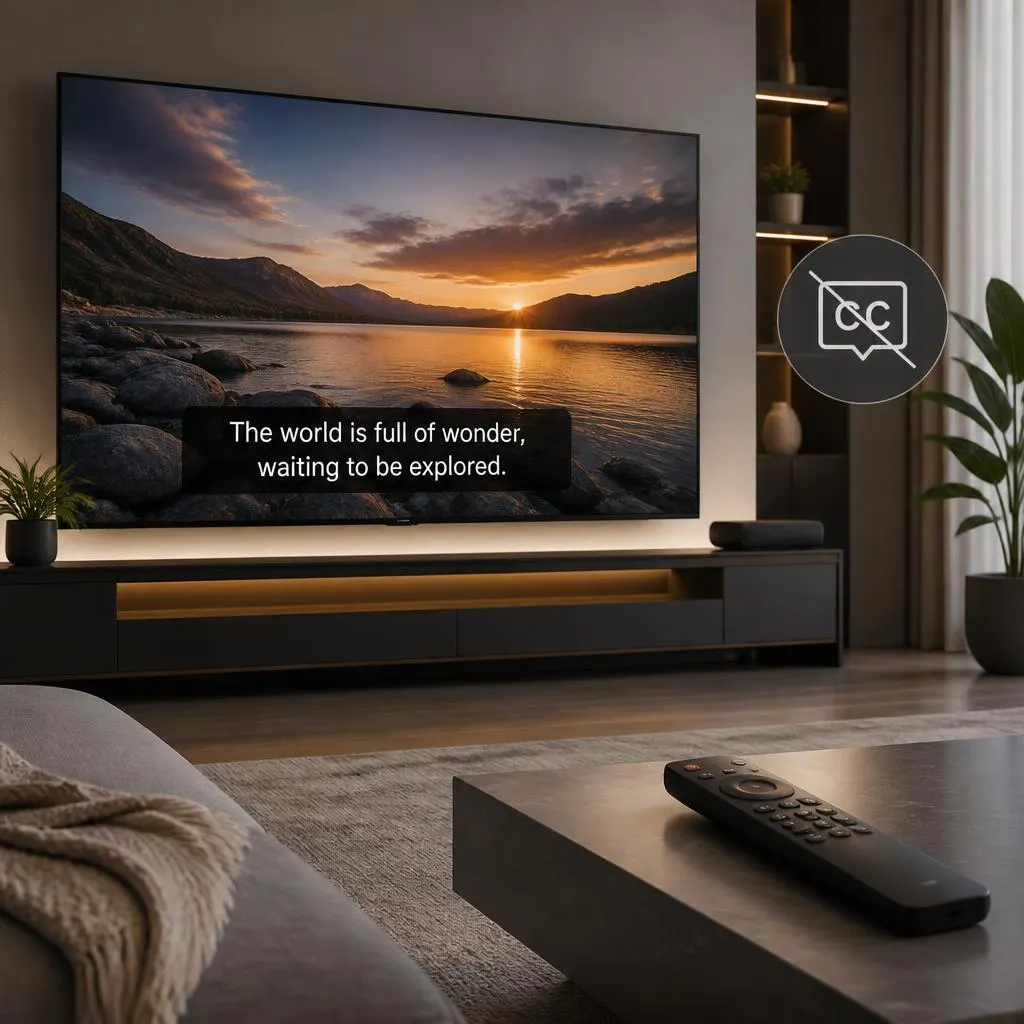
Quick Answer:
To turn off closed captions on YouTube TV, start playing a video, select the CC icon, and choose Off. On Netflix, play a movie or show, open the Audio & Subtitles menu, and select Off under subtitles. If captions keep appearing, check your device’s accessibility or subtitle settings.
Closed captions are helpful when you need to follow dialogue, but they can become distracting when you simply want to watch a show without text covering the screen. If captions suddenly appear on YouTube TV or Netflix, you can usually turn them off directly from the video player.
The exact steps depend on the platform and device you are using. On YouTube TV, the closed caption control appears inside the player. On Netflix, you can change subtitle or caption settings while a show or movie is playing.
This guide explains how to turn off closed caption on YouTube TV and how to turn off closed caption on Netflix, with separate instructions for TVs, computers, phones, tablets, and common streaming devices.
Quick Answer: Turn Off Closed Captions in Seconds
If you only need the fastest solution, start here.
YouTube TV
- Start playing a program.
- Press the Down button on your TV or streaming remote to show the playback controls.
- Select the CC button.
- Choose the option that turns captions off.
On a phone or tablet, tap the video player and look for the CC option in the player controls.
On a computer, move your mouse over the video and select CC, then choose the off option.
Netflix
- Start playing a movie or TV show.
- Open the playback controls.
- Select Audio & Subtitles.
- Under subtitles or captions, choose Off or the available option that disables them.
- Return to the video and continue watching.
Netflix uses slightly different controls depending on the device, but the subtitle and caption choices are accessed from the player while content is playing.
How to Turn Off Closed Caption on YouTube TV
YouTube TV handles closed captions inside its own video player. This means you generally do not need to search through your television’s main settings just to disable captions in YouTube TV.
Turn Off YouTube TV Captions on a Smart TV
If you are watching YouTube TV on a smart TV, Android TV, Google TV, Roku TV, or another supported television device, follow these steps:
- Open YouTube TV.
- Start playing a live channel or recorded program.
- Press the Down button on your remote.
- Press Down again if necessary to reveal the playback controls.
- Find the CC icon.
- Select the CC option.
- Choose the setting that turns captions off.
The captions should disappear from the screen immediately.
If you still see text after selecting Off, give the player a moment to update before changing other settings.
Turn Off YouTube TV Closed Caption on Roku
For YouTube TV on Roku, the caption control is normally found inside the YouTube TV playback controls.
- Start a program in YouTube TV.
- Press the Down button on your Roku remote.
- Open the playback controls.
- Locate CC.
- Select it.
- Choose the option to turn captions off.
If captions remain visible, check that you changed the setting inside YouTube TV rather than only changing Roku’s general accessibility settings.
Turn Off YouTube TV Captions on Google TV
Google TV users can also disable captions directly from the YouTube TV player.
- Play a program.
- Press the Down button on the remote.
- Open the CC control.
- Select the caption option.
- Change it to Off.
You do not normally need to change Google TV’s system-wide caption settings when the captions are appearing only inside YouTube TV.
Turn Off YouTube TV Captions on a Computer
If you watch YouTube TV in a browser, the process is simple.
- Open YouTube TV.
- Start playing a program.
- Move your mouse over the video.
- Look for the CC button near the playback controls.
- Select CC.
- Choose the option to turn captions off.
If you cannot see the controls, move the mouse over the video again or pause the program.
Turn Off YouTube TV Captions on iPhone or iPad
To remove captions while watching YouTube TV on an Apple mobile device:
- Open the YouTube TV app.
- Start playing a program.
- Tap the video.
- Open the playback controls.
- Tap the CC icon.
- Select the option to turn captions off.
The controls may disappear when the player is idle, so tapping the screen first can make the CC button visible.
Turn Off YouTube TV Captions on Android
Android users can follow a similar process.
- Open the YouTube TV app.
- Play the program.
- Tap the video screen.
- Open the player controls.
- Select CC.
- Turn captions off.
If you are using a casting setup, make sure you are changing the caption setting for the playback session rather than assuming your phone’s accessibility settings control the TV playback.
Why YouTube TV Captions May Stay on After You Turn Them Off
Sometimes the CC setting appears to be off, but text remains on the screen. Before changing random TV settings, check these possibilities.
The caption control was changed in the wrong place
YouTube TV captions are controlled from the YouTube TV playback experience. If captions appear only while using YouTube TV, changing your television’s general caption settings may not solve the problem.
Your phone is casting to the TV
If your phone is connected to the television through casting, the playback session can behave differently from normal TV app playback.
Stop casting, reopen the program directly on the TV, and check the CC setting again.
The playback controls have disappeared
The CC button may simply be hidden because the playback controls are not visible.
Press a directional button on your remote or tap the video screen to bring the controls back.
The app needs to refresh
If the CC setting is clearly off but captions remain, close and reopen YouTube TV. You can also restart the affected streaming device before trying the CC setting again.
How to Turn Off Closed Caption on Netflix
Netflix calls these options subtitles and closed captions, depending on the title and language. The setting is changed while the movie or show is playing.
Turn Off Netflix Captions on a Smart TV
This is the most common method for television users.
- Open Netflix.
- Start a movie or TV show.
- Press the Up or Down button on your remote to open the player controls.
- Select Audio & Subtitles.
- Find the subtitle or caption language currently selected.
- Choose Off when that option is available.
- Close the menu and continue watching.
On some TVs, the language options appear directly along the bottom of the screen rather than under a clearly labeled icon.
Turn Off Netflix Captions on Samsung TV
If Netflix captions are appearing on a Samsung TV, first change the setting inside the Netflix player.
- Open Netflix.
- Start your movie or show.
- Press a directional button on the Samsung remote to display the playback controls.
- Select Audio & Subtitles.
- Find the selected subtitle or caption option.
- Choose Off if available.
- Return to playback.
If Netflix subtitles continue appearing after you turn them off, the problem may be related to the title, profile, or device rather than the Samsung TV’s general accessibility settings.
Turn Off Netflix Captions on Roku
On a Roku device or Roku TV:
- Launch Netflix.
- Start the movie or show.
- Press a directional button to open the playback controls.
- Select Audio & Subtitles.
- Change the subtitle or caption setting to Off.
- Resume playback.
Roku also has its own accessibility and caption controls, but Netflix’s player settings should be checked first when captions appear specifically in Netflix.
Turn Off Netflix Captions on Google TV
If Netflix is running through Google TV:
- Start a title in Netflix.
- Open the playback controls with the remote.
- Select Audio & Subtitles.
- Choose Off for subtitles or captions when available.
- Close the menu.
This changes the Netflix playback setting rather than changing every caption setting on your Google TV device.
Turn Off Netflix Captions on a Computer
The browser version of Netflix makes the option easy to access.
- Open Netflix.
- Start a movie or TV show.
- Move your mouse over the video.
- Open Audio & Subtitles.
- Find the subtitle or caption selection.
- Choose Off.
- Click back into the video.
If the player controls disappear, move the mouse again to bring them back.
Turn Off Netflix Captions on iPhone or iPad
On an iPhone or iPad:
- Open Netflix.
- Start a movie or show.
- Tap the screen.
- Open Audio & Subtitles.
- Select Off for subtitles or captions when available.
- Tap the X or return to playback.
Netflix provides the subtitle controls directly through the playback interface on supported mobile devices.
Turn Off Netflix Captions on Android
The process is similar on Android phones and tablets.
- Open Netflix.
- Play the title.
- Tap the screen.
- Select Audio & Subtitles.
- Turn subtitles or captions off.
- Return to the video.
Netflix Subtitles vs. Closed Captions: What Is the Difference?
The two terms are related, but they are not always identical.
Subtitles generally display spoken dialogue so viewers can understand what characters are saying.
Closed captions can include dialogue as well as additional information about sounds, music, or other audio cues.
For example, closed captions might identify a door closing, music playing, or another important sound.
Netflix supports both subtitles and closed captions on many titles. The options available can vary by program, language, region, and device.
What If Netflix Does Not Let You Turn Off the Captions?
This is one of the most frustrating situations because you may select the subtitle option but still see text.
There are several possible reasons.
The title may require subtitles
Netflix notes that some programs produced in another region may show subtitles in the primary language of your region by default. In those cases, you may not have a normal Off option.
You are watching a Kids title
Netflix handles subtitle preferences differently for many Kids titles. If you repeatedly have to disable subtitles, Netflix recommends playing a title rated Teens or above for a short period after selecting your preferred subtitle language so the preference can be saved.
The device has its own caption setting
Some devices can apply accessibility or caption settings independently of the Netflix app.
If Netflix shows captions even after you change the Netflix setting, check your streaming device’s accessibility settings.
The Netflix app needs to refresh
Close Netflix completely and reopen it. If the issue continues, restart the TV or streaming device and test another title.
Your title has forced subtitles
Some content can display subtitles for dialogue that is not in the title’s original language. These may appear even when your regular subtitle preference is Off.
How to Tell Whether the Problem Is Netflix or Your TV
A simple test can help narrow down the problem.
Play a different Netflix title.
If captions appear only on one movie or show, the issue may be related to that title.
If captions appear across every Netflix title, check the Netflix player setting first. Then check the accessibility or caption settings on the device.
If captions appear in other apps too, the television or streaming device settings may be involved.
This distinction can save you from changing settings unnecessarily.
YouTube TV vs. Netflix Caption Controls
The two services work in slightly different ways.
YouTube TV
YouTube TV places the closed caption control inside its video player. On TVs, you normally reveal the playback controls and select CC.
Netflix
Netflix places subtitle and caption choices under Audio & Subtitles while a movie or show is playing.
The important difference is simple:
YouTube TV: Look for CC.
Netflix: Look for Audio & Subtitles.
Once you know which control to look for, both processes become much easier.
Captions Turn Back On Every Time: What to Check
If you have to disable captions every time you watch something, do not keep repeating the same steps without checking the cause.
Try these checks:
- Make sure you are changing the setting on the correct profile.
- Test another show or movie.
- Close and reopen the streaming app.
- Restart the TV or streaming device.
- Check whether another device is controlling playback.
- Check the device’s accessibility settings.
- Look for a casting connection from a phone or tablet.
- Update the streaming app if an update is available.
- Test the same account on another supported device.
- If the problem affects only one title, check whether that title has required or forced subtitles.
Should You Turn Off Captions in the TV Settings?
Not necessarily.
If captions appear only inside YouTube TV or Netflix, start with the settings inside that app.
Changing system-wide accessibility settings can create unnecessary problems because those settings may affect other apps and content.
For YouTube TV, start with the CC option inside the YouTube TV player.
For Netflix, start with Audio & Subtitles inside the Netflix player.
Only investigate device-level settings if the app-level option does not solve the problem.
A Simple Caption Troubleshooting Checklist
When captions refuse to disappear, work through this short checklist:
- Is the CC or subtitle option actually set to Off?
- Are the captions appearing in one app or every app?
- Do they appear on every title or only one?
- Is your phone casting to the TV?
- Are you using a Kids profile on Netflix?
- Does your TV or streaming device have accessibility captions enabled?
- Have you restarted the app?
- Have you restarted the TV or streaming device?
- Does another title behave normally?
- Does the same account work normally on another device?
These questions usually help identify whether the issue comes from the streaming service, a specific title, the profile, or the device.
Common Mistakes to Avoid
Looking only in the TV’s main Settings menu
If the captions come from a streaming app, the setting may be inside the app itself.
Confusing subtitles with captions
Netflix can show different types of text depending on the title and language. Look under Audio & Subtitles rather than searching randomly through account settings.
Assuming every TV uses the same remote
Samsung, Roku, Google TV, Apple TV, Fire TV, and other platforms can use different remote controls. The exact button sequence may vary, even when the app setting is similar.
Changing too many settings at once
Change one setting, test the video, and then move to the next troubleshooting step. This makes it much easier to identify what fixed the issue.
Assuming captions are broken
Sometimes the captions are not actually malfunctioning. A title may have required subtitles, or a device may be applying its own accessibility setting.
FAQs
How do I turn off closed caption on YouTube TV?
Start playing a program, open the playback controls, select the CC button, and choose the option to turn captions off. On a TV, you normally reveal the controls with the remote’s directional buttons.
How do I turn off closed caption on Netflix?
Start playing a movie or TV show, open the playback controls, select Audio & Subtitles, and choose Off when the option is available.
Why won’t captions turn off on YouTube TV?
Make sure you are changing the CC setting inside YouTube TV. If the setting is already off, check whether the device is casting from a phone, then restart the app and test another program.
Why won’t subtitles turn off on Netflix?
Some titles may display subtitles by default, particularly content produced in another region. If Netflix provides an Off option but the captions remain, restart the app and check the device settings.
Can I turn off YouTube TV captions from my TV settings?
YouTube TV captions are controlled within the YouTube TV experience, so start with the CC control inside the player rather than relying only on your TV’s general caption settings.
Can I turn off Netflix subtitles permanently?
Netflix remembers subtitle preferences in many situations, but the behavior can vary by title, profile, device, and language. Kids titles and some content with required subtitles can behave differently.
Why do captions appear on Netflix but not on other apps?
That usually points toward a Netflix-specific setting, title setting, profile preference, or Netflix playback behavior rather than a television-wide caption setting.
Why are Netflix subtitles showing even though they are turned off?
The title may have required subtitles, particularly when dialogue includes another language. If the title gives you an Off option and captions still remain, troubleshoot the app and device.
Do YouTube TV and Netflix use the same caption settings?
No. YouTube TV uses a CC control inside its player, while Netflix uses Audio & Subtitles. The controls are managed separately.
Can captions be turned off on a phone?
Yes. YouTube TV and Netflix both provide subtitle or caption controls through their mobile playback interfaces on supported devices.
The Easiest Way to Remember the Steps
You do not need to search through every TV setting when captions suddenly appear.
For YouTube TV, remember:
Play → Open controls → CC → Off
For Netflix, remember:
Play → Open controls → Audio & Subtitles → Off
If the captions still appear, test another title and then check the device’s accessibility settings. This approach helps you determine whether the problem comes from the streaming app, the content, or the TV or streaming device.
Conclusion
Learning how to turn off closed caption on YouTube TV and Netflix is mostly about finding the right control inside the video player. YouTube TV uses the CC option, while Netflix places subtitle and caption choices under Audio & Subtitles.
If the normal Off option does not work, avoid changing every setting on your television at once. Test another title, restart the app, check for casting, and then investigate the device settings if necessary.
Once you know where each service keeps its caption controls, turning captions off takes only a few seconds.