
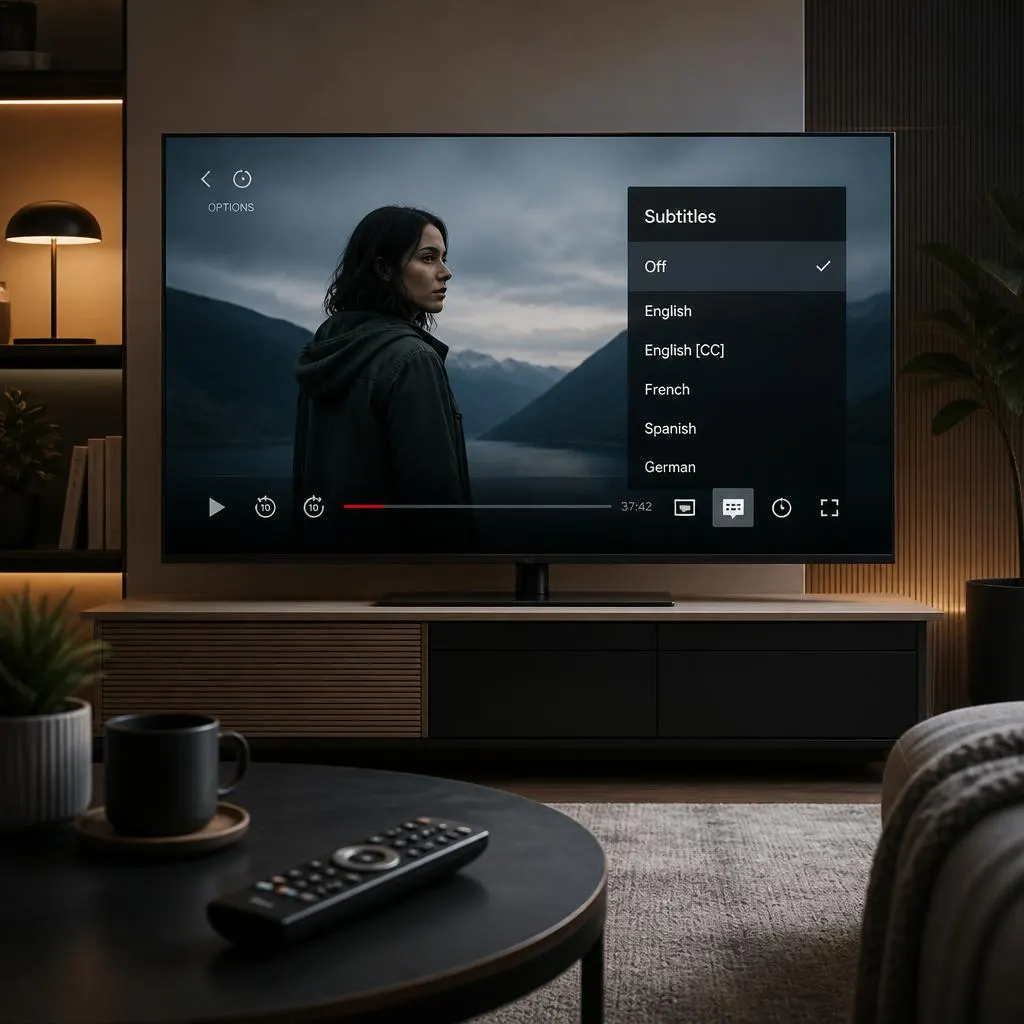
Quick Answer:
To turn off captions on Netflix, start playing your movie or TV show, open the Audio & Subtitles menu, and select Off under Subtitles or Captions. On a TV, streaming device, computer, or mobile device, the exact steps may vary slightly. If subtitles remain visible, check your device’s accessibility settings or restart playback.
Netflix subtitles are helpful when you want to follow quiet dialogue or watch a show in another language. But if text keeps covering the screen while you are watching a movie, it can become distracting. Fortunately, you can usually turn captions off directly from the Netflix playback menu.
The exact steps depend on whether you watch Netflix on a smart TV, iPhone, Android phone, laptop, Roku, Fire TV, Apple TV, or gaming console. If you have already selected Off and subtitles still appear, a separate device setting or permanently embedded text could be responsible.
This guide explains how to turn off captions on Netflix, prevent unwanted subtitles where possible, and fix the most common problems without changing settings you do not need to touch.
How to Turn Off Captions on Netflix
To disable Netflix captions, follow these steps:
- Open Netflix and play a movie or TV episode.
- Tap or click the screen, or use your remote to open the playback controls.
- Select Audio & Subtitles or the subtitle icon.
- Find the Subtitles section.
- Choose Off.
- Return to the video and check that the subtitles have disappeared.
This method works on many supported devices. However, menu names and available options can vary by platform, app version, and title.
Turn Off Netflix Captions on Your Device
Choose the instructions that match your screen. Most people can fix the issue through the playback menu without opening their account settings.
How to Turn Off Captions on a Smart TV
Smart TVs from Samsung, LG, Sony, TCL, Hisense, and other manufacturers generally provide subtitle controls inside the Netflix player.
- Open Netflix on your television.
- Start playing a movie or episode.
- Press an arrow button on your remote to display the playback controls.
- Select Audio & Subtitles.
- Choose Off under Subtitles.
- Return to the video and confirm that the text is gone.
If captions continue appearing, check your television’s accessibility settings. Some TVs manage closed captions separately from the Netflix app.
Netflix Help Center
+1
How to Turn Off Captions on an iPhone or iPad
You can disable subtitles on your Apple mobile device without changing the language of your entire Netflix profile.
- Open the Netflix app.
- Play your chosen title.
- Tap the video to display the controls.
- Select Audio & Subtitles.
- Tap Off in the Subtitles section.
- Close the menu and resume playback.
If subtitles return in another episode, open the menu again and check the selected setting. The available languages depend on the title and device.
Netflix Help Center
+1
How to Turn Off Captions on an Android Phone or Tablet
On Android, Netflix provides subtitle controls in the video player.
- Launch Netflix.
- Play a movie or TV show.
- Tap the screen to reveal the playback options.
- Open Audio & Subtitles.
- Select Off under Subtitles.
- Resume watching.
If the option does not appear, update Netflix and reopen the title. You can also try another movie to determine whether the issue affects one title or the entire app.
How to Turn Off Captions on a Windows PC or Mac
If you watch Netflix in a desktop browser, you can disable captions without navigating through your profile settings.
- Open Netflix in your browser.
- Start your movie or episode.
- Move the mouse over the video to reveal the controls.
- Click the Audio & Subtitles icon.
- Select Off under Subtitles.
- Return to the video.
This method applies to supported browser playback. The interface may look different if you use a dedicated desktop app or another viewing method.
Netflix Help Center
+1
How to Turn Off Captions on Roku
Roku has its own caption settings, so check the Netflix player first.
Inside Netflix:
- Start a movie or episode.
- Open the playback controls with your Roku remote.
- Select Audio & Subtitles.
- Choose Off under Subtitles.
If captions remain:
- Return to the Roku home screen.
- Open Settings.
- Select Accessibility or Captions, depending on your Roku interface.
- Open the caption mode options.
- Choose Off.
Roku explains that caption behavior can depend on whether an app uses its own settings or follows the device’s caption preferences.
Official Roku Support
+1
How to Turn Off Captions on Amazon Fire TV
Try the Netflix subtitle menu before changing your Fire TV settings.
- Open Netflix and play a title.
- Use your remote to reveal the playback controls.
- Select Audio & Subtitles.
- Choose Off under Subtitles.
- Resume playback.
If captions persist across apps, check the accessibility settings on your Fire TV. The exact menu labels can vary by model and software version.
How to Turn Off Captions on Apple TV
Apple TV has Netflix playback controls as well as system level subtitle preferences.
- Play a title in Netflix.
- Swipe up or press the up arrow on your remote to open playback controls.
- Select Audio & Subtitles.
- Choose Off.
- Return to your movie.
If subtitles keep appearing when you mute the TV or skip backward, check Settings → Video and Audio → Automatic Subtitles on supported Apple TV models. Options such as showing subtitles when muted can cause this behavior.
Netflix Help Center
+1
How to Turn Off Captions on PlayStation or Xbox
If you use a gaming console to watch Netflix, begin with the app’s own controls.
- Open Netflix on your console.
- Start your video.
- Display the playback menu using your controller.
- Select Audio & Subtitles.
- Choose Off.
On some Xbox systems, a separate console accessibility setting can control closed captions. Netflix documents additional caption settings for Xbox One and Xbox 360.
If the console menu differs from these steps, look under Accessibility or Ease of Access.
Why Netflix Captions Keep Showing Up
If subtitles remain visible after you select Off, identify where they are coming from before trying more changes.
The Title Includes Foreign Language Dialogue
Some shows and movies contain dialogue in a language different from the main audio track. Netflix notes that subtitles may remain for certain foreign language scenes even when the general subtitle setting is off.
Try this: Open Audio & Subtitles and check whether another audio language is available. A dubbed audio track may help you follow the scene without subtitles.
Your TV or Streaming Device Controls Captions
If text appears across Netflix and other streaming apps, your device may have closed captions enabled independently.
Try this: Turn subtitles off inside Netflix, then inspect the TV, Roku, Apple TV, or Fire TV accessibility settings. Change only the setting related to captions.
The Subtitles Are Permanently Embedded
Some videos contain subtitles that form part of the actual picture. These are often called hardcoded or burned in subtitles.
How to recognize them: Select Off in Netflix. If the text remains in exactly the same place, it may be embedded in the video rather than displayed through a separate subtitle track.
You generally cannot remove embedded text using the Netflix player.
Netflix Is Not Saving Your Preference
Subtitle preferences may behave differently across profiles, titles, and devices. If the same setting keeps resetting, confirm that you are using the intended profile and test the setting on another title.
Netflix also provides specific guidance for subtitle preferences on Kids titles watched through an adult profile. Playing a title rated Teens or above for two to three minutes with your preferred subtitle and audio settings can help save the preference for future viewing
The App Has a Temporary Problem
If captions behave unexpectedly, try these simple checks:
- Close Netflix and reopen it.
- Stop the video and start it again.
- Restart your streaming device.
- Check for a Netflix app update.
- Test another title to see whether the problem is limited to one movie or episode.
If the problem continues across several titles, consult the official.
How to Stop Netflix From Turning Captions On Automatically
You may not need to change captions every time you watch a show. These checks can help reduce unwanted subtitle changes.
- Save your preferred setting: Select Off in the playback menu and allow the title to play for a short time.
- Review automatic subtitles: On supported Apple TV models, check whether subtitles are set to appear when the TV is muted or after skipping backward.
- Check accessibility controls: If captions appear in other apps, review the settings on your TV or streaming device.
- Use the correct profile: Different viewers may have different subtitle preferences, so verify which profile is active.
There is no single setting that guarantees subtitles will never appear in every Netflix title and device combination. Certain dialogue, accessibility options, or embedded text may behave differently.
How to Change the Subtitle Language Instead
If you can read subtitles but want them in a different language, you do not have to turn them off completely.
- Play your Netflix title.
- Open Audio & Subtitles.
- Find the Subtitles section.
- Choose your preferred available language.
- If you also want different spoken dialogue, select another language under Audio.
The available languages vary by title, device, and viewing method. Downloaded content may also offer fewer language options than streaming playback.
If you want to change your profile’s general language preferences, use Netflix’s profile settings. This is separate from disabling subtitles for one video.
Subtitles, Closed Captions, and Audio Descriptions Explained
Understanding these options can help you change the correct setting.
- Subtitles display dialogue as text, often to help viewers understand another language.
- Closed captions include dialogue and may also describe relevant sound effects, music, and other audio information.
- Embedded subtitles form part of the video image and usually cannot be disabled in the player.
- Audio descriptions provide spoken narration of visual details, such as actions and expressions.
Netflix supports these accessibility options on eligible titles and devices, but availability varies.
Netflix Help Center
+1
If you hear a narrator describing what is happening on screen, turn off Audio Description in the audio options. Changing subtitles will not stop that narration. You can also read Netflix’s official
FAQs
How do I turn off captions on Netflix quickly?
Play a title, open Audio & Subtitles, and select Off under Subtitles. This works on many supported devices.
Why are Netflix subtitles still showing after I turn them off?
The text may be required for foreign language dialogue, embedded in the video, or controlled by your TV’s accessibility settings. Check these possibilities before changing other settings.
Netflix Help Center
+1
Can I turn off captions for every Netflix show at once?
Netflix can retain subtitle preferences in supported situations, but there is no universal guarantee that every title and device will behave identically. Some dialogue or device settings may still trigger subtitles.
How do I turn off Netflix captions with my TV remote?
Start playback, open the controls, select Audio & Subtitles, and choose Off. The precise buttons vary by television and remote.
Why do Netflix subtitles appear when I mute the TV?
Your streaming device may have an automatic subtitle feature. On supported Apple TV models, check the Show When Muted setting under Automatic Subtitles.
Can I disable captions without changing the audio language?
Yes. Select Off under Subtitles while leaving your preferred audio track unchanged.
Can I remove subtitles permanently displayed on the screen?
Not through Netflix’s subtitle controls if the text is embedded in the video image. You can disable separate subtitle tracks, but embedded text remains visible.
Do Netflix caption settings affect other profiles?
Preferences can depend on the profile and viewing situation. If your setting does not carry over, check which profile you are using and set the preference again.
+1
Can I turn off subtitles on Netflix downloads?
Open the downloaded title and check its subtitle options. The available languages can differ from those offered during streaming.
What should I do if none of these methods works?
Restart Netflix, try another title, and check your device’s accessibility settings. If the issue continues, use the official for further troubleshooting.
Comclsion
Knowing how to turn off captions on Netflix makes it easier to enjoy movies and shows without distracting text. In most cases, you only need to open Audio & Subtitles and select Off.
If the captions do not disappear, check your device’s accessibility settings, try another title, and determine whether the text is embedded in the video. These simple steps can help you solve the problem without changing unrelated account settings.