
Quick Answer:
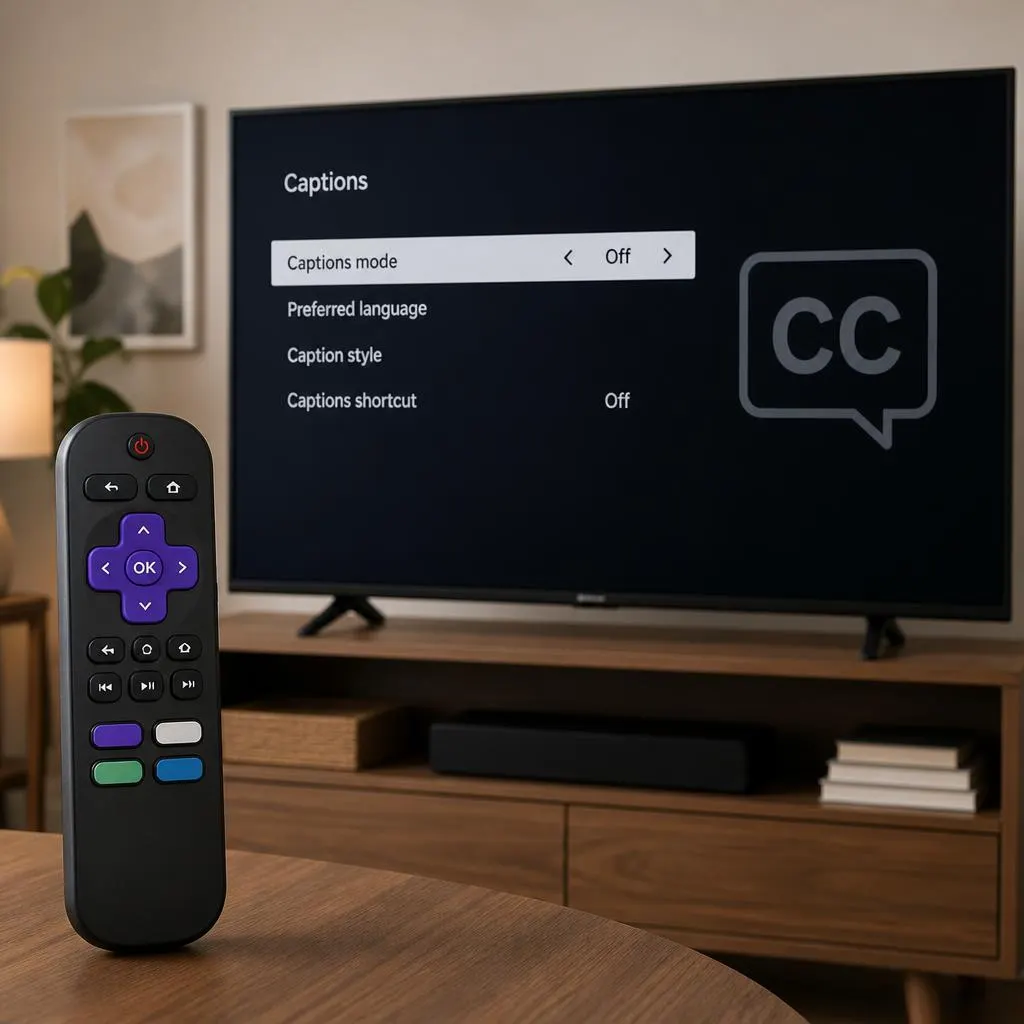
To turn off closed captions on Roku, press the Home button on your Roku remote, open Settings, select Accessibility or Captions, and choose Captions mode. Set it to Off to disable captions.
If captions continue appearing while watching Netflix, Hulu, Disney+, or another streaming service, check the caption settings inside that particular app. Some apps manage subtitles independently of Roku’s system settings.
How to Turn Off Closed Caption on Roku Through Settings
The simplest way to disable captions is through your Roku device’s main settings. This method works for many Roku streaming players and Roku TVs, although menu names may vary slightly by model and software version.
Follow these steps:
- Turn on your Roku device and press the Home button on your remote.
- Scroll down and open Settings.
- Select Accessibility. On some devices, you may see Captions instead.
- Open Captions mode.
- Select Off.
- Return to your streaming app and play a video to check whether the captions have disappeared.
Your Roku should now stop displaying closed captions when you watch supported content.
Important: Turning captions off in Roku settings may not disable subtitles controlled directly by a streaming app. If text remains on the screen, check the app’s playback settings.
How to Turn Off Roku Captions While Watching a Show
If you are already watching a movie or TV show, you may be able to turn off captions without leaving the video.
Use the Star Button on Your Roku Remote
Many Roku devices provide playback options through the asterisk or Star (*) button.
- Start playing your movie or TV episode.
- Press the Star (*) button on your Roku remote.
- Look for the captions, accessibility, or closed-caption settings.
- Open the available caption options.
- Choose Off if the option appears.
Depending on your Roku model and the streaming app, the Star button may display a different menu or may not provide a caption option during playback.
If you cannot find the setting, return to the Roku Home screen and use the main Settings menu.
Understanding Roku Caption Modes
Roku offers different caption modes that determine when captions appear. Understanding these options can help you choose the correct setting.
Off
Captions remain disabled unless a streaming app overrides the device setting or provides its own subtitle controls. Choose this option if you do not want captions displayed during normal playback.
On Always
Captions appear whenever the content and playback environment support them. This option is useful for viewers who prefer text throughout a program.
On Replay
Captions appear during supported instant-replay actions. This can help you understand a line of dialogue when you replay a moment.
On Mute
Captions appear when the television or playback device is muted, where supported. This setting is helpful when you want to watch without sound but still follow the conversation.
To stop captions from appearing automatically, select Off rather than On Always, On Replay, or On Mute.
How to Turn Off Closed Captions on Roku TV
If you own a Roku TV rather than a separate Roku streaming player, the steps are generally similar.
- Press Home on your Roku TV remote.
- Navigate to Settings.
- Open Accessibility or Captions, depending on your TV’s software.
- Select Captions mode.
- Choose Off.
- Open a TV channel or streaming app to test the change.
Some Roku TV models offer additional accessibility options. If your menu looks different, search for the words Captions, Accessibility, or Closed Captions in your TV settings.
Remember that captions embedded directly into a video image cannot be removed through the TV’s caption settings.
How to Turn Off Closed Captions on Roku in Specific Apps
If captions appear only in one streaming service, you may need to turn them off within that app. The exact menu can vary by app version, Roku device, and the video you are watching.
Turn Off Closed Captions on Netflix on Roku
To disable subtitles while watching Netflix:
- Open Netflix on your Roku.
- Play the movie or TV episode.
- Bring up the playback controls.
- Open Audio & Subtitles or the available subtitle menu.
- Select Off under subtitles, if available.
Return to the video and check whether the text has disappeared.
If subtitles remain enabled in other Netflix titles, review the playback options for that title. Language and subtitle availability can differ between programs.
Turn Off Closed Captions on Hulu on Roku
To disable captions in Hulu:
- Open Hulu on your Roku device.
- Start playing a show or movie.
- Open the playback controls.
- Find the settings, subtitles, or captions option.
- Choose Off.
For live TV or certain programs, the available controls may differ. If captions remain visible, check the Roku accessibility settings as well.
Turn Off Closed Captions on Disney+ on Roku
Follow these steps to turn off subtitles on Disney+:
- Launch Disney+ on your Roku.
- Play the movie or episode.
- Open the playback menu.
- Select the audio and subtitle settings.
- Choose Off under subtitles.
- Resume playback and check the screen.
If the subtitles return when you start another video, repeat the process and check whether your preferred subtitle setting is being retained.
Turn Off Captions on The Roku Channel
If you watch content through The Roku Channel, try the following:
- Open The Roku Channel.
- Start the video you want to watch.
- Display the playback controls.
- Look for the captions or subtitle option.
- Select Off, if available.
You can also check your Roku’s main accessibility settings if the app does not offer a separate caption control.
What If the App Does Not Have an Off Option?
Some streaming services organize their playback controls differently, and not every program offers the same options.
Try these steps:
- Open Roku’s Settings menu and check the caption mode.
- Restart the streaming app.
- Test another movie or TV episode.
- Update the app or Roku software if an update is available.
If captions appear in only one app, focus on that app’s settings first.
Why Do Captions Keep Turning On Automatically on Roku?
It can be frustrating to turn captions off only to see them return during your next movie. Several settings or technical issues may explain this behavior.
1. Captions Are Set to On Always
If Roku’s caption mode is set to On Always, captions may appear whenever supported content is played.
Fix: Go to Settings, open Accessibility or Captions, and set Captions mode to Off.
2. Captions Are Set to On Mute
The On Mute setting can display captions when the sound is muted.
Fix: Change the caption mode to Off if you do not want captions to appear when muting your TV.
3. The Streaming App Has Separate Settings
Netflix and other streaming apps may maintain their own subtitle preferences. These settings can take priority over your general Roku configuration for content played inside the app.
Fix: Open the app’s playback settings and disable subtitles there.
4. The App Has a Temporary Glitch
An app may fail to save a preference or may display captions incorrectly after an update.
Fix: Close and reopen the app. If the problem continues, restart your Roku device and check for available updates.
5. The Text Is Part of the Video
Some videos have captions permanently embedded into the picture. These are often called burned-in subtitles or hardcoded subtitles.
Fix: Try another version of the video, if available. Roku settings cannot remove text that has already been added to the video image.
How to Fix Roku Closed Captions That Will Not Turn Off
If you have selected Off but captions remain visible, work through these troubleshooting steps in order.
Step 1: Check Both Roku and App Settings
Start with Roku’s caption mode, then check the individual streaming app. Make sure the app’s subtitle menu is not still set to a language or subtitle track.
Step 2: Test Another Video
Play a different show or movie. If captions disappear, the original video may have embedded text or a title-specific subtitle setting.
If captions remain on every video, continue troubleshooting the device and app.
Step 3: Restart Your Roku
Restarting the device can resolve temporary playback or settings issues.
- Press the Home button.
- Open Settings.
- Select System.
- Choose Power, if available.
- Select System restart.
Some Roku models use a slightly different menu. If you do not see these options, follow the restart instructions for your specific model.
After restarting, open your streaming app and test the captions again.
Step 4: Check for Software Updates
Outdated software can sometimes cause app or playback problems.
- Open Settings.
- Select System.
- Open Software update or System update.
- Select Check now, if available.
- Install any available update and test playback again.
Step 5: Reopen or Update the Streaming App
If the problem happens in only one app, close and reopen it. Check whether an update is available through the Roku interface.
If the issue continues, consult the app’s support options before removing and reinstalling it, especially if you need to sign in again afterward.
Step 6: Contact Support if the Problem Continues
If captions remain enabled across multiple apps and videos despite changing the settings, contact Roku support or the streaming service’s support team. Explain which device you use, which app is affected, and which troubleshooting steps you have already tried.
How to Turn Off Roku Captions Without the Remote
You may still be able to change caption settings if your physical Roku remote is missing or not working.
Use the Roku Mobile App
The official Roku mobile app can act as a virtual remote for compatible Roku devices.
- Install the official Roku app on your smartphone.
- Connect your phone to the same local network as your Roku device, when required.
- Open the app and select your Roku device.
- Open the virtual remote.
- Use the on-screen controls to navigate to Settings.
- Find Accessibility or Captions and select Off.
The exact steps depend on your device, network, and app version. Your phone and Roku may need to be on the same network for the remote feature to work.
Use Your TV’s Physical Controls
Some Roku TVs have physical buttons that allow basic navigation. Their functions vary by model, and they may not provide access to every menu.
If your TV has suitable controls, use them to open Settings and locate the caption options. Otherwise, a compatible replacement remote or the mobile app may be the easiest solution.
Closed Captions vs. Subtitles on Roku
Closed captions and subtitles both display text on the screen, but they can serve different purposes.
Closed captions generally include spoken dialogue and may also describe relevant sounds, such as a door slamming, music playing, or a phone ringing. They are designed to make audio content accessible to viewers who are deaf or hard of hearing.
Subtitles usually focus on spoken dialogue and may translate it into another language. Some subtitle tracks also include additional sound information.
The distinction is not always consistent across streaming services. An app may use the words captions and subtitles interchangeably.
If your goal is to remove all on-screen dialogue text, check the subtitle or audio settings inside the app as well as Roku’s accessibility settings.
FAQs
How do I turn off closed captions on Roku quickly?
Press Home, open Settings, select Accessibility or Captions, and set Captions mode to Off. If captions continue in a streaming app, turn them off through that app’s playback menu.
Why are captions still showing after I turn them off?
The streaming app may have separate subtitle settings, the video may contain permanently embedded text, or your device may have a temporary software issue. Check the app settings and test another video.
Can I turn off captions on Roku with one button?
Some Roku remotes allow you to open playback options using the Star (*) button. If a caption option is available, select Off. Otherwise, use the main Settings menu.
How do I stop Roku captions from appearing when I mute the TV?
Open Settings, find Accessibility or Captions, and change Captions mode from On Mute to Off.
Do Roku settings turn off subtitles in every app?
Not always. Streaming apps may manage subtitles independently, so you might need to disable them inside Netflix, Hulu, Disney+, or another app.
Can I remove captions that are part of the video?
No. If the text is permanently embedded into the video image, Roku’s caption controls cannot remove it. You would need a version of the video without the embedded text.
Will turning off captions affect every profile?
Not necessarily. Roku’s system-level settings and individual streaming-app preferences can behave differently. Some apps may retain separate settings for profiles, titles, or playback sessions.
Can I turn captions back on later?
Yes. Return to the Roku caption settings and select your preferred mode, such as On Always, On Replay, or On Mute, where supported. You can also enable subtitles from the streaming app’s playback menu.
Conclusion
Turning off closed captions on Roku is usually a quick process. Open Settings, navigate to Accessibility or Captions, and set Captions mode to Off. If text continues to appear, check the subtitle settings inside your streaming app.
For persistent caption problems, test another video, restart your Roku, and check for software updates. Remember that permanently embedded text cannot be removed through Roku settings.
With the correct settings in place, you can enjoy your favorite movies and shows without unwanted captions appearing on the screen.