Quick Answer:
The best closed captioning app in the Microsoft Store depends on your needs. Windows Live Captions is a convenient starting point for displaying speech as text across supported applications. If you need downloadable subtitles, editable caption files, or saved transcripts, look for a dedicated application that offers those features. Before installing anything, check its language support, Windows compatibility, privacy policy, and pricing.
If you are searching for the closed captioning app in the Microsoft Store, the right choice depends on what you want to do. You might need live captions for videos, subtitles for recorded content, speech to text for meetings, or accessibility features that make audio easier to understand.
Windows already includes a built in Live Captions feature, so you may not need to install another application. However, if you want to create, edit, save, or download subtitles, a dedicated captioning tool may be a better fit.
What Does a Closed Captioning App Do?
A closed captioning app converts speech into text so people can follow audio more easily. Some applications also identify speakers and describe important sounds, while others focus on creating subtitles or converting recordings into written transcripts.
These tools can help people who are deaf or hard of hearing, viewers watching videos without sound, students following lectures, and professionals who need written records of conversations.
The features vary from one application to another, so understanding the different types can help you choose the right tool.
Closed Captions vs. Subtitles
Closed captions and subtitles both display text on a screen, but they can serve different purposes.
- Closed captions: Display spoken dialogue and may include meaningful sound descriptions, speaker changes, and other audio information.
- Subtitles: Usually display spoken dialogue, often to help viewers understand a language.
- Live captions: Convert speech into text while someone is speaking or audio is playing.
- Transcripts: Provide a written record of spoken content that users may be able to save, edit, or share.
For example, closed captions might describe a door slamming or a person laughing. Standard dialogue subtitles may show only the words being spoken.
If you want text to appear while watching a video, live captioning may be enough. If you need subtitles for a video you plan to publish, look for an application that supports caption editing and file export.
Do You Need a Separate Captioning App for Windows?
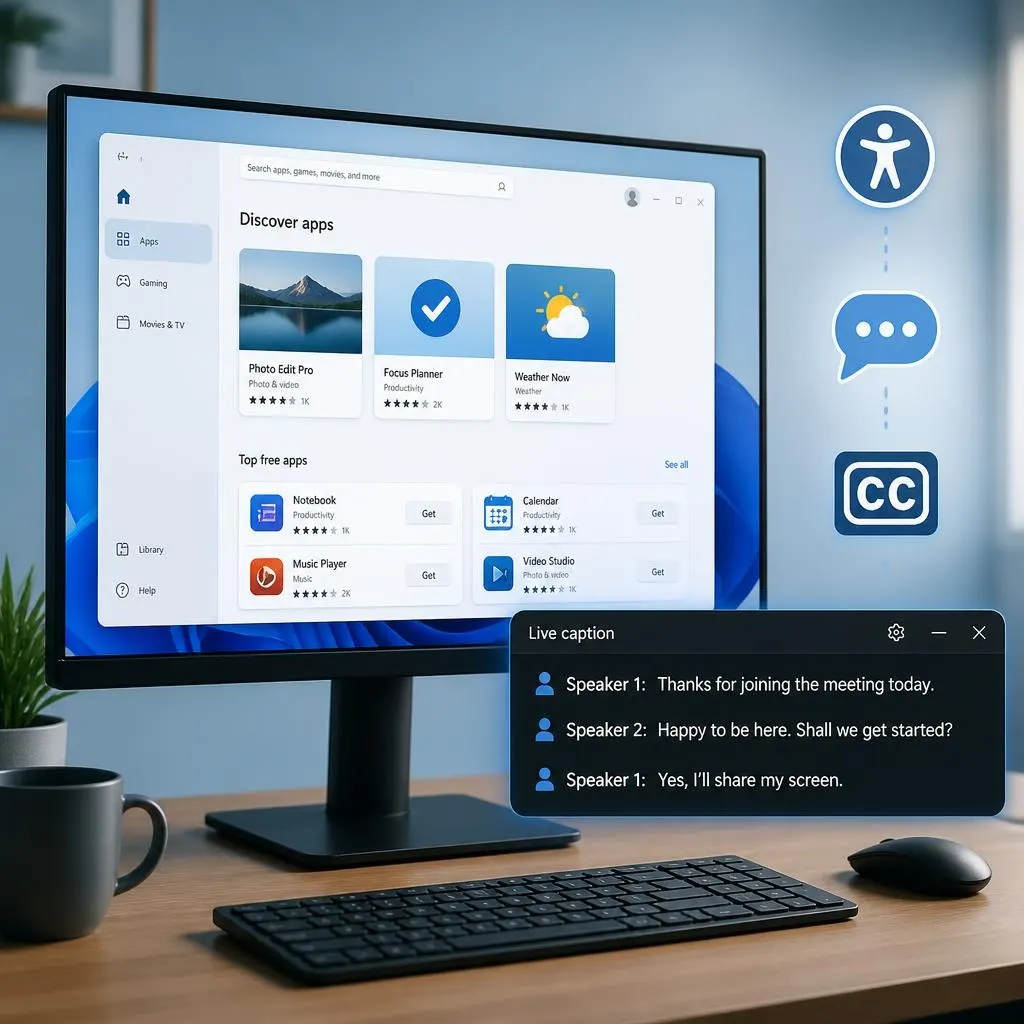
Not always. Windows 11 includes a built in accessibility feature called Live Captions. It can display automatic captions for supported audio from different applications, making it useful for videos, meetings, and other spoken content.
Windows Live Captions
A useful choice for displaying speech as text while supported audio plays. It includes caption display settings and supports on device processing.
Subtitle editing software
Better for creating, correcting, synchronizing, and exporting subtitles for recorded videos.
Speech to text applications
Useful for converting meetings, interviews, lectures, and voice recordings into written text.
These are different software categories rather than endorsements of particular products. Check each app’s actual features before installing it.
How to Find the Closed Captioning App in the Microsoft Store
The Microsoft Store lets you search for Windows applications in one place. Using specific search terms can help you find a tool that matches your requirements.
Step 1: Open the Microsoft Store
Select the Microsoft Store icon from your taskbar or Start menu. If you cannot find it, open the Start menu and search for Microsoft Store.
Step 2: Search for Captioning Tools
Enter a search phrase that describes what you need. You can try these options:
- Closed captions
- Live captions
- Subtitle editor
- Speech to text
- Video transcription
- Subtitle downloader
Different search terms may return applications with very different capabilities.
Step 3: Check the App Description
Before installing an application, read its description carefully. Look for supported Windows versions, available languages, captioning features, pricing, and recent user reviews.
Make sure the app provides the feature you actually need. A subtitle downloader, for example, may not generate live captions from audio playing on your computer.
Step 4: Install and Test the App
Choose the installation option if the application is available and compatible with your computer. After installation, test it with a short video or audio recording.
Check whether the captions appear correctly, whether the text is easy to read, and whether the app supports your preferred language.
How to Turn On Live Captions in Windows 11
If your main goal is to display speech as text while using your computer, try Windows Live Captions before downloading a separate application.
Follow these steps:
- Press Windows key + Ctrl + L.
- Follow the initial setup instructions if prompted.
- Download the required language files if necessary.
- Play a video, recording, or other supported audio source.
- Read the generated captions in the caption window.
- Adjust the caption display settings to make the text easier to read.
You can also open Settings > Accessibility > Captions to access the available caption settings.
Windows Live Captions is available on Windows 11, version 22H2 and later. Certain newer translation features require compatible hardware and a supported Windows version.
Can Windows Live Captions Work Offline?
Yes. After you download the required language files and complete the initial setup, Windows Live Captions can generate captions offline for supported languages.
This can be useful when traveling, working without an internet connection, or watching videos in places where connectivity is unreliable. However, language availability and additional features can vary by Windows version and device.
Captioning Apps Worth Exploring in the Microsoft Store
If Windows Live Captions does not provide everything you need, consider exploring dedicated captioning and transcription applications.
Captions: Download Subtitles
Explore this type of application if you need to locate or download existing subtitles for supported video content. Check which sources and file formats it supports.
Speech to Text: Live Caption
Consider this type of tool if you want real time speech recognition. Confirm whether it can capture system audio, microphone input, or both.
Transcribe: Speech to Text, Voice Notes & Transcription
Explore this type of application if you need to turn spoken content into written text for interviews, meetings, or voice notes.
These listings are starting points, not a guarantee that every feature is currently available. Verify the current description, compatibility, pricing, and reviews before downloading an app.
What Features Should You Look For?
The right captioning application should make speech easier to understand while fitting your everyday workflow. Consider the following features before choosing a tool.
Accurate Speech Recognition
Look for an application that supports the language and accent you use most often. Background noise, overlapping speakers, technical terms, and unclear audio can affect the accuracy of automatic captions.
Test the application with a short recording before relying on it for an important meeting, interview, or educational project.
Live Captions or Downloadable Subtitles
Decide whether you need captions that appear temporarily on your screen or subtitle files you can edit and reuse.
- Choose live captioning for supported videos, meetings, and conversations.
- Choose transcription software when you need a written record of spoken content.
- Choose subtitle editing software when you need to correct dialogue, adjust timing, or export caption files.
- Choose a subtitle downloader when you need to find existing subtitles for supported videos.
Not every live captioning tool can create downloadable subtitle files.
Language and Translation Support
Check the application’s language options before installing it. Some tools recognize speech in multiple languages, while others support only a limited selection.
Also, remember that transcription and translation are different functions. An app may convert speech into text in its original language without translating it into another language.
Customizable Caption Display
Readable captions make a big difference, especially when watching videos on a small screen.
Look for settings that let you change font size, text color, background color, and caption placement. A clear text background can improve readability when the video contains bright colors or busy scenes.
Privacy and Offline Access
Some captioning applications process audio locally, while others send audio to an online service for processing. Review the privacy policy to understand how your recordings and transcripts are handled.
If you work with private meetings or confidential information, check whether the app stores recordings, uploads audio, or shares information with third parties.
Offline access is another useful feature if you frequently work without a reliable internet connection.
Pricing and Usage Limits
An app may be free to download but charge for premium features, longer recordings, advanced transcription, or subtitle exports.
Review subscription details and in app purchases before installing the software. Compare the features included in the free version with the features you actually need.
How Closed Captioning Improves Accessibility
Closed captions help people understand audio content when listening is difficult or impossible. They also make videos more convenient for a wide range of viewers.
Helping Deaf and Hard of Hearing Viewers
Captions provide access to spoken dialogue and meaningful sounds. Speaker labels and descriptions of important audio events can help viewers follow conversations and understand what is happening on screen.
For example, a caption may identify an alarm sounding in the background or indicate that a speaker is laughing.
Making Videos Easier to Follow in Noisy Places
Captions are useful when watching videos in busy environments, public spaces, or shared rooms. They allow viewers to follow spoken content without increasing the volume or disturbing others.
They can also help when headphones are unavailable or audio quality is poor.
Supporting Language Learning
People learning a new language may find it easier to follow unfamiliar words when they can read and listen at the same time.
Captions can help viewers notice pronunciation, recognize vocabulary, and understand sentence structure. However, inaccurate automatic captions may create confusion, so important material should be reviewed.
Making Educational Content More Accessible
Students can use captions to follow lectures, tutorials, presentations, and recorded lessons. Teachers and content creators can also improve accessibility by checking caption accuracy and adding captions to their videos.
For the best results, captions should be synchronized with speech and include meaningful audio information where appropriate.
Common Captioning Problems and How to Fix Them
Even a suitable application may need adjustments before it works properly. These troubleshooting tips can help resolve common issues.
Live Captions Are Not Appearing
- Confirm that Live Captions is enabled.
- Play audio that contains clear speech.
- Check the selected caption language.
- Restart the feature if captions stop updating.
- Confirm that your version of Windows supports Live Captions.
If captions do not appear during a meeting, check the audio output device and make sure the sound is playing through a supported source.
Captions Display Incorrect Words
Automatic speech recognition can misinterpret names, accents, technical terms, and speech in noisy environments.
Try reducing background noise, using a clearer microphone, and reviewing the text before sharing it. For professional videos, edit the captions and check their timing before publishing.
The App Does Not Support Your Language
Review the app’s supported language list and check whether your preferred language is available for speech recognition, translation, or both.
If your language is not supported, try another captioning tool or explore the language options available in Windows.
The Application Will Not Install
Check your Windows version, available storage, internet connection, and the application’s compatibility information.
If the Microsoft Store is not downloading applications properly, troubleshoot the Store itself before trying another captioning application.
Captions Are Too Small to Read
Open the caption settings and increase the font size. Adjust the text and background colors if the application offers those options.
Move the caption window to a position that does not cover important parts of the video.
Mistakes to Avoid When Choosing a Captioning App
Choosing an application without checking its features can waste time and lead to disappointing results.
- Confusing captions with subtitle editing: Live captions may display speech without allowing you to export subtitle files.
- Assuming every app is free: Some applications require payment for advanced features or extended usage.
- Ignoring language support: Check that the app supports the language you actually need.
- Overlooking privacy: Find out how the application processes audio and stores transcripts.
- Trusting automatic captions without checking them: Correct important errors before publishing or sharing captions.
- Installing unnecessary software: Try Windows Live Captions first if you only need on screen captions for supported audio.
- Choosing an app based only on its name: Read the description and confirm that it provides the required functionality.
FAQs
Is there a free closed captioning app in the Microsoft Store?
Yes, you can find captioning and speech to text applications that offer free downloads. Some charge for additional features. Windows 11 also includes Live Captions, which you can use without installing a separate captioning app.
What is the best closed captioning app for Windows 11?
Windows Live Captions is a good starting point for displaying speech as text across supported applications. If you need editable subtitles, downloadable caption files, or saved transcripts, look for dedicated software that specifically supports those tasks.
Can I use closed captions without an internet connection?
Windows Live Captions can work offline after the required language files have been downloaded and setup is complete. Other applications may require an internet connection, depending on how they process audio.
Can a captioning app automatically caption YouTube videos?
Windows Live Captions can display captions for supported speech in audio playing through your browser. YouTube also provides its own captioning options for supported videos. If you want to download or edit subtitle files, look for software with those specific features.
Do captioning apps support multiple languages?
Some applications support several languages, while others offer only a limited selection. Check whether the app recognizes speech in your language and whether it supports translation if you need it.
Can I use live captions during Microsoft Teams meetings?
Windows Live Captions can caption supported audio from meetings and other applications. Microsoft Teams also offers meeting captioning features. Available options depend on the product version, account, and meeting settings.
Are automatic captions accurate enough for professional videos?
Automatic captions can provide a helpful first draft, but they may contain mistakes. Review the spelling, speaker identification, punctuation, timing, and meaningful sound descriptions before publishing professional or educational content.
What is the difference between captions and a transcript?
Captions appear on screen in sync with audio. A transcript is a written record of spoken content, usually presented separately as text or a document. Some applications provide both features, while others specialize in only one.
Conclusion
Finding the right closed captioning app in the Microsoft Store starts with understanding what you need. Try Windows Live Captions if you want to read speech while watching videos or attending supported meetings. If you need to create subtitles, edit caption files, or save transcripts, compare dedicated applications before installing one.
Choose a tool that supports your language, protects your privacy, and makes audio content easier to understand. The right solution should improve accessibility without adding unnecessary complexity.