
Quick answer:
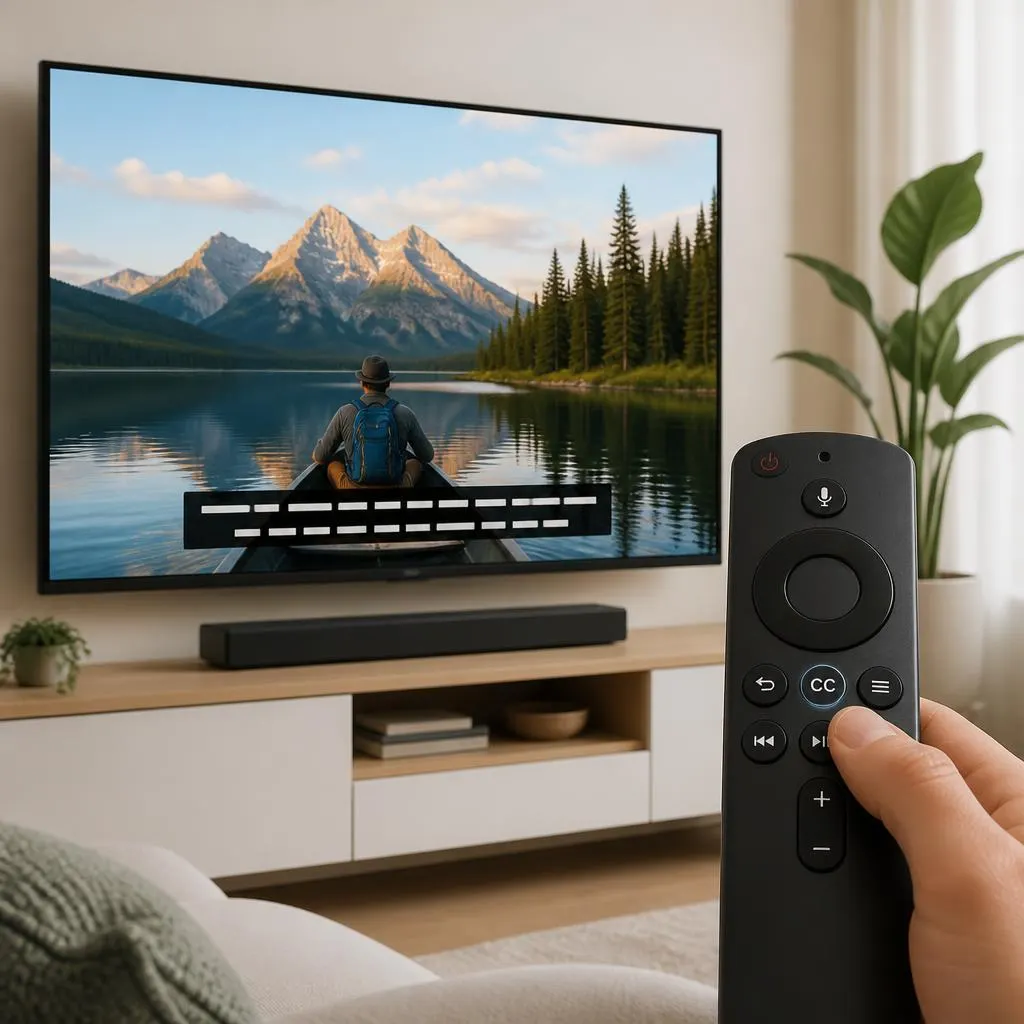
To turn off closed captioning, open the video controls and select the CC, Captions, or Subtitles icon. Choose Off to remove the captions. If they keep appearing, check your device or streaming app’s accessibility and subtitle settings.
If you are wondering how do I turn off closed captioning, the answer depends on the device or app you are using. In most cases, open the video controls, select the CC or captions button, and switch captions off. On TVs and streaming apps, you may need to change the subtitle or accessibility settings instead.
How Do I Turn Off Closed Captioning Quickly?
To turn off closed captioning, look for the CC, Subtitles, or Captions button while your video is playing. Select it and choose Off.
If captions keep appearing after you turn them off, check your device or app settings. Some platforms save your caption preference and automatically turn closed captions back on.
Quick steps:
- Start playing the video.
- Open the playback controls.
- Find CC, Subtitles, or Captions.
- Select the button.
- Choose Off.
- If captions remain, check the accessibility or subtitle settings on your device.
Why Are Closed Captions Showing Up?
Closed captions display spoken dialogue and other useful audio information as text on the screen. They help viewers who are deaf or hard of hearing, but some people may prefer to watch videos without them.
Captions can appear because:
- You turned them on previously.
- The streaming service remembers your preference.
- Your TV has captions enabled.
- Your phone has an accessibility setting enabled.
- The video automatically starts with captions.
- A streaming app has its own subtitle settings.
- Your browser or media player has captions enabled.
The exact steps vary by platform, so the sections below cover common devices and services.
How to Turn Off Closed Captioning on a TV
On many smart TVs, you can disable captions through the TV’s accessibility or broadcast settings.
Try this general method:
- Open Settings on your TV.
- Look for Accessibility, Captions, or Subtitles.
- Select Closed Captions.
- Change the setting to Off.
- Return to your video and check whether the captions disappeared.
Some TVs use different names for the same feature. You may see CC, Closed Caption, Subtitle, or Caption Settings.
If captions only appear inside one streaming app, the app may control the setting rather than the TV itself.
How Do I Turn Off Closed Captioning on Netflix?
Netflix usually lets you control subtitles and captions directly from the video player.
While watching a title:
- Tap or click the screen.
- Open Audio & Subtitles.
- Find the subtitle or caption option.
- Select Off.
- Close the menu and continue watching.
If captions continue to appear, check whether another profile or device setting is affecting playback.
Netflix may also remember subtitle preferences, so changing the setting during playback can affect future viewing.
How Do I Turn Off Closed Captioning on YouTube?
YouTube provides a CC button in the video player when captions are available.
To turn them off:
- Open a YouTube video.
- Tap or click the CC button.
- Make sure the button is no longer active.
- Continue watching without captions.
On some devices, you can also open the video settings menu and change caption preferences.
If captions turn on automatically, check your YouTube playback or accessibility settings.
How Do I Turn Off Closed Captioning on an iPhone?
On an iPhone, captions can come from the video app or from accessibility settings.
For supported Apple video content, you can check:
Settings → Accessibility → Subtitles & Captioning
Depending on your iOS version, you may see options related to Closed Captions + SDH.
If the option is enabled, turn it off.
Keep in mind that individual apps can have their own subtitle controls. If captions appear only in one app, look for the CC or subtitle button inside that app.
How Do I Turn Off Closed Captioning on Android?
Android phones can display captions through individual apps or system accessibility features.
Try these steps:
- Open Settings.
- Search for Captions or Live Caption.
- Open the relevant setting.
- Turn the caption feature off.
- Reopen your video.
The exact menu depends on your Android phone manufacturer and software version.
For example, a Samsung phone may place accessibility options in a different location from a Google Pixel phone.
If captions appear only on YouTube, Netflix, or another app, check that app’s own video controls first.
How Do I Turn Off Closed Captioning on a Samsung TV?
Samsung TVs typically provide caption controls through the accessibility settings.
A common path is:
Settings → General & Privacy → Accessibility → Caption Settings
From there, turn captions off.
Menu names and locations can vary by TV model and software version. If you cannot find the option, use the TV’s Settings search feature and search for caption.
If captions appear only while using a streaming service, open that service’s video controls and disable subtitles there as well.
How Do I Turn Off Closed Captioning on a Roku?
If you use Roku, captions can come from the Roku system settings or from the streaming service.
To check Roku caption preferences:
- Open the Roku Home screen.
- Go to Settings.
- Select Accessibility or Captions, depending on your Roku version.
- Open the caption settings.
- Select Off.
Some channels also have their own caption controls, so check the video player if captions continue to appear.
How Do I Turn Off Closed Captioning on Amazon Prime Video?
Amazon Prime Video provides subtitle controls inside the video player.
While watching:
- Move your cursor or tap the screen.
- Open the subtitle or caption menu.
- Select Off.
- Return to the video.
If subtitles keep appearing, check your Prime Video settings and make sure your preferred subtitle language or caption option is not forcing them to display.
How Do I Turn Off Closed Captioning on Hulu?
On Hulu, you can usually control captions from the playback menu.
Try:
- Start your video.
- Open the playback controls.
- Select the CC or subtitle option.
- Choose Off.
If the setting does not stay off, check Hulu’s current accessibility and subtitle preferences.
How Do I Turn Off Closed Captioning on Disney+?
Disney+ provides caption controls through the video player.
While the video plays:
- Open the playback controls.
- Select the audio and subtitle icon.
- Find the subtitle or caption language.
- Select Off.
- Close the menu.
If captions appear again during another title, repeat the process because subtitle preferences can vary by device or profile.
How Do I Turn Off Closed Captioning on YouTube TV?
YouTube TV has its own caption controls separate from standard YouTube.
During playback:
- Open the video controls.
- Find the CC button.
- Select it to disable captions.
- Check the screen to confirm that captions have disappeared.
If captions return automatically, review your YouTube TV accessibility or caption preferences.
How Do I Turn Off Closed Captioning on a Computer?
On a computer, captions may come from the website, browser, operating system, or video player.
Start with the video itself:
- Play the video.
- Move your mouse over the player.
- Find CC, Subtitles, or Captions.
- Select Off.
If the captions remain, check the computer’s accessibility settings.
Windows
Windows has accessibility features that can display captions in supported situations. Open Settings and search for captions or accessibility.
Turn off any caption feature that you do not want to use.
Mac
On a Mac, open System Settings and search for Captions or Accessibility. Review the subtitles and caption preferences and disable the relevant option.
If only one website shows captions, change the setting inside that website first.
What If Closed Captions Won’t Turn Off?
Sometimes turning off the CC button does not solve the problem. This usually happens because another setting controls the captions.
Try these fixes:
Check the Video Player Again
Some video players have separate controls for subtitles and closed captions. Make sure you selected Off, not simply a different caption language.
Check Device Accessibility Settings
Your TV, phone, tablet, or computer may have a system level caption feature enabled.
Search your device settings for:
- Captions
- Closed captions
- Subtitles
- Live Caption
- Accessibility
- Hearing
- Audio and captions
Check the Streaming App
If captions only appear on one service, open that service’s settings. The app may remember your subtitle preference.
Restart the App
Close the app completely and open it again. A temporary playback issue can sometimes prevent a changed caption setting from applying correctly.
Restart Your Device
If the problem continues, restart your TV, phone, computer, or streaming device.
Check Another Video
Play a different video. If captions appear only on one title, the issue may relate to that specific video rather than your device.
Closed Captions vs Subtitles
People often use closed captions and subtitles as if they mean exactly the same thing, but they can serve different purposes.
| Feature | Closed Captions | Subtitles |
|---|---|---|
| Spoken dialogue | Yes | Usually |
| Speaker identification | Often | Sometimes |
| Important sound information | Often | Usually limited |
| Designed for deaf or hard of hearing viewers | Yes | Not necessarily |
| Translation | Can be available | Commonly used |
| Can usually be turned off | Yes | Yes |
Closed captions can include information beyond spoken words. For example, they may identify a speaker or describe a meaningful sound.
Subtitles often focus mainly on dialogue, especially when viewers need a translation.
Why Do Some People Prefer Closed Captions Off?
Caption preferences depend on the viewer and the content.
Some people turn captions off because:
- They prefer a cleaner screen.
- They find text distracting.
- They understand the dialogue clearly.
- They want to focus on the visuals.
- Captions cover part of the picture.
- They accidentally enabled captions.
- They prefer listening rather than reading.
Other viewers rely on captions because they improve access to dialogue and important audio information.
There is no single setting that works for everyone. The useful part is knowing how to switch captions on or off when needed.
When Should You Keep Closed Captions On?
Closed captions can be helpful in many situations.
Consider keeping them enabled when:
- The speaker has a quiet voice.
- Background music is loud.
- Several people speak at once.
- You are watching content in another language.
- You have difficulty hearing dialogue.
- You are watching in a noisy environment.
- You are watching without sound.
- You want to understand unfamiliar names or terms.
Captions can also help viewers follow dialogue when audio quality is poor.
How to Choose Between Captions and No Captions
Your choice can depend on the viewing situation.
Choose captions on if you need help understanding speech or audio.
Choose captions off if you understand the dialogue comfortably and prefer an unobstructed screen.
Use captions temporarily if a particular scene is difficult to understand.
Keep captions available if different people use the same device and have different accessibility needs.
For shared TVs and streaming accounts, accessibility preferences can differ from one viewer to another. Check the profile or app settings when possible.
Common Closed Caption Problems and Fixes
Captions Keep Coming Back
Check both the streaming service and device accessibility settings. One may be overriding the other.
Captions Appear on Only One App
Open that app’s video player and subtitle settings. The app probably controls the caption preference.
Captions Appear on Every Video
Check your device’s accessibility settings for a system wide caption feature.
Captions Are in the Wrong Language
Open the subtitle menu and select your preferred language or turn subtitles off completely.
Captions Cover the Screen
If you want captions but dislike their appearance, check whether the service or device allows you to change caption size, font, background, or placement.
CC Is Not Visible
Not every video provides captions. The CC button usually appears only when caption support exists.
How to Turn Closed Captions Off Without Removing Accessibility Features
You do not need to disable all accessibility features just because you want captions off.
For example, you can keep:
- Screen magnification
- Voice control
- Audio descriptions
- Hearing enhancements
- Larger text
- High contrast
- Other accessibility tools
Simply change the caption setting that you do not want.
This approach lets you keep useful accessibility features while controlling captions separately.
Closed Captioning and Accessibility
Closed captioning plays an important accessibility role. It can give viewers access to spoken dialogue and meaningful audio information that they might otherwise miss.
For that reason, turning captions off is simply a viewing preference. It does not mean captions are unnecessary. Different viewers need different accessibility options, and many platforms let each person control them.
If you share a device with someone who relies on captions, consider changing the setting only for your profile or the individual video when the platform supports that option.
How to Find the Caption Setting Faster
If you cannot find the correct option, use your device’s built in search feature.
Search for terms such as:
- CC
- Captions
- Closed captions
- Subtitles
- Live Caption
- Accessibility
- Subtitle settings
You can also look for the speech bubble, CC, or text icon inside the video player.
The icon may look different depending on the platform.
Common Mistakes When Turning Off Closed Captions
A few simple mistakes can make the process confusing.
Turning Off the Wrong Setting
Some devices have both system captions and app specific subtitles. Make sure you change the setting responsible for the captions you see.
Assuming Every Platform Uses the Same Menu
Netflix, YouTube, Roku, smart TVs, and mobile devices can all use different controls.
Ignoring Accessibility Settings
If captions keep returning, the device itself may have an accessibility feature enabled.
Changing Language Instead of Turning Captions Off
Selecting another language does not disable captions. Look specifically for Off.
Assuming a Caption Problem Means the Device Is Broken
Most caption issues come from saved preferences or separate settings rather than hardware problems.
FAQs
How do I turn off closed captioning?
Play your video, open the CC, Captions, or Subtitles menu, and select Off. If captions remain, check your device accessibility settings.
Why can’t I turn off closed captions?
The captions may come from your TV, phone, operating system, streaming app, or video player. Check each relevant caption setting.
How do I turn off closed captioning on my TV?
Open your TV’s Settings, find Accessibility or Caption Settings, and switch closed captions off. The exact menu depends on the TV brand and model.
How do I turn off captions on Netflix?
Open Audio & Subtitles while watching a title and select Off under subtitles or captions.
How do I turn off captions on YouTube?
Select the CC button in the YouTube video player. Selecting it again normally turns captions off.
Why do subtitles keep turning on?
Your streaming service, profile, device, or accessibility settings may remember captions as your preferred option.
Are closed captions and subtitles the same?
Not always. Closed captions can include dialogue plus important audio information, while subtitles often focus primarily on spoken dialogue or translation.
Can I turn captions off temporarily?
Yes. Most video players let you switch captions off during individual videos without changing every accessibility setting on your device.
Can I turn captions back on later?
Yes. Open the same caption menu and select the available caption option or language.
Do closed captions work on every video?
No. Caption availability depends on the video, platform, broadcaster, or content provider.
Conclusion
If you only need the quick solution, play the video, select the CC or subtitle icon, and choose Off. If captions keep returning, check your TV, phone, computer, or streaming app’s accessibility settings.
The exact steps can vary by platform, but the CC, Captions, Subtitles, and Accessibility menus are the main places to look.