
Quick Answer:
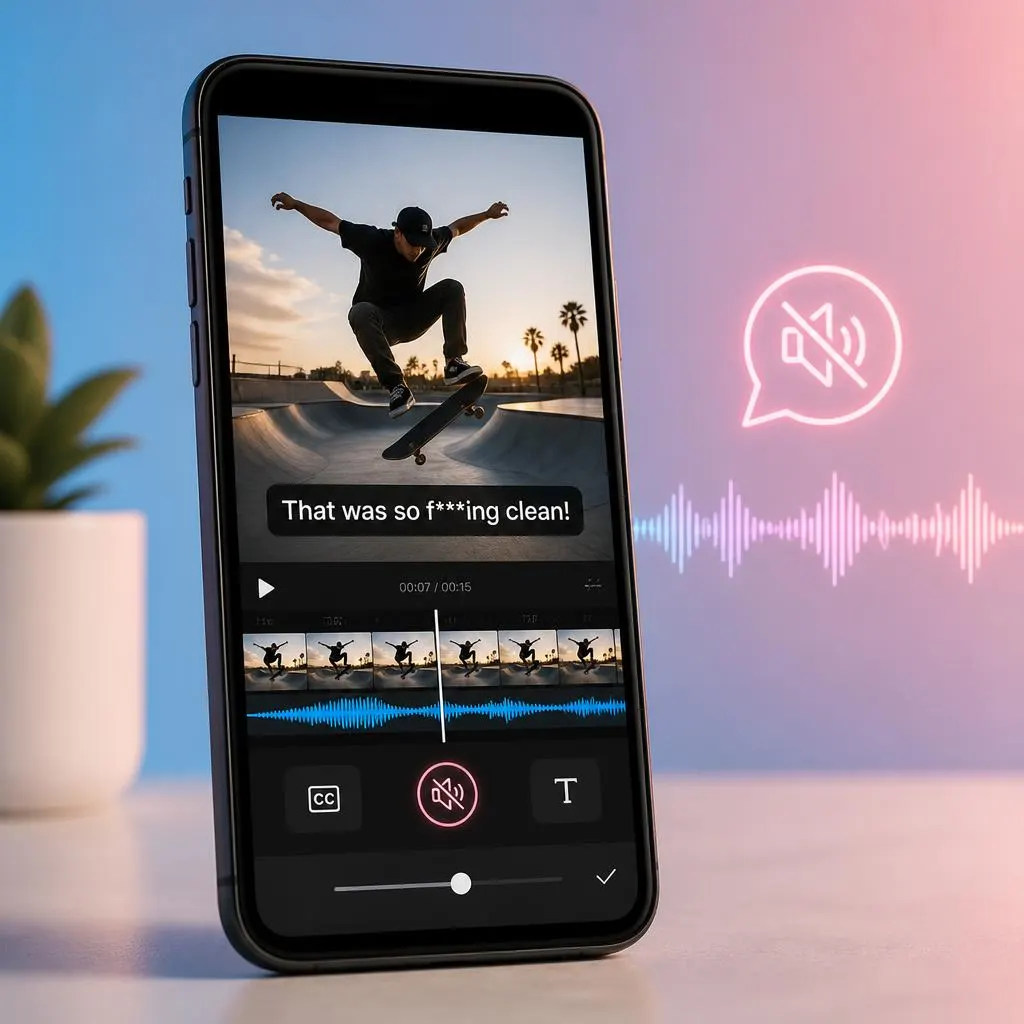
To bleep out curses in TikTok captions, open your video’s caption or text editor and replace the offensive word with asterisks, symbols, or a milder expression. For example, change a curse word tof***,WTF, or “what the heck.” If TikTok’s automatic captions display the spoken curse, edit the recognized text before posting, if the editing option is available. For a spoken curse, you may also need to mute or cover the audio separately because changing captions does not remove the word from the sound.
Learning how to bleep out curses in TikTok captions helps you keep your videos clean, clear, and suitable for a wider audience. Whether you want to hide swear words, replace profanity with symbols, or edit captions before posting, these simple tips will help you make your TikTok content more appropriate without losing its original meaning.
If you want to keep your TikTok captions clean without losing the humor, emotion, or meaning of your video, you can replace curse words with symbols, shortened spellings, or cleaner alternatives. The best method depends on whether you mean the text displayed on screen or the automatic captions generated from your spoken audio.
This guide explains how to bleep out curses in TikTok captions, edit auto-generated subtitles, and keep your videos readable while maintaining your original style.
What Does Bleeping Out Curses in TikTok Captions Mean?
Bleeping out curses means hiding or replacing profanity so viewers can understand your message without seeing the full offensive word. Creators use this approach for comedy videos, storytimes, reaction clips, gaming content, and everyday conversations.
There are several ways to do it, depending on the result you want.
- Symbols: Replace letters with asterisks, such as
s***. - Partial spelling: Keep the first letter and hide the rest of the word.
- Clean alternatives: Replace profanity with phrases like “oh, snap,” “what the heck,” or “seriously?”
- Audio censoring: Mute the curse or cover it with a beep sound while keeping the captions clean.
- Text overlays: Add your own corrected caption over the video when the original captions cannot be edited as needed.
The important distinction is that captions and audio are separate. Hiding a curse in text does not automatically censor the spoken word.
How to Edit Curse Words in TikTok Auto Captions
TikTok’s automatic captions can turn spoken dialogue into text. Depending on the editing tools available in your version of the app, you may be able to correct the recognized words before publishing.
Follow these general steps.
- Open TikTok and tap the plus (+) button to create or upload a video.
- Record your clip or select a video from your device.
- Continue to the editing screen.
- Look for the Captions option or the automatic caption tool.
- Let TikTok generate captions from your spoken audio.
- Review the caption text and look for any curse words you want to change.
- If the text editor allows it, replace the word with symbols or a cleaner expression.
- Review the timing and spelling, then save your changes.
- Preview the video before posting to make sure the captions appear correctly.
TikTok’s interface can change across app versions, regions, and account experiences. If you cannot edit the generated captions directly, use the available text tool to add corrected text or edit the video in another editor before uploading it.
Example of Editing a Caption
Imagine your video includes the spoken sentence, “That was a crazy day.”
If the automatic caption includes profanity that you do not want displayed, you can replace the offending word while preserving the rest of the sentence.
- Original style: A sentence containing the full curse word.
- Censored style: A sentence containing
f***. - Cleaner style: A sentence using “seriously” or “what the heck.”
Choose the version that suits your audience and the tone of your video.
How to Bleep Out Curses With TikTok Text Overlays
Sometimes automatic captions do not offer the editing control you need. In that case, adding your own text overlay can be a practical workaround.
This method works best when you want to censor a particular word without changing the rest of the video.
- Open the video in TikTok’s editing screen.
- Tap Text.
- Type the corrected caption, using symbols or a clean alternative for the curse.
- Adjust the text size, font, and position so viewers can read it easily.
- Set the text duration if the timing controls are available.
- Align the text with the moment the spoken word occurs.
- Preview the clip to make sure the replacement appears at the right time.
If the original automatic captions remain visible underneath your new text, simply covering them may not look clean. You may need to disable the original captions, edit the video in another app, or create a replacement caption layer that matches the video.
Keep your overlay brief and readable. A simple f*** is often easier to follow than a long explanation about why the word was censored.
Best Ways to Write Censored Curse Words in TikTok Captions
The best replacement depends on your content, audience, and personal style. You can hide the original word, soften the language, or turn the censorship into part of the joke.
Here are some copy friendly options.
Use Asterisks to Hide Letters
Asterisks are useful when you want viewers to understand that a curse was used without displaying the full spelling.
- F***
- S***
- B****
- A**
- D*** it
- What the f***
- Holy s***
- This is b*******
- Oh, f***
- That was some serious b*******
Use asterisks carefully. The number of symbols needed depends on the word, and some replacements may still be considered profanity by viewers or platform filters.
Replace Curses With Symbols
Symbols can make a censored caption feel playful, especially in reaction videos and comedy clips.
- What the @#$%?
- Are you kidding me?!
- Oh, %$#@!
- That was a total *&%$ moment.
- You have got to be kidding me.
- Seriously?!
- No way!
- What just happened?!
- Well, that went wrong.
- I cannot believe this.
These examples work best when the sentence remains understandable without the original curse.
Swap Profanity for Cleaner Words
If you want a family friendly video, replacing profanity completely is often more effective than hiding a few letters.
- What the heck?
- Oh, snap!
- For goodness’ sake!
- That is ridiculous.
- You’ve got to be kidding me.
- What on earth?
- That was wild.
- Are you serious right now?
- This is a mess.
- I cannot deal with this.
Clean replacements are especially useful for educational videos, public content, and creators who want a broader audience.
How to Censor Spoken Curses With a Beep Sound
If you want the curse removed from the audio as well as the captions, you need to edit the sound separately. A text change alone will not censor spoken profanity.
You can use TikTok’s available audio editing controls or a separate video editor that supports audio trimming, muting, sound effects, or audio replacement.
A Simple Audio Censoring Workflow
- Open your video in an editor that lets you adjust its audio.
- Find the exact moment when the curse occurs.
- Split the audio or select the relevant section, if the editor supports it.
- Mute that short section or cover it with a beep sound effect.
- Adjust the timing so the censor sound covers the entire word.
- Edit the captions to match the censored audio.
- Play the video with sound to check that the original word is no longer audible.
- Watch the video again with captions enabled to confirm that the text matches.
A beep can be funny in a comedy clip, while a brief mute may feel more natural in a serious video. Choose the style that fits your content.
Important: Check the final exported video. If you add a beep over the original audio without muting or removing the underlying word, the curse might still be audible.
How to Bleep Curses in TikTok Videos Using Another Editor
A separate editor can help if TikTok does not provide the caption or audio controls you need. The exact features vary by app, but the general process is similar.
Useful for editing text overlays, adjusting timing, and working with audio on supported versions. Create a replacement caption and align it with the spoken word, then censor the audio if necessary.
A useful option for basic video edits, text overlays, and audio adjustments. Check which caption and sound controls your installed version supports.
Consider an editor with timeline controls if you need to position text precisely or make detailed audio adjustments. Availability and supported features can vary by device and software version.
Before exporting, check that the captions are synchronized with the dialogue and that the audio censor covers the intended word. Then upload the finished clip to TikTok.
Common Problems When Censoring TikTok Captions
Even a simple caption edit can create problems if the text, timing, and audio do not match.
The Curse Still Appears in Automatic Captions
Automatic speech recognition may reproduce a curse even if you intended to hide it.
Try this: Review the generated captions before posting. If direct editing is unavailable, add a corrected text overlay or edit the captions in another tool.
The Original Curse Is Still Audible
Changing the subtitle does not alter the video’s audio track.
Try this: Mute the relevant audio segment or cover it with a properly timed sound effect, then check the exported video.
The Replacement Text Appears Too Early or Too Late
Text overlays can remain visible for too long or appear after the spoken word.
Try this: Adjust the text duration and replay the relevant section several times. Keep the replacement synchronized with the dialogue.
Two Sets of Captions Appear on Screen
This can happen when you add a text overlay without removing or hiding the original captions.
Try this: Disable the original caption layer if possible, edit the source video, or reposition your replacement text so the screen remains clear.
The Caption Looks Messy
Too many symbols, oversized text, or several different fonts can make a video difficult to follow.
Try this: Use a short replacement, keep the font consistent, and make sure the text contrasts with the background.
How to Keep TikTok Captions Clean and Easy to Read
Censoring a curse should not make your video harder to understand. Use these simple guidelines to maintain a good viewing experience.
- Preserve the sentence’s meaning. Replace only the offensive word when the rest of the sentence works.
- Keep captions concise. Short phrases are easier to read on a phone screen.
- Choose one censorship style. Avoid switching between asterisks, symbols, and long replacement phrases without a reason.
- Check readability. Use clear text with enough contrast against the video.
- Match captions to the audio. If you bleep a spoken word, make sure the text does not display the full curse.
- Review the complete video. Watch it from beginning to end before publishing.
- Consider your audience. Cleaner alternatives may be more suitable for videos intended for children, classrooms, brands, or general audiences.
If you use TikTok for business or sponsored content, check the relevant platform policies and any requirements from your brand partners. Censoring a word does not guarantee that a video will qualify for every audience or recommendation setting.
FAQs
Can I bleep out curse words directly in TikTok captions?
You may be able to edit automatically generated caption text before posting, depending on the version of TikTok and the editing options available to your account. If direct editing is unavailable, add replacement text or edit the video in another application.
Does TikTok automatically censor swear words?
Do not assume TikTok will automatically hide every curse in spoken audio or generated captions. Review your video before publishing and manually correct any words you want to censor.
How do I replace a curse with asterisks?
Open the caption or text editor, find the offensive word, and replace some or all of its letters with asterisks. If you cannot edit the original captions, create a replacement text overlay or edit the video elsewhere.
Will censoring a curse in captions mute it?
No. Captions display text, while the audio track carries the spoken word. To censor both, edit the caption and separately mute or cover the spoken curse.
Can I use a beep sound instead of a curse word?
Yes. You can add a beep sound effect using an editor that supports audio editing. Make sure it covers the entire spoken word and that the original audio does not remain audible underneath.
Can I censor captions after posting a TikTok?
Editing options for an already published video may be limited. If you cannot change the caption text or audio as needed, you may need to edit the original video and upload a corrected version. Consider the effect on existing engagement before removing or replacing a post.
What is the best way to censor curse words for a family friendly TikTok?
Replace profanity with a clean expression such as “what the heck,” “seriously,” or “that was wild.” If the word is spoken, mute or cover it as well. This creates a cleaner result than simply hiding a few letters.
Will censored curse words affect TikTok reach?
There is no guarantee that censoring profanity will increase views or improve distribution. Video performance depends on multiple factors, and hiding a word does not guarantee that a post will meet every platform policy. Focus on clear captions, suitable content, and a good viewer experience.
Conclusion
Learning how to bleep out curses in TikTok captions is straightforward once you separate text editing from audio censoring. Replace unwanted words with symbols or cleaner expressions, correct automatic captions when editing is available, and use a separate editor if you need more control. Always preview the final video to make sure the captions are readable and the spoken profanity is properly covered.