
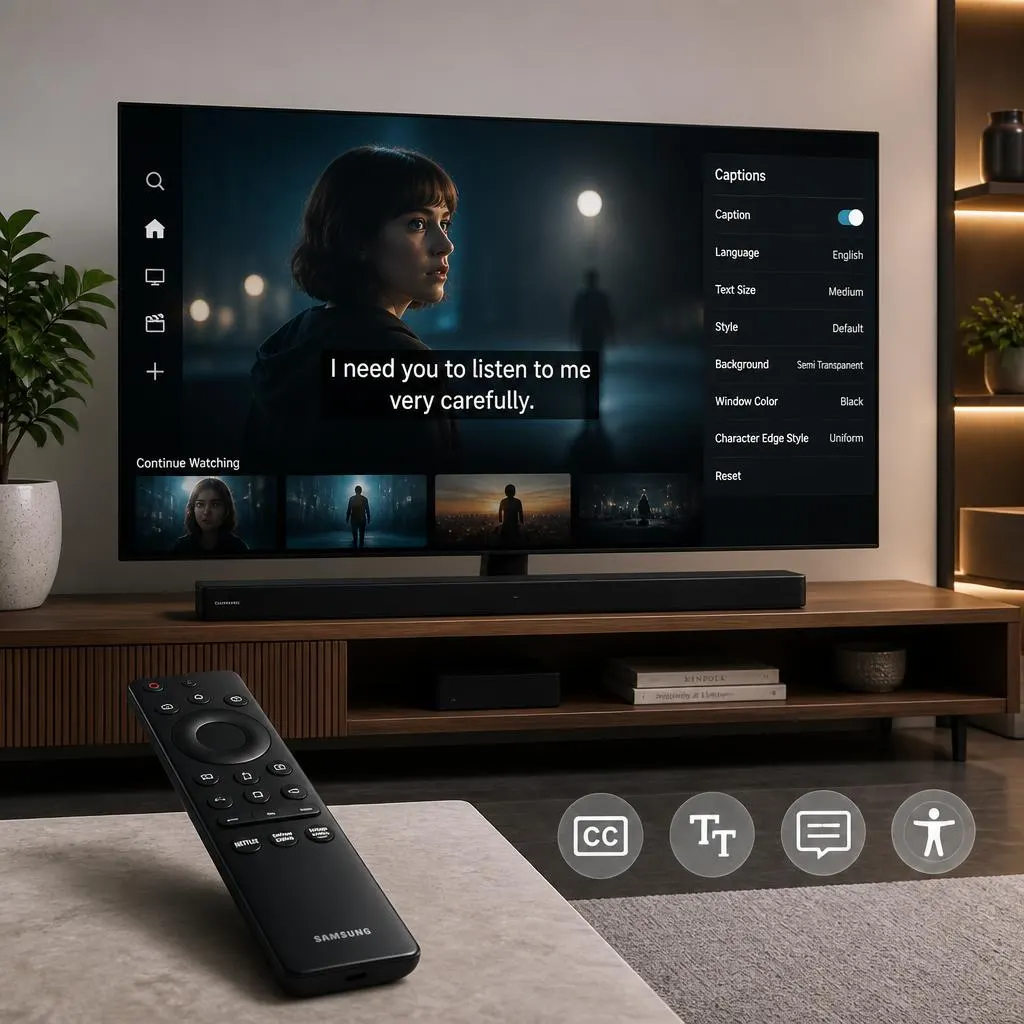
Quick Answer:
To turn off closed caption on Samsung TV, go to Settings → General → Accessibility → Caption Settings, then switch Caption to Off. If captions only appear on Netflix, open the show or movie, select Audio & Subtitles, and turn off the selected subtitle or caption option. Menu names can vary slightly by Samsung TV model.
Nothing ruins a clean movie night quite like captions appearing on the screen when you do not want them. The good news is that turning off closed caption on a Samsung TV usually takes less than a minute once you know where to look. The tricky part is that Netflix and other streaming apps can manage captions separately from your TV.
Whether you want to remove captions completely, turn them back on for accessibility, or figure out why they keep appearing on Netflix, the right setting depends on where those captions come from. This guide walks you through the simplest fixes, explains Samsung and Netflix caption controls, and shows what to check when the text refuses to disappear. Samsung TV and Netflix Caption Settings
If you need the fastest solution, use these steps:
To turn off closed captions on a Samsung TV:
- Press Home on your Samsung remote.
- Open Settings.
- Select General.
- Choose Accessibility.
- Open Caption Settings.
- Select Caption and turn it Off.
Samsung notes that menu names and available features can vary by TV model and software version.
To get closed captions on Netflix:
- Open Netflix.
- Start playing a movie or TV show.
- Open the playback controls using your remote.
- Select Audio & Subtitles.
- Choose an available subtitle or caption language.
- Resume playback.
Netflix says that on smart TVs and other supported TV devices, you can access subtitle options while a title is playing.
How to Turn Off Closed Caption on Samsung TV
Samsung TVs include closed caption controls under Accessibility settings. The exact appearance can differ between models, but the general path remains straightforward.
Standard Samsung TV method
Try this route first:
- Press the Home button on your remote.
- Select Settings.
- Select General.
- Choose Accessibility.
- Select Caption Settings.
- Highlight Caption.
- Switch it to Off.
Samsung’s current support guidance lists Settings > General > Accessibility > Caption Settings > Caption as the main route for turning captions on or off.
Once the setting is disabled, captions should disappear from supported broadcast content and apps that rely on the TV’s caption setting.
Use the accessibility shortcut
Some Samsung Smart Remotes offer a faster route.
Press and hold the Mute button to open Accessibility Shortcuts. On some remotes, the Volume button may serve this purpose instead. Samsung also notes that standard remotes may have a dedicated Caption button.
This shortcut can save time when you frequently switch accessibility features on and off.
If your Samsung menu looks different
Do not worry if your screen does not exactly match the steps above.
Samsung states that accessibility features can vary depending on the TV model and software version. Older TVs may organize their settings differently, while newer models may use updated menu layouts.
Look for terms such as:
- Accessibility
- Caption
- Caption Settings
- Closed Caption
- General
- General & Privacy
- Digital Caption Options
The wording may change, but the caption controls generally live within the TV’s accessibility settings.
How to Turn Closed Captions Back On
Maybe you turned captions off and now want them back. The process is almost identical.
Go to:
Home → Settings → General → Accessibility → Caption Settings → Caption → On
Samsung’s caption menu can also include options for caption mode and digital caption appearance.
You can use these settings to adjust supported caption features rather than simply turning them on or off.
For example, Samsung provides options that can control:
- Caption language or mode
- Font style
- Font size
- Text color
- Background color
- Caption positioning
- Separate closed captions
The options available depend on the TV model and the source providing the captions.
How to Get Closed Caption on Netflix
If you want captions while watching Netflix, you normally control them from the Netflix playback screen rather than the Samsung TV’s general caption menu.
On a Samsung Smart TV
Follow these steps:
- Open the Netflix app.
- Choose a movie or TV show.
- Start playback.
- Press the up or down arrow on your remote to open the playback controls.
- Select Audio & Subtitles.
- Choose your preferred subtitle or caption language.
- Continue watching.
Netflix’s official instructions say smart TVs and similar devices use the remote’s directional controls to open the audio and subtitle options during playback.
Depending on the TV and Netflix app version, the language options may appear along the bottom of the screen without a separate icon.
Choosing closed captions instead of regular subtitles
Netflix distinguishes between subtitles and closed captions.
Regular subtitles generally display spoken dialogue.
Closed captions can also provide descriptions of important sounds, such as music or other audio information. Netflix describes closed captions as dialogue plus descriptions of sounds that viewers would hear during a program.
If a title offers SDH, or Subtitles for the Deaf and Hard of Hearing, that option may provide the type of additional sound information you are looking for.
Not every movie or show offers the same caption languages or formats. Netflix says available languages can depend on factors such as the title, location, profile settings, and device.
Samsung TV Captions vs Netflix Captions
One of the biggest sources of confusion is assuming that one caption setting controls everything.
It does not always work that way.
Samsung explains that some apps, including Netflix, have their own independent caption settings. That means your Samsung TV can have captions enabled while Netflix uses a separate subtitle setting.
| Situation | Setting to check |
|---|---|
| Captions appear on regular TV broadcasts | Samsung TV Caption Settings |
| Captions appear inside Netflix | Netflix Audio & Subtitles |
| Captions appear in another streaming app | That app’s subtitle settings |
| Captions appear from a game console | Console caption settings |
| Captions appear from a Blu-ray or DVD | Disc or player menu |
| Caption text looks too large or small | Samsung or Netflix appearance settings |
This distinction can save you a lot of unnecessary troubleshooting.
If captions disappear from regular TV but remain inside Netflix, that does not necessarily mean your Samsung settings failed. Netflix may simply have its own caption selection active.
Why Are Captions Still Showing After You Turn Them Off?
This is one of the most common questions people have after changing Samsung TV settings.
There are several possible reasons.
1. Netflix has its own caption setting
If you turned captions off through the Samsung TV menu but still see them in Netflix, open the Netflix player and check Audio & Subtitles.
Samsung specifically warns that apps such as Netflix can maintain independent caption settings.
2. Another device controls the captions
If your Samsung TV connects to a cable box, streaming device, game console, or Blu-ray player, that external device may control the captions.
In that case, changing the TV’s built-in caption setting may not remove captions generated by the connected device.
3. The captions are part of the video
There is an important difference between closed captions and open captions.
Closed captions can normally be switched on or off.
Open captions are permanently embedded into the video itself. Samsung explains that open captions are part of the video and therefore cannot be turned off through the TV’s closed caption controls.
If text remains on the screen even after every caption setting is disabled, the text may be part of the actual video.
4. The title has forced subtitles
Some Netflix content may show subtitles even when your normal subtitle preference is off. Netflix notes that certain titles can display subtitles by default when dialogue occurs in a language other than the title’s original language.
So not every line of text on Netflix necessarily comes from your regular caption preference.
How to Change Netflix Caption Appearance
Getting captions on screen is only part of the experience. You can also customize their appearance on supported devices.
Netflix allows users to change options such as:
- Font
- Text size
- Shadow
- Background color
- Style
For TV and streaming devices, Netflix says you can open a title, pause playback, select the player controls, and choose Settings when the option is available.
However, not every TV or streaming device supports every appearance option.
If you do not see the customization controls, the device may simply use the default caption style.
How to Get Closed Caption on Netflix on Other Devices
The Netflix caption process changes slightly depending on what you use to watch.
On a computer
Start playing the movie or show and select the Audio and Subtitles option in the player. Then choose the available subtitle or caption language.
On a phone or tablet
Open Netflix and play the title. Open the playback controls and choose the Audio & Subtitles option.
Select the caption or subtitle language you want, then return to playback.
On a smart TV or streaming player
Start the title and use the remote to open the playback controls. Select Audio & Subtitles, then choose an available option.
On Apple TV
Netflix supports subtitles and alternate audio on supported Apple TV devices. The exact controls depend on the Apple TV model and software.
What Is the Difference Between Subtitles and Closed Captions?
People often use the words interchangeably, but there is a useful distinction.
Subtitles primarily communicate spoken dialogue, often for viewers who understand the language visually or need another language.
Closed captions can include spoken dialogue as well as relevant non-speech audio information.
For example:
Subtitle:
- “I can’t believe you did that.”
Closed caption:
- “I can’t believe you did that.”
- Door slams.
- Soft music plays.
- Crowd cheering.
Netflix explains that closed captions can include descriptions of sounds in addition to dialogue.
The exact presentation depends on the title and device.
Caption Problems and Fast Fixes
If captions do not behave as expected, work through these fixes in order.
Captions will not turn off
Try this sequence:
- Check Samsung’s Caption setting.
- Open Netflix and check Audio & Subtitles.
- Check any connected streaming box or console.
- Restart the app.
- Restart the TV.
- Try another title.
- Check whether the text is permanently embedded in the video.
If the problem only happens with one Netflix title, it may be related to that specific content rather than your TV.
Netflix also has a dedicated troubleshooting page for subtitles that refuse to turn off.
Captions will not turn on
Check whether the movie or show actually offers your chosen caption language.
Netflix says subtitle and audio availability can vary by:
- Title
- Season or episode
- Location
- Profile language preferences
- Device
If the option does not appear, try another title to determine whether the issue affects all content or only one program.
Captions appear on one show but not another
That can be normal.
Netflix does not guarantee that every title, season, episode, or language will offer the same subtitle and caption options. Licensing and content availability can affect which languages appear.
Captions look too large
If your Samsung TV supports digital caption customization, open:
Settings → General → Accessibility → Caption Settings → Digital Caption Options
Samsung provides options for changing aspects such as font style, size, color, and background on supported models.
Netflix also provides subtitle appearance controls on supported devices.
A Simple Decision Guide
Not sure which setting you should change? Use this quick guide.
| What you see | What to do |
|---|---|
| Captions appear on live TV | Check Samsung Caption Settings |
| Captions appear only in Netflix | Check Netflix Audio & Subtitles |
| Captions appear only while using a console | Check the console settings |
| Captions appear with a cable box | Check the cable box settings |
| Captions are permanently printed into the video | They may be open captions |
| Netflix does not show your language | Check title and device availability |
| Captions are too large | Check Samsung or Netflix appearance settings |
| Captions return on certain titles | Check Netflix title-specific behavior |
How to Choose the Best Caption Setting
Your ideal setting depends on how you watch TV.
For everyday TV watching
Keep Samsung captions off if you prefer a clean screen, especially when you rarely need text assistance.
For accessibility
Keep captions enabled when they help you follow dialogue, identify sounds, or understand speech more easily.
For foreign-language content
Use Netflix’s Audio & Subtitles menu to select an available language rather than relying solely on Samsung’s general caption settings.
For late-night viewing
Captions can let you follow dialogue without increasing the TV volume. This can be useful when you want to watch quietly.
For learning languages
Subtitles can also help connect spoken language with written words. Choose the language that best supports your learning goal.
Common Mistakes to Avoid
A few simple mistakes can make caption troubleshooting more confusing than it needs to be.
Mistake 1: Changing only the Samsung setting
Netflix may use its own caption controls, so changing the TV setting may not affect Netflix playback.
Mistake 2: Assuming every caption is removable
Open captions can be permanently included in the video and cannot be disabled like closed captions.
Mistake 3: Assuming every Netflix title supports every language
Subtitle availability differs between titles and devices.
Mistake 4: Confusing subtitles with audio description
Audio description is different from captions. It provides spoken descriptions of visual elements rather than displaying dialogue as text.
Mistake 5: Assuming your TV is broken
If captions work differently between live TV, Netflix, and another streaming service, the different source settings may explain the behavior.
Quick Tips for Easier Caption Control
Keep these shortcuts in mind:
- Samsung TV: Start with Settings → General → Accessibility → Caption Settings.
- Netflix: Start playback, open the controls, then choose Audio & Subtitles.
- Different app: Check that app’s own subtitle menu.
- External device: Check the connected device rather than only the TV.
- No caption option: The title may not support the selected language.
- Text won’t disappear: Check whether it is open captioning or forced subtitle content.
- Text looks wrong: Check caption appearance settings.
- Only one title has the problem: Test another title before changing major TV settings.
FAQs
How do I turn off closed caption on Samsung TV?
Go to Settings → General → Accessibility → Caption Settings, then switch Caption off. Menu names can vary by Samsung TV model and software version.
How do I get closed caption on Netflix?
Open a Netflix movie or show, start playback, open the player controls, select Audio & Subtitles, and choose an available subtitle or caption option.
Why won’t captions turn off on my Samsung TV?
If captions remain after you disable them in Samsung’s settings, check Netflix or another connected source. Apps and external devices can have their own caption controls.
Why do captions stay on Netflix when Samsung captions are off?
Netflix can manage subtitles and captions separately from the Samsung TV’s general caption setting. Open Netflix while playing a title and check the Audio & Subtitles menu.
Can I change the size of captions on a Samsung TV?
On supported Samsung models, you can use Digital Caption Options to adjust caption appearance, including elements such as size, font style, color, and background.
Why does Netflix show subtitles even when I turned them off?
Some Netflix titles can display subtitles automatically, including certain content where dialogue occurs in a language different from the title’s original language.
Why can’t I find my preferred caption language on Netflix?
Netflix says language availability can depend on the title, your location, profile language preferences, and device. Some seasons or episodes may also have different language availability.
What is the difference between subtitles and closed captions?
Subtitles generally display spoken dialogue, while closed captions can also provide information about relevant sounds, such as music or other audio cues.
Can I turn off open captions?
Usually not. Open captions are embedded directly into the video, so they cannot be disabled through normal closed caption controls.
Why do captions appear on Netflix but not regular TV?
The two sources may use separate caption systems. Samsung controls captions for supported TV broadcasts, while Netflix manages its own subtitle and caption options inside the app.
conclusion
Knowing how to turn off closed caption on Samsung TV becomes much easier once you know where Samsung keeps its accessibility controls. Start with Settings → General → Accessibility → Caption Settings, then turn Caption off or on as needed. Samsung notes that the exact menu can vary by model and software version.
If your goal is to get closed caption on Netflix, use Netflix’s own Audio & Subtitles menu while the movie or show is playing. That setting can operate independently from the Samsung TV’s general caption controls.
When captions refuse to disappear, do not immediately assume something is wrong with the TV. Check Netflix, your streaming device, cable box, game console, and the possibility that the text is permanently embedded in the video. Once you know which device or app is generating the captions, the right fix is usually quick.