
Quick Answer:
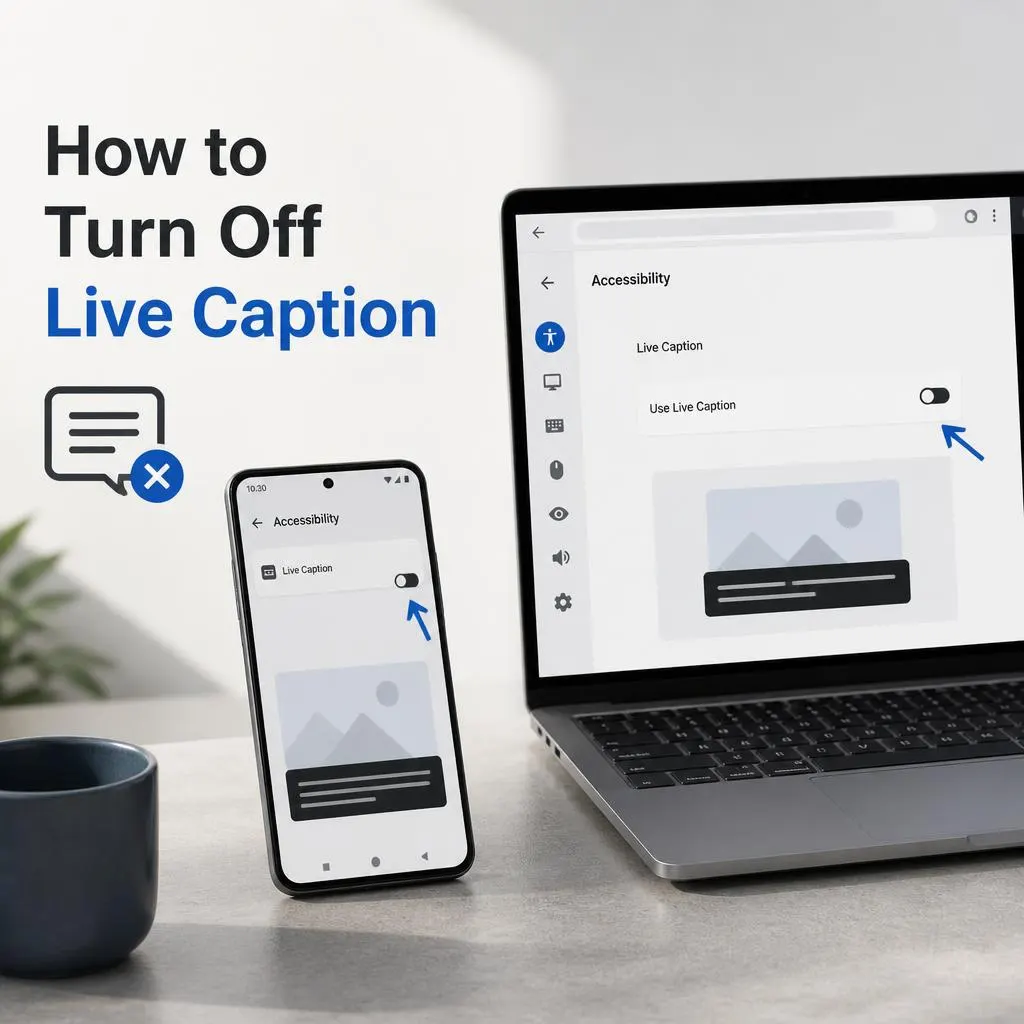
To turn off Live Caption, open your device’s Settings, search for Live Caption, and switch it off. On most Android phones, you can also press a volume button, tap the Live Caption icon in the volume panel, and disable it. On Google Chrome, open Settings → Accessibility and turn off Live Caption. The exact steps may vary depending on your device and software version.
Live Caption can automatically turn speech into text on your screen, making videos, calls, and other audio easier to follow without turning up the volume. However, if a caption box suddenly appears while you are watching a video or listening to music, it can cover important parts of your screen and become distracting.
The good news is that you can usually turn Live Caption off in seconds. The exact steps depend on whether you use an Android phone, Google Chrome, a Windows computer, or another supported device. You may also need to change a separate accessibility setting if captions keep returning.
This guide explains how to turn off Live Caption on popular devices, remove the floating caption box, stop captions from appearing automatically, and fix common problems when the feature will not switch off.
How to Turn Off Live Caption
The fastest way to turn off Live Caption depends on your device.
- Android: Press a volume button, open the volume panel, and tap the Live Caption icon if it appears. You can also find Live Caption in your phone’s Settings.
- Google Chrome: Open Chrome’s Settings, select Accessibility, and switch off Live Caption.
- Windows: Check the Live Captions accessibility settings or use the supported keyboard shortcut on your Windows version.
- Other devices: Open Accessibility or Captions settings and look for the Live Caption option.
Live Caption is different from subtitles inside apps such as YouTube or Netflix. Turning off your device’s Live Caption feature may not disable subtitles that you selected within a streaming app.
What Is Live Caption, and Why Does It Keep Appearing?
Live Caption is an accessibility feature that automatically generates text from speech playing on a supported device. Depending on your device and software, it may caption videos, podcasts, phone calls, and other audio.
Unlike ordinary subtitles, Live Caption does not necessarily depend on a subtitle track supplied with the video. It can generate captions from the audio itself.
You might want to turn it off if:
- A caption box appears every time you play a video.
- Text covers part of a movie, game, or social media clip.
- You accidentally enabled the feature using your volume controls.
- You prefer subtitles inside individual apps.
- The caption window stays visible even when you no longer need it.
The most effective solution is to switch off Live Caption at the device level rather than repeatedly closing the caption box.
How to Turn Off Live Caption on Android Phones
On Android, Live Caption is often controlled through the volume panel. This is usually the quickest solution if a black caption box appears while you watch YouTube, listen to a podcast, or play audio in another app.
Method 1: Use the Volume Buttons
Follow these steps on a supported Android phone:
- Press either volume button on the side of your phone.
- Look below the volume slider for the Live Caption icon.
- If the icon is not visible, tap the three dots or More option in the volume panel.
- Tap the Live Caption icon to switch the feature off.
- Tap Done if your phone displays that option.
Google documents this as a quick way to turn Live Caption on or off on supported Android devices. The exact controls vary by manufacturer and software version.
Android Accessibility Help
+1
Method 2: Turn Off Live Caption in Settings
If you cannot find the icon, use your phone’s Settings app.
- Open Settings.
- Tap Accessibility.
- Look for Live Caption.
- Open the setting and switch it off if your device provides an on or off toggle.
On some phones, the option may be located in a different menu. Use the Settings search bar and type Live Caption if you cannot find it.
Google notes that some Android devices do not support Live Caption, and manufacturers may use different menus. If the option is missing, check your phone manufacturer’s support instructions.
Android Accessibility Help
+1
Method 3: Remove the Caption Box From the Screen
Sometimes you want to remove the caption box immediately without navigating through Settings.
On supported Android devices, touch and hold the Live Caption box and drag it off the bottom of the screen. Google documents this as a way to hide captions and turn off Live Caption.
Android Accessibility Help
+1
If the box returns when you play another video, use the volume panel or Settings method to make sure Live Caption is switched off.
How to Turn Off Live Caption on Google Pixel Phones
Google Pixel phones include Live Caption controls in the volume panel and accessibility settings.
- Press a volume button.
- Expand the volume panel if needed.
- Tap the Live Caption icon.
- Confirm that the feature is off.
Alternatively, open Settings, search for Live Caption, and open the corresponding accessibility setting.
Pixel phones may offer additional options for captions during calls, language preferences, and expressive captions. These options control specific Live Caption behaviors, so you may not need to change them if your goal is simply to stop captions from appearing.
Android Accessibility Help
+1
How to Turn Off Live Caption on Samsung Phones
Samsung menu layouts can vary by model and One UI version. Start by searching your phone’s Settings for Live Caption.
- Open Settings.
- Tap the search icon.
- Search for Live Caption.
- Open the result if your phone supports the feature.
- Turn it off.
If you cannot find the setting, press a volume button and inspect the expanded volume panel for the Live Caption control.
Important: Samsung’s regular caption preferences and Android Live Caption are not necessarily the same feature. If one setting does not remove the floating text box, look for a separate Live Caption control rather than changing every accessibility option.
How to Turn Off Live Caption on Google Chrome
Chrome has its own Live Caption feature. This means captions can appear in your browser even when Android or Windows system captions are switched off.
On Windows or Mac
- Open Google Chrome.
- Click the three dot menu in the upper right corner.
- Select Settings.
- Open Accessibility.
- Find Live Caption.
- Switch the setting off.
Google confirms that Chrome provides its own Live Caption toggle on Windows and Mac.
Google Chrome Help
+1
On Linux
The steps are similar, although Chrome’s menu labels can differ slightly.
- Open Chrome and select the three dot menu.
- Go to Settings.
- Select Accessibility.
- Open Captions if that section appears.
- Turn Live Caption off.
Google’s instructions for Linux place the control under Accessibility and Captions.
Google Chrome Help
On Chromebook
On a Chromebook, Live Caption may be managed through Chrome’s accessibility controls.
- Open Chrome.
- Select the three dot menu.
- Go to Settings, then Accessibility.
- Select Manage accessibility features if available.
- Open Audio and captions.
- Switch Live Caption off.
You can also check the Chromebook’s system accessibility settings if the captions are being controlled outside the browser.
Google Chrome Help
What If Chrome Captions Stay On?
If Live Caption remains visible after you switch it off in Chrome, check that you changed the setting in the same browser profile and window where you noticed the captions.
Also check whether Windows or another application has its own caption feature enabled. Turning off Chrome’s setting will not necessarily turn off captions generated by a separate system tool.
How to Turn Off Live Captions on Windows 11
Windows 11 includes a system wide Live Captions feature that can transcribe speech from audio playing on your computer.
The quickest way to switch it off is to press:
Windows key + Ctrl + L
This keyboard shortcut toggles Live Captions on supported Windows 11 versions.
Microsoft Support
+1
You can also use the system controls:
- Open Settings.
- Select Accessibility.
- Choose Captions.
- Find the Live Captions control and turn it off if shown.
Alternatively, open Quick Settings from the taskbar and look for the Accessibility options containing Live Captions. The precise layout depends on your Windows version.
Microsoft Support
+1
Windows Live Captions vs. Chrome Live Caption
If captions appear while you watch YouTube in Chrome, do not assume Windows is responsible.
Check both places:
- Windows 11: use the Live Captions shortcut or the system accessibility controls.
- Chrome: open Settings, select Accessibility, and switch Live Caption off.
If Windows Live Captions are already off but the caption bubble remains, Chrome’s own caption setting is a sensible next place to check. Google maintains a separate browser control for this feature.
Google Chrome Help
+1
How to Turn Off Live Caption on a Mac
Chrome on a Mac has its own feature, while macOS provides separate accessibility features for captions and audio. If you see a floating caption box while browsing, check Chrome first.
Turn Off Live Caption in Chrome on Mac
- Open Chrome.
- Click the three dot menu.
- Select Settings.
- Choose Accessibility.
This disables Chrome’s feature, but it will not necessarily disable captions inside other applications.
Google Chrome Help
Check macOS Accessibility Settings
If captions still appear outside Chrome, open your Mac’s System Settings and review the Accessibility options. The relevant control depends on the feature producing the text.
Do not confuse a caption preference with itself. A setting that changes how subtitles look may not switch off the process generating the floating caption window.
How to Turn Off Live Caption on YouTube, Netflix, and Other Apps
app subtitles can look similar, but they work differently. The right fix depends on which feature is displaying the text.
YouTube
If captions appear only on YouTube, open the video’s subtitle or CC controls and switch captions off. If a floating box remains, check Android, Chrome, or Windows settings, depending on where you are watching.
Netflix
If Netflix displays subtitles inside the video, open the Audio and Subtitles menu and choose Off. If a separate floating caption box remains over the video, check the device’s setting as well.
Video Calls and Messaging Apps
Some devices can caption speech from supported calls or audio messages. If captions appear during calls, look for a or call captioning setting in your device’s Accessibility menu.
Google notes tha supports several types of media and, on selected devices, phone calls. Availability varies by device and language.
Android Accessibility Help
+1
The key difference: App subtitles usually belong to the video or app. is generated by the device or browser. Turning one off does not guarantee that the other will disappear.
Live Caption Keeps Turning Back On: How to Fix It
If you have switched off but it keeps returning, work through these checks in order.
1. Find Out Which App Is Generating the Captions
Play audio in more than one application. If the caption box appears everywhere, a system level feature may be responsible. If it appears only in Chrome, check Chrome’s settings first.
2. Check the Volume Panel
On supported Android phones can be toggled through the volume controls. If you accidentally tap its icon again, the feature may turn back on. Open the volume panel and check its current status.
Android Accessibility Help
3. Check Accessibility Settings
Look fo under Android Accessibility, Chrome Accessibility, or Windows Captions, depending on your device.
Be careful not to change unrelated accessibility features. You only need to disable the setting responsible for the floating text.
4. Restart the App or Device
If the setting shows Off but the caption box remains visible:
- Close the application displaying the captions.
- Reopen it and test another video.
- Restart the device if the problem continues.
- Check for software and browser updates.
5. Check for Multiple Caption Features
Your device, browser, and video app may all provide their own captioning options. For example, Windows Captions and Chrom are separate features.
Turn off the feature that generates the unwanted text. You can leave app subtitles enabled if you still want them for selected videos.
6. Reset Only the Relevant Setting
If the box continues to return, revisit the relevant accessibility menu and verify that the main Live Caption toggle is off. If your device has additional options for call captioning or caption shortcuts, review them as well.
Avoid resetting your entire phone or computer just to remove captions. A full device reset is rarely the appropriate first troubleshooting step.
Caption vs. Regular Captions: What Should You Turn Off?
Understanding the difference makes it easier to fix the problem without disabling useful features.
- : Automatically transcribes speech playing on a supported device.
- Closed captions: Display dialogue and may include relevant sounds, music, or speaker information.
- Subtitles: Display spoken dialogue as text, often for viewers who prefer or need another language.
- Caption preferences: Change the appearance of captions, such as font size, color, or style, without necessarily disabling them.
Google’s Android and Chrome documentation explains that processes audio locally on supported devices. Microsoft’s Windows documentation describes a similar on device transcription feature
Android Accessibility Help
+2
If you only dislike the appearance of the text, changing its style might help. If you want the text gone entirely, switch off the feature that generates it.
FAQs
1. How do I turn off Live Caption with one tap?
On a supported Android phone, press a volume button and tap the icon in the volume panel. If the icon is hidden, expand the panel or search for in Settings.
Android Accessibility Help
2. Why does Live Caption appear whenever I watch a video?
Your phone, browser, or computer may have enabled. Check the accessibility settings for the device or app that is displaying the floating caption box.
3. How do I turn off Live Caption in Chrome without disabling subtitles everywhere?
Open Chrome Settings, select Accessibility, and switch off . This changes Chrome’s feature without requiring you to disable subtitles within individual streaming services.
Google Chrome Help
4. Can I turn off Live Caption on Android without opening Settings?
Yes. On supported devices, press a volume button, expand the volume controls if necessary, and tap the icon.
Android Accessibility Help
5. How do I turn off Live Caption on Windows 11 quickly?
Press Windows key + Ctrl + L. This toggles the Windows 11 Live Captions feature on supported versions.
Microsoft Support
6. Why is Live Caption not listed in my Android settings?
Your phone may not support the feature, or the manufacturer may place it in a different menu. Search Settings for and consult the manufacturer’s support documentation if the option is missing.
Android Accessibility Help
7. Does turning off Live Caption also turn off YouTube subtitles?
No, not necessarily. YouTube’s own subtitles and device generated are separate features. Disable the one that is displaying the text you do not want.
8. Can I remove the floating Live Caption box without turning it off permanently?
On supported Android devices, you can touch and hold the caption box and drag it off the bottom of the screen. If it returns during later playback, switch off in the volume panel or Settings.
Android Accessibility Help
9. Does Live Caption use mobile data?
Google says AndroidLive Caption processes audio and captions on the device and does not use a mobile data connection for this processing. Chrome also documents on device processing for its feature.
Android Accessibility Help
+1
10. How do I turn off Live Caption during phone calls?
On supported Android devices, open Settings, select Accessibility, and choose . Review the call captioning controls available on your phone. The options vary by device.
Android Accessibility Help
11. Does Live Caption work on Windows 10?
Microsoft documents system wide Live Captions as a Windows 11 feature. If captions appear in Chrome on Windows 10, check Chrome’s own Accessibility settings.
Google Chrome Help
+2
12. What should I do if Caption is off but text still appears?
Check whether the text comes from another app, browser, or accessibility feature. If Chrome’s setting is off, check the operating system. If the system setting is off, check the browser and the video app.
Conclusion
Learning how to turn off is simple once you identify which device or app is generating the text. On Android, start with the volume panel. In Chrome, open Accessibility settings. On Windows 11, use the Live Captions shortcut or system settings.
If captions keep appearing, check for separate controls in your browser, operating system, and video app. You can then disable the unwanted caption feature without losing subtitles you still find useful.