
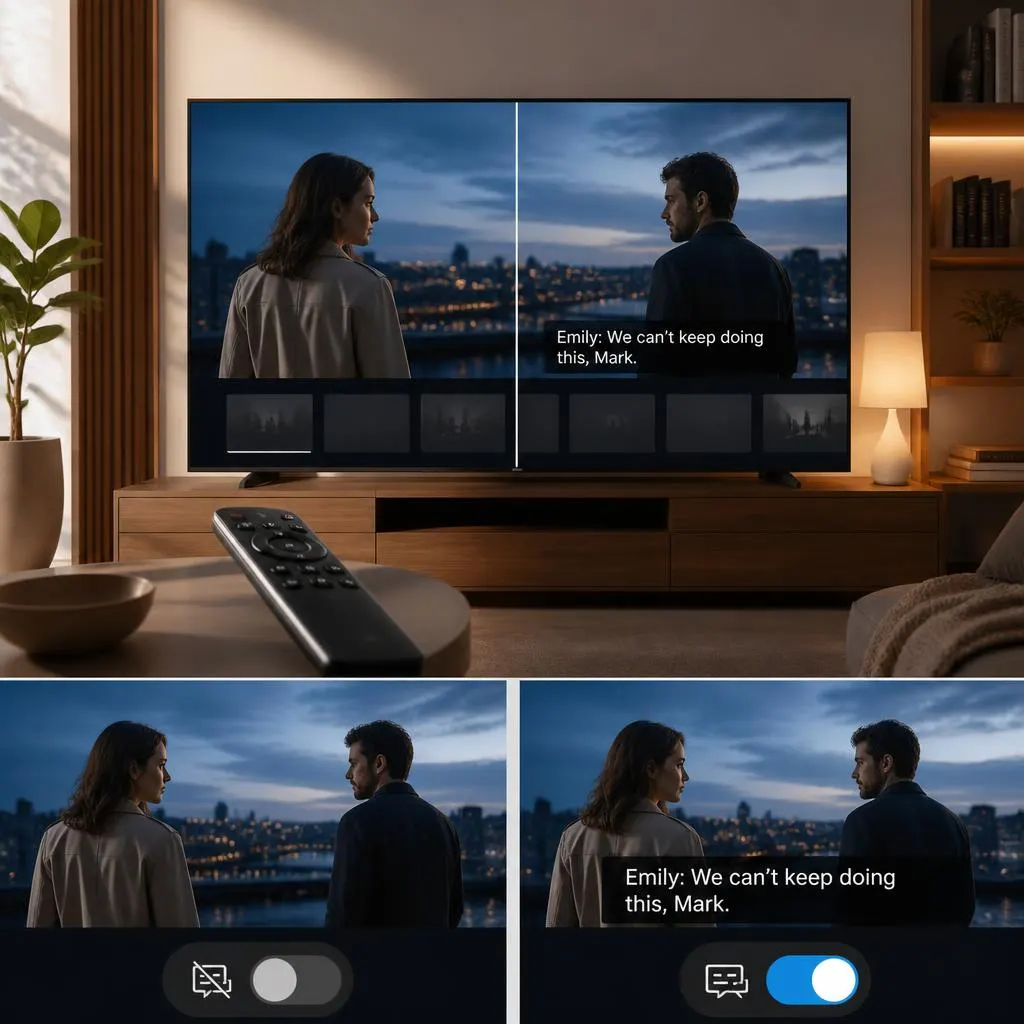
Quick Answer:
Closed captions can make TV and streaming easier to follow, but they can also become confusing when Samsung TV settings and app settings work separately. If you are asking, how do you turn off closed captioning on Samsung TV, the answer usually involves the TV’s Accessibility menu. If you want to know how can I get closed captioning on Netflix, you normally change the setting while the show or movie is playing.
Samsung states that its menu names and available features can vary by TV model and software version. Netflix also manages subtitles and closed captions through its own playback controls on supported devices.
This guide explains both processes, why captions sometimes stay on after you turn them off, and how to adjust captions for easier viewing.
Samsung TV and Netflix Captions
If you want to turn off closed captions on a Samsung TV:
- Press Home on your Samsung remote.
- Open Settings.
- Select General.
- Choose Accessibility.
- Open Caption Settings.
- Select Caption and turn it off.
Samsung’s current support instructions use this path on supported Smart TV models. Menu names can differ slightly depending on the model and software version.
If you want closed captions on Netflix:
- Open Netflix.
- Start playing a TV show or movie.
- Bring up the playback controls.
- Select Audio & Subtitles.
- Choose an available subtitle or closed caption language.
On Smart TVs and similar devices, Netflix says to press the up or down arrow on the remote to bring up the playback options.
How Do You Turn Off Closed Captioning on Samsung TV?
Samsung provides closed caption controls through its Accessibility settings. The exact menu can look different across models, but the general process remains similar.
Turn Off Captions Through Samsung Settings
Follow these steps:
- Turn on your Samsung TV.
- Press the Home button on the remote.
- Select Settings.
- Choose General.
- Select Accessibility.
- Open Caption Settings.
- Select Caption.
- Change the setting to Off.
After you turn captions off, return to your program and check whether the text has disappeared.
Samsung’s current support documentation confirms that the Caption option can be switched on or off from Caption Settings.
A Faster Way to Open Accessibility Settings
Some Samsung Smart Remotes provide an Accessibility shortcut.
Samsung says you can press and hold the Mute button on supported Smart Remotes to open Accessibility shortcuts. On some remotes, the Volume button provides the shortcut instead.
Depending on the remote and TV model, you may also see a Caption shortcut.
This can save time if you frequently switch captions on and off.
Why Are Closed Captions Still Showing on My Samsung TV?
Turning off captions in the Samsung TV menu does not always control captions from every source.
This is one of the most common reasons people think the Samsung caption setting is not working.
Samsung explains that certain apps, consoles, set-top boxes, and other sources can have their own caption settings. Netflix is one example.
For example:
- Samsung TV broadcast captions can use the TV’s Caption Settings.
- Netflix captions use Netflix playback controls.
- A cable box can have its own closed caption setting.
- A streaming device can have its own accessibility settings.
- Some content may contain text that is permanently part of the video.
If captions remain after you disable them on the TV, check the device or app that is providing the video.
Check Your Cable or Satellite Box
If you watch television through a cable or satellite receiver, the receiver may control captions instead of the Samsung TV.
In that situation, turning off captions in Samsung’s Accessibility menu may not remove them.
Open the receiver’s settings and look for options such as:
- Closed Caption
- Captions
- Subtitles
- Accessibility
- CC
- Language
The exact location depends on the service provider and receiver.
Samsung TV Captions vs Open Captions
Not every piece of text on your screen is a Samsung closed caption.
Samsung explains that open captions are already inserted into the video. You cannot normally switch them off because they are part of the content itself. Closed captions, on the other hand, can be turned on or off when the content supports them.
This difference helps explain why some text remains visible even after you disable captions.
For example, if a movie contains a subtitle permanently built into the picture, the TV cannot remove it.
How Can I Get Closed Captioning on Netflix?
Netflix lets you select subtitles and closed captions while a supported movie or show is playing.
To turn them on:
- Open Netflix.
- Choose a movie or TV show.
- Start playback.
- Press the up or down button on your Samsung remote.
- Open Audio & Subtitles.
- Select the language you want.
- Resume playback.
Netflix says the available languages depend on the title and device.
The exact appearance of the controls can vary slightly between devices, but the Audio & Subtitles option is the main place to manage captions during playback.
What Is the Difference Between Netflix Subtitles and Closed Captions?
Netflix uses both subtitles and closed captions, although availability varies by title.
Subtitles generally provide spoken dialogue as readable text. Closed captions can also include information about sounds that may help viewers understand what is happening.
Netflix describes closed captions as including dialogue plus descriptions of sounds heard in a show or movie.
For example, a caption may communicate information such as:
- Music playing softly
- A phone ringing
- A door closing
- Someone laughing
- A character whispering
This additional information can make content easier to follow for viewers who are deaf or hard of hearing.
How to Turn Netflix Captions On While Watching
You do not usually need to leave the movie or show to change the caption language.
Start playback and open the playback controls.
On a Smart TV, Netflix instructs viewers to press the up or down arrow on the remote. Then select Audio & Subtitles and choose from the available options.
If you watch Netflix on another device, the controls can be different.
For example, on computers and mobile devices, Netflix provides an Audio and Subtitles control that you can select while the title is playing.
What If Netflix Captions Do Not Appear?
If you select captions but they do not appear, several factors may affect the result.
Netflix explains that subtitle availability can vary by title, device, location, and other factors.
Try these checks:
Check the Title
Not every title offers every language or caption option.
Start another movie or show and open Audio & Subtitles. If captions appear there, the issue may relate to the original title.
Check the Selected Language
Make sure you selected the language you actually want.
Netflix displays the languages available for the specific title and supported device.
Restart Netflix
Close Netflix completely and reopen it.
Then start the title again and check Audio & Subtitles.
Check for Device Problems
Netflix has troubleshooting guidance for cases where selected subtitles do not appear or only appear intermittently. Its recommendations vary by device.
If captions fail across multiple titles, check whether your Netflix app and TV software need updates.
Why Do Netflix Subtitles Keep Appearing?
Sometimes people turn off captions in Netflix but still see subtitles.
Netflix notes that some programs produced in another region may show subtitles by default, especially when dialogue occurs in a language different from the title’s original language.
There can also be a difference between subtitles controlled by Netflix and captions controlled by the device.
If you use a Samsung TV, check both places:
Samsung TV:
Settings → General → Accessibility → Caption Settings
Netflix:
Play a title → Audio & Subtitles → select the appropriate option
Checking both settings can help identify where the text is coming from.
Can You Change the Appearance of Samsung Closed Captions?
Yes. Supported Samsung TVs provide options for changing the appearance of digital captions.
Samsung says Digital Caption Options can allow you to adjust settings such as:
- Font style
- Font size
- Text color
- Background color
- Caption position on supported broadcasts
The exact options depend on the TV model and content.
If captions are useful but difficult to read, changing their appearance may be better than turning them off completely.
Make Captions Easier to Read
Consider increasing the text size if the captions appear too small.
You can also improve contrast by changing the text or background settings when your Samsung model supports those controls.
Samsung’s accessibility guidance specifically includes caption customization for improved readability.
How Do You Turn Off Closed Captioning on Older Samsung TVs?
Older Samsung models may use a different menu structure.
Some older Samsung support instructions use a path such as:
Menu → Setup or Function → Caption → Off
The exact wording depends on the television model.
If your TV does not have the newer Settings → General → Accessibility structure, look for Caption, Closed Caption, or CC inside Setup, Function, or Accessibility.
If you know your exact Samsung model number, checking the model-specific manual can help you find the correct menu.
What If the Caption Option Is Grayed Out?
A grayed-out caption setting can indicate that the current source does not support the option through the TV menu.
Samsung’s older troubleshooting documentation notes that the selected source can affect whether the caption setting is available. It also explains that captions can come from a cable or satellite box rather than the TV itself.
Try switching to the TV’s broadcast source and check the Caption menu again.
If you are watching through HDMI, a streaming box, game console, or cable receiver, check that device’s caption controls too.
How Closed Captions Improve Accessibility
Closed captions are more than a convenience feature.
They can help viewers who are deaf or hard of hearing follow dialogue and important sounds. They can also help people watching in noisy environments, quiet rooms where they cannot use loud audio, or situations where speech is difficult to understand.
Samsung describes captions as on-screen dialogue text that supports viewers who are deaf or hard of hearing.
Netflix also treats subtitles and closed captions as part of its accessibility features and supports customization on many devices.
That means you can choose whether captions should be on, off, larger, more visible, or presented in another available language based on your viewing needs.
Samsung TV and Netflix Caption Settings Are Not Always the Same
One detail causes many caption problems: the TV and streaming app can manage captions separately.
Samsung specifically warns that apps such as Netflix can have their own closed caption settings.
Think of the setup like this:
- Samsung TV settings: Control supported TV broadcasts and certain TV-level accessibility features.
- Netflix settings: Control subtitles and captions inside Netflix playback.
- Cable or satellite box: May have its own caption controls.
- Streaming device: May provide separate accessibility settings.
- Video itself: May contain permanent open captions that cannot be removed.
Knowing which device or service is generating the text makes troubleshooting much easier.
A Simple Caption Troubleshooting Checklist
If captions are not behaving as expected, check these items one at a time:
- Check Samsung’s Caption Settings.
- Check Netflix’s Audio & Subtitles menu.
- Check your cable or satellite box.
- Check your streaming device.
- Try another Netflix title.
- Restart the Netflix app.
- Restart the TV.
- Check for available software updates.
- Check whether the text is permanently embedded in the video.
- Check your TV model’s specific support documentation.
Samsung recommends checking for software updates when troubleshooting Smart TV issues, and its current support pages note that menus can vary by model and software version.
Common Mistakes to Avoid
Changing Only the Samsung Setting
If Netflix captions remain visible, changing the Samsung TV caption setting may not solve the problem because Netflix has its own caption controls.
Assuming Every Subtitle Is a Closed Caption
Some text forms part of the video itself. Open captions cannot normally be switched off from the TV menu.
Assuming Every Netflix Title Has the Same Languages
Netflix says available subtitle and audio languages can vary by title and device.
Using Old Samsung Instructions on a New TV
Older Samsung televisions can use different menu paths. Always consider the model and software version before following instructions from an older TV guide.
Changing Too Many Settings at Once
Change one setting, test the video, and then move to the next option. This makes it much easier to identify the source of the problem.
FAQs
How do you turn off closed captioning on Samsung TV?
On supported Samsung Smart TVs, go to Settings → General → Accessibility → Caption Settings → Caption, then turn Caption off. Samsung notes that menu names and features can vary by model and software version.
How can I get closed captioning on Netflix?
Start a Netflix movie or show, open the playback controls, select Audio & Subtitles, and choose an available subtitle or closed caption option.
Why are captions still showing after I turn them off on Samsung TV?
The captions may come from Netflix, a cable box, satellite receiver, streaming device, or the video itself. Samsung explains that some sources manage captions independently.
Can I make Samsung captions bigger?
On supported models, open Settings → General → Accessibility → Caption Settings → Digital Caption Options. Available options can include font size, font color, and background settings.
Can I turn off captions inside Netflix?
Yes, when the title provides the option. Open Audio & Subtitles during playback and select the available option for turning subtitles or captions off. Some content can behave differently, including certain titles where subtitles may appear because of foreign-language dialogue.
Why can I not turn off subtitles on Netflix?
Check the Netflix Audio & Subtitles menu first. If subtitles continue appearing, the title may have special subtitle behavior, or another device may be controlling captions. Netflix also documents some older-device issues involving subtitle settings.
Are closed captions the same as subtitles?
Not always. Subtitles generally display spoken dialogue, while closed captions can also describe relevant sounds. Netflix makes this distinction in its accessibility information.
Can I use closed captions on Samsung TV for accessibility?
Yes. Samsung provides caption features designed to support viewers who are deaf or hard of hearing, along with options for adjusting caption appearance on supported models.
Do Samsung TV captions control Netflix captions?
Not necessarily. Samsung explains that apps such as Netflix can have their own caption settings. If you use Netflix, manage its subtitles and captions through the Netflix playback menu.
The Easiest Way to Remember the Settings
If you only need one thing to remember, use this rule:
Samsung TV captions:
Settings → General → Accessibility → Caption Settings
Netflix captions:
Play a title → Audio & Subtitles → Choose your caption or subtitle option
If one setting does not change the text on your screen, look for another device or app that may be controlling the captions.
Samsung and Netflix both provide accessibility controls, but they do not always manage captions from the same menu. Once you identify which service is creating the text, turning captions on or off becomes much simpler.
Conclusion
Managing closed captions on a Samsung TV is usually simple once you know which device or app controls them. For Samsung TV captions, open Settings → General → Accessibility → Caption Settings and turn captions off. For Netflix, start your show or movie, open Audio & Subtitles, and choose the caption or subtitle option you need.
If captions remain visible after changing the Samsung setting, check Netflix, your cable box, streaming device, or the video itself. Once you identify the source, you can quickly turn captions on or off and adjust them for a more comfortable viewing experience.