
Quick Answer:
To turn closed captioning off, open your TV, streaming app, or device’s Accessibility, Subtitles, or Captions settings and switch Closed Captions (CC) to Off. On many TVs and streaming services, you can also turn captions off directly while a video is playing by selecting the CC or Subtitles icon and choosing Off.
f captions are showing on your TV, streaming app, or video player and you want a cleaner screen, you can usually turn them off in just a few steps. The exact option depends on the device or service you are using.
Closed captions are designed to display spoken dialogue and important audio information as text. They can be useful for accessibility, but you may want them disabled when you do not need them.
This guide explains how to turn closed captioning off across popular TVs, streaming services, and devices, plus what to check if captions keep coming back.
How Do You Turn Closed Captioning Off?
To turn closed captioning off, open the playback controls or your device’s accessibility settings, find CC, Closed Captions, Subtitles, or Captions, and select Off.
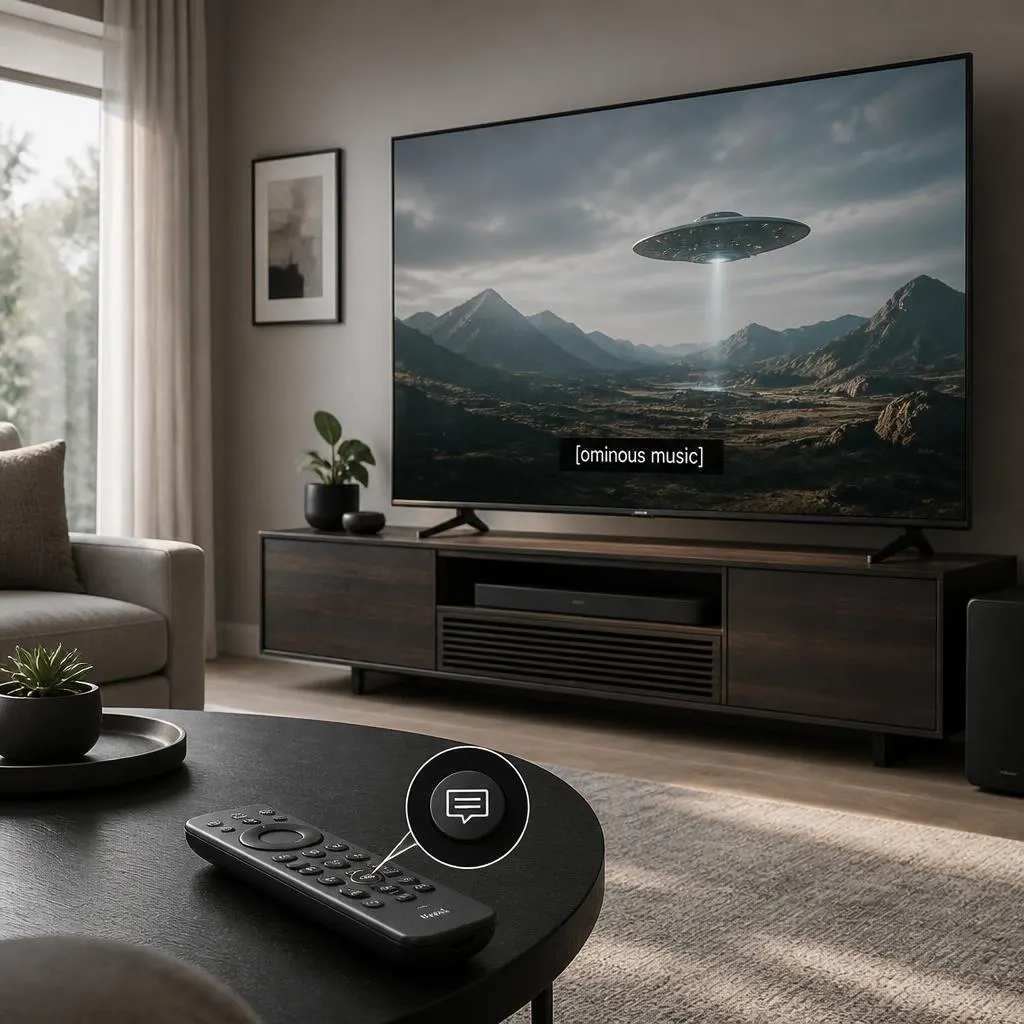
On many TVs, you can also press the CC, Subtitle, or Menu button on the remote and change the setting to Off.
If captions continue appearing after you disable them, check both the device settings and the individual streaming app because they can have separate caption controls.
What Does Closed Captioning Mean?
Closed captions are text displayed on a screen to represent spoken dialogue and relevant sounds. They are primarily intended to make video content more accessible, particularly for people who are deaf or hard of hearing.
Depending on the content, captions can include dialogue, speaker identification, music information, and important sounds.
Subtitles usually focus mainly on spoken dialogue, while closed captions can also communicate meaningful audio information.
How to Turn Closed Captioning Off on a TV
The steps vary by television brand and model, but the general process is similar.
Look for settings such as:
- Closed Captions
- Captions
- Subtitles
- Accessibility
- Accessibility Settings
- Caption Settings
- CC
Open the appropriate setting and choose Off.
Some televisions also let you disable captions directly through the remote control.
Turn Closed Captioning Off on Samsung TV
On many Samsung TVs, you can manage captions through the Accessibility settings.
A typical path is:
Settings → All Settings → General & Privacy → Accessibility → Caption Settings → Caption → Off
The exact menu names can vary depending on the Samsung TV model and software version.
If captions are appearing only inside a particular streaming app, check that app’s playback controls as well.
Turn Closed Captioning Off on LG TV
On many LG TVs, captions can be controlled through Accessibility settings.
A typical route is:
Settings → All Settings → General → Accessibility → Closed Captions → Off
Depending on the model, the menu may use slightly different wording.
If you still see subtitles after disabling the TV setting, check the streaming service itself.
Turn Closed Captioning Off on Roku
Roku devices generally allow you to control captions from the Accessibility or Captions settings.
You may find options such as:
Settings → Accessibility → Captions
From there, select the option that disables captions.
Some Roku channels also have their own caption controls, so a streaming app may override or separately control the setting.
Turn Closed Captioning Off on YouTube
If captions are appearing while watching a YouTube video, look for the CC button in the video player.
Select CC to turn captions off.
You can also review YouTube’s caption preferences if captions keep appearing automatically.
If YouTube Captions Keep Turning On
Check whether captions are enabled through your account or device preferences.
Also remember that YouTube may show captions differently depending on the device, app version, video, or language settings.
Turn Closed Captioning Off on Netflix
While watching a Netflix title, open the playback controls and select the Audio & Subtitles option.
Choose the available subtitle option that indicates captions or subtitles are off.
Netflix can remember subtitle preferences, so changing the setting during playback may affect future viewing.
Turn Closed Captioning Off on Amazon Prime Video
During playback, open the subtitle or caption controls.
Select the option that turns subtitles or captions off.
The exact appearance of the control can differ between smart TVs, phones, browsers, and streaming devices.
Turn Closed Captioning Off on Disney+
When watching a title, open the playback menu and look for the subtitle or caption icon.
Choose Off for subtitles or captions.
If captions continue to appear, check the app’s language and accessibility settings.
Turn Closed Captioning Off on Apple TV
Apple devices provide caption controls through accessibility and playback settings.
Depending on the device, look for:
Settings → Accessibility → Subtitles and Captioning
From there, turn off the relevant caption preference.
You can also control subtitles while a video is playing.
Turn Closed Captioning Off on a Computer
If captions appear in a web video, look for a CC, Captions, or Subtitles button in the video player.
Click it and select Off.
If the captions are controlled by the website or streaming service, changing your computer’s general accessibility settings may not be enough.
Turn Closed Captioning Off on a Phone or Tablet
On Android and iPhone devices, captions can come from either the operating system or the individual app.
Check:
- The video player’s CC button
- The app’s subtitle settings
- Accessibility settings
- Caption preferences
- Live Caption settings
If only one app shows captions, start with that app’s own settings.
Why Do Closed Captions Keep Coming Back?
Sometimes captions return even after you switch them off. This can happen because more than one setting controls subtitles.
Common reasons include:
The Streaming App Has Its Own Setting
Your TV may have captions disabled while the streaming app has subtitles enabled.
Check the playback controls inside the app.
Accessibility Settings Are Enabled
Some devices have system-wide caption features that can affect multiple apps.
Review your device’s Accessibility settings.
The App Remembers Your Previous Preference
Some services remember subtitle preferences associated with your profile.
Changing the setting during playback may update that preference.
Another Device Controls the Playback
If you are using a streaming stick, game console, cable box, or external media player, its caption setting may be separate from your television.
Check the device connected to the TV.
Closed Captions vs. Subtitles
The terms are often used interchangeably, but they can serve different purposes.
Closed captions generally include spoken dialogue plus relevant audio information, such as meaningful sounds or speaker identification.
Subtitles typically focus on translating or displaying spoken dialogue.
For example, a caption may communicate that a door closes loudly, while a basic subtitle track may only display the dialogue.
When Should You Leave Captions On?
Captions can make video content easier to understand in several situations.
They may help when:
- The audio is difficult to hear
- You are watching in a noisy environment
- The speaker has a strong accent
- You are learning a language
- You are watching without sound
- You need accessibility support
- Dialogue is difficult to understand
Turning captions off is simply a viewing preference when you do not need them.
How to Choose the Right Caption Setting
If you want a completely clean screen, select Off for captions and subtitles.
If you occasionally need captions, consider leaving them available through the video player’s CC button instead of changing system-wide accessibility settings.
For accessibility needs, device-level caption preferences can make captions easier to access across supported apps.
Common Mistakes When Turning Captions Off
A few simple mistakes can make it seem like captions cannot be disabled.
- Turning off captions on the TV while leaving them enabled in the streaming app
- Changing subtitles instead of closed captions
- Forgetting to check Accessibility settings
- Assuming every app uses the TV’s caption setting
- Checking the wrong remote or connected device
- Not saving a changed preference when the device requires confirmation
A Simple Way to Troubleshoot Captions
If captions refuse to disappear, work through these steps:
- Check the CC button in the video player.
- Select Off for captions or subtitles.
- Check the app’s subtitle settings.
- Check your TV’s Accessibility settings.
- Check the connected streaming device.
- Close and reopen the app.
- Restart the device if necessary.
- Check whether the same issue happens in another app.
This helps identify whether the captions come from the TV, streaming service, or another connected device.
Short Guide for Popular Services
Here is the basic setting to look for across common platforms:
- YouTube: Open the video controls and select CC.
- Netflix: Open Audio & Subtitles and choose Off.
- Disney+: Open the subtitle or caption menu and choose Off.
- Prime Video: Open subtitle controls and disable subtitles.
- Samsung TV: Check Accessibility and Caption Settings.
- LG TV: Check Accessibility and Closed Captions.
- Roku: Check Accessibility and Captions.
- Apple TV: Check Subtitles and Captioning.
Menu names can change with device models, operating systems, and app updates.
FAQs
How do I turn closed captioning off?
Open the video controls or your device’s Accessibility settings, find CC, Closed Captions, or Subtitles, and select Off.
Why won’t my closed captions turn off?
The captions may be controlled by the streaming app rather than your TV. Check both the app’s playback settings and the TV’s Accessibility settings.
Is CC the same as subtitles?
Not always. Closed captions can include dialogue and important audio information, while subtitles generally focus on spoken dialogue or translation.
Can I turn captions off for only one app?
Yes. Many streaming services provide their own subtitle controls, allowing you to change captions without changing the settings for your entire device.
How do I turn captions off with a remote?
If your remote has a CC, Subtitle, or Caption button, press it and select Off. Otherwise, open your TV’s settings and look under Accessibility or Caption Settings.
Why do captions turn on automatically?
Your streaming service, profile, TV, or accessibility settings may have captions enabled. Check each relevant setting to find which one is controlling them.
Will turning captions off remove them from every app?
Not necessarily. Some apps maintain their own subtitle preferences, so you may need to turn captions off separately.
Are closed captions important for accessibility?
Yes. Closed captions provide access to spoken dialogue and relevant audio information for people who are deaf or hard of hearing and can also help viewers in noisy or quiet environments.
Conclusipon
Turning closed captioning off is usually straightforward. Start with the CC or subtitle control in the video player. If captions continue to appear, check the app, TV, and connected streaming device separately.
Because menus vary between brands and software versions, the exact steps may look different, but the setting is usually found under Captions, Subtitles, Accessibility, or CC.