
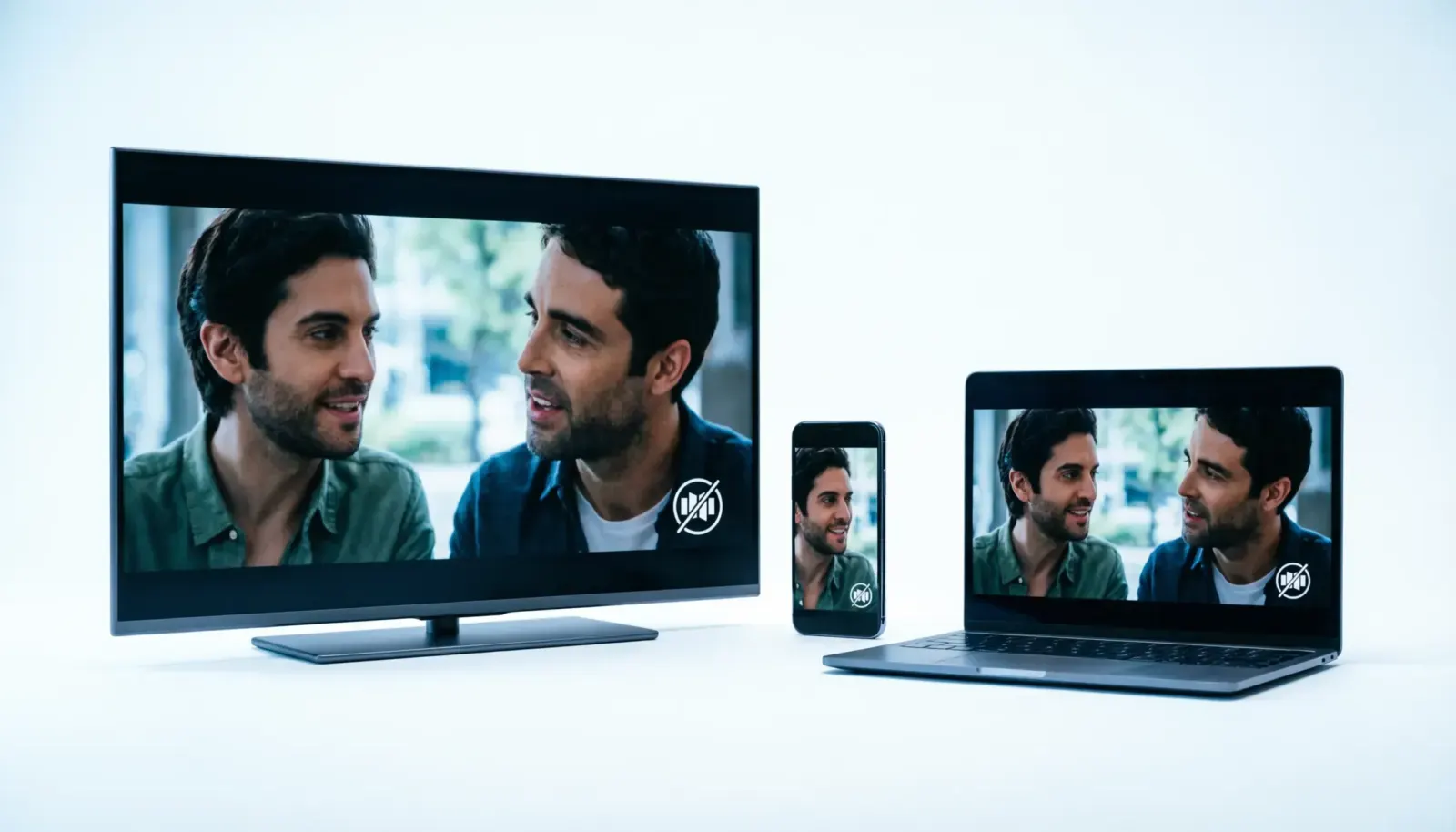
Closed captions are extremely useful when you are watching videos in a noisy place, learning a new language, or trying to understand unclear dialogue. However, there are times when you may want to turn off closed caption because the text covers important parts of the screen, distracts you from the content, or appears automatically when you do not need it.
If you are searching for how to turn off closed caption, the process depends on the device, app, or streaming service you are using. The settings on a smart TV may look different from those on a smartphone, computer, or video platform.
This complete guide explains what closed captions are, why they appear, and how to disable them on popular devices and platforms. You will also learn the difference between closed captions and subtitles, common caption settings, and simple solutions when captions refuse to turn off.
Quick Answer: How Do You Turn Off Closed Caption?
To turn off closed caption, open the video or device settings and find the CC (Closed Caption), Subtitles, or Accessibility option. Select it and switch captions off.
Common methods include:
- Tap the CC button on a video player and disable captions.
- Open your TV settings and turn off subtitles or closed captions.
- Change accessibility settings on your phone or computer.
- Disable captions inside streaming apps like Netflix, YouTube, or other video platforms.
The exact steps depend on where you are watching the video.
What Does Turn Off Closed Caption Mean?
The phrase turn off closed caption means disabling the text that appears on a video screen to show spoken words, dialogue, background sounds, and important audio information.
Closed captions are created to help viewers understand video content without relying only on sound. They are commonly used by:
- People who are deaf or hard of hearing.
- Viewers watching videos in quiet places.
- Language learners.
- People watching content with unclear audio.
When you turn off closed caption, the video continues playing normally, but the written text disappears from the screen.
Closed Captions vs Subtitles: What Is the Difference?
Many people use the terms captions and subtitles interchangeably, but they are slightly different.
Closed Captions
Closed captions include spoken dialogue plus important sound information.
Examples:
- Doorbell rings.
- Music playing softly.
- Someone laughing.
- The speaker whispers.
They help viewers understand everything happening in the audio.
Subtitles
Subtitles usually focus only on spoken dialogue and are mainly designed for viewers who can hear but need language translation.
For example:
- An English speaker watching a Spanish movie.
- A viewer learning another language.
Some platforms combine both features, which is why users may see options like captions, subtitles, or CC.
How to Turn Off Closed Caption on Different Devices
The steps for disabling captions change depending on your device. Below are simple instructions for the most common platforms.
How to Turn Off Closed Caption on a Smart TV
Smart TVs often enable captions through accessibility settings or directly from the remote control.
Try these steps:
- Press the Menu or Settings button on your TV remote.
- Open Accessibility, System, or General Settings.
- Select Closed Caption, Subtitle, or Caption Settings.
- Choose Off.
Many TVs also allow you to disable captions while watching a video.
Look for:
- CC button on the remote.
- Subtitle button.
- Options menu.
- Audio and language settings.
Popular smart TV brands may use different names, but the option is usually found under accessibility or language settings.
How to Turn Off Closed Caption on YouTube
YouTube captions can appear automatically because of saved account settings, video preferences, or automatic captions.
To disable captions while watching a video:
- Open a YouTube video.
- Tap or click the CC icon.
- Turn captions off.
If captions keep returning:
- Open YouTube settings.
- Go to Playback settings.
- Disable caption preferences if available.
YouTube may still show captions on some videos if the creator has added them permanently into the video itself.
How to Turn Off Closed Caption on Netflix
Netflix captions can be disabled through the subtitle and audio menu.
Follow these steps:
- Start playing a movie or show.
- Open the Audio and Subtitles menu.
- Select subtitles.
- Choose Off.
If captions remain visible:
- Check your device accessibility settings.
- Restart the Netflix app.
- Confirm that subtitles are not enabled through your TV settings.
Netflix saves subtitle preferences, so changing them on one device may affect future viewing.
How to Turn Off Closed Caption on iPhone and iPad
Apple devices include caption settings under accessibility options.
To disable captions:
- Open Settings.
- Select Accessibility.
- Tap Subtitles and Captioning.
- Turn off Closed Captions and SDH.
You can also check video app settings because some apps manage captions separately.
How to Turn Off Closed Caption on Android Phones
Android devices usually manage captions through accessibility settings.
Steps:
- Open Settings.
- Select Accessibility.
- Find Captions or Hearing settings.
- Switch captions off.
Some Android phones may place the option under:
- Accessibility Menu.
- Hearing enhancements.
- Caption preferences.
The location can vary depending on the phone brand and Android version.
How to Turn Off Closed Caption on Windows
Windows includes caption options for accessibility.
To disable them:
- Open Windows Settings.
- Select Accessibility.
- Choose Captions.
- Turn captions off.
If captions appear only inside a specific app, check that app’s own settings.
For example:
- Media players may have subtitle controls.
- Browsers may remember video preferences.
- Streaming services may use their own caption settings.
How to Turn Off Closed Caption on Mac
Mac users can disable captions through accessibility settings.
Steps:
- Open System Settings.
- Select Accessibility.
- Choose Captions.
- Disable closed captions.
You can also adjust subtitle preferences for individual video applications.
Why Won’t Closed Captions Turn Off?
Sometimes users disable captions, but the text still appears. This usually happens because of another setting controlling captions.
Common reasons include:
Captions Are Burned Into the Video
Some videos have captions permanently added during editing. These captions cannot be removed because they are part of the actual video image.
Device Accessibility Settings Are Active
Your TV, phone, or computer may have accessibility captions enabled separately from the app.
The Streaming App Saves Caption Preferences
Apps often remember your previous subtitle choices and automatically turn them on again.
The Video Creator Added Captions
Some platforms allow creators to add captions directly to videos. These may not be controlled by your device settings.
The Remote Control Has a Caption Button
Some TVs have a dedicated CC button. Accidentally pressing it can enable captions again.
Benefits of Turning Off Closed Caption
Although captions are helpful, disabling them can improve your viewing experience in certain situations.
People often turn off closed caption because:
- The text blocks important visuals.
- They prefer watching without distractions.
- They understand the audio clearly.
- They want a cleaner movie experience.
- They are watching content with incorrectly generated captions.
A clean screen can make movies, sports, documentaries, and entertainment videos feel more natural.
When Should You Keep Closed Captions On?
Turning captions off is not always the best option. Closed captions are valuable in many situations.
Keep captions enabled when:
- The audio quality is poor.
- You are watching in a noisy environment.
- You are learning a new language.
- You want to understand every detail.
- You have difficulty hearing dialogue.
Many viewers switch captions on and off depending on the situation.
Practical Ways to Manage Closed Caption Settings
Understanding how to turn off closed caption is helpful, but knowing when and how to manage caption settings gives you better control over your viewing experience. Different platforms offer different caption options, and adjusting them properly can make videos easier and more enjoyable to watch.
Many people do not want captions completely disabled forever. They simply want the ability to switch them on or off depending on the situation.
Here are common caption settings you may find:
- Closed Caption On or Off
- Subtitle Language Selection
- Caption Size Adjustment
- Caption Style Customization
- Automatic Caption Detection
- Accessibility Caption Controls
Learning these options helps you choose the best setup instead of repeatedly searching for how to remove captions.
How to Turn Off Closed Caption During Streaming
Most streaming platforms include caption controls directly inside the video player. This makes it easy to disable captions without changing your entire device settings.
While watching a video:
- Open the playback menu.
- Find the CC, subtitle, or language icon.
- Select the caption option.
- Choose Off or None.
This method works well because it only changes captions for the current app or video.
Some common platforms with caption controls include:
- Streaming services.
- Video sharing websites.
- Online learning platforms.
- Media player applications.
- Smart TV apps.
How to Turn Off Closed Caption on Gaming Consoles
Gaming consoles also support captions because many users watch movies, shows, and streaming content through them.
To disable captions:
- Open console settings.
- Go to accessibility options.
- Find subtitle or caption settings.
- Turn captions off.
If captions appear only inside a specific game, check the game’s audio or accessibility menu.
Many modern games allow players to customize:
- Dialogue captions.
- Sound effect descriptions.
- Speaker names.
- Text size.
How to Disable Automatic Captions in Video Apps
Automatic captions are created using speech recognition technology. They are helpful, but they are not always accurate.
You may want to turn them off when:
- Captions contain mistakes.
- Text appears too quickly.
- The language detection is incorrect.
- The captions distract from the video.
Usually, automatic captions can be disabled through the video player’s CC button or app settings.
Common Closed Caption Problems and Simple Fixes
Sometimes captions appear even after you turn them off. These problems are usually caused by saved settings or multiple devices controlling the same account.
Captions Keep Coming Back
Possible solutions:
- Restart the app.
- Sign out and sign back in.
- Check account preferences.
- Reset subtitle settings.
Captions Are Delayed
Delayed captions usually happen because of:
- Internet connection problems.
- Video processing issues.
- App glitches.
Try:
- Restarting the video.
- Updating the app.
- Checking another video.
Captions Are in the Wrong Language
Wrong language captions can happen when:
- The app automatically selects a language.
- Your device language settings changed.
- The video has multiple subtitle tracks.
Open subtitle settings and choose the correct language or turn captions off.
Closed Caption Settings for Better Accessibility Control
Closed captions are an important accessibility feature. Turning them off does not mean they are unnecessary. It simply means viewers should have the freedom to choose how they consume content.
A good accessibility setup allows users to:
- Enable captions when needed.
- Adjust text size.
- Change caption appearance.
- Select preferred languages.
- Control audio descriptions.
Accessibility settings exist to make technology more flexible for everyone.
Copy Friendly Caption Ideas About Closed Captions
People sometimes search for turn off closed caption because they want to create posts, tutorials, videos, or social media content about captions and accessibility.
These caption ideas work well for technology posts, tutorials, and video tips.
Short Closed Caption Related Captions
- Clear screen, better experience.
- Sometimes less text means more focus.
- Watch your way, choose your settings.
- Simple controls make better viewing.
- Your screen, your choice.
- Customize your experience.
- Turn features on when you need them.
- Accessibility starts with options.
- Small settings create better experiences.
- Control your content your way.
Technology Captions for Video Settings Posts
- Finding the perfect settings makes everything easier.
- A better viewing experience starts with simple adjustments.
- Small changes can improve your digital life.
- Master your device settings one step at a time.
- Technology works best when it fits your needs.
- Customize your screen, customize your experience.
- The best features are the ones you control.
- Smart settings create smoother entertainment.
- Digital comfort begins with personalization.
- Every option exists for a reason.
Accessibility Awareness Captions
- Accessibility gives everyone a better way to connect.
- Good technology includes everyone.
- Features created for accessibility improve experiences for all.
- Everyone deserves comfortable access to information.
- Inclusive design makes technology stronger.
- Simple options can create meaningful changes.
- Accessibility is about freedom and choice.
- Better design creates better experiences.
- Technology should work for everyone.
- Different needs deserve flexible solutions.
Common Mistakes When Managing Closed Captions
Many users struggle with captions because they change the wrong setting or overlook important controls.
Avoid these mistakes:
Turning Off Device Captions Instead of App Captions
Some apps control their own subtitles. Changing phone or TV settings may not affect them.
Always check the video player first.
Assuming All Captions Can Be Removed
Captions permanently added to videos cannot be switched off.
Only selectable captions can be disabled.
Forgetting Account Preferences
Streaming accounts often save subtitle choices. If captions keep returning, check your profile settings.
Ignoring Accessibility Menus
Many devices place caption options under accessibility settings, not normal display settings.
Using Outdated Apps
Old apps may have bugs that prevent caption settings from working correctly.
Updating the app can solve many issues.
How to Choose Between Captions and No Captions
The best choice depends on your environment and personal preference.
Choose captions on when:
- You are watching in public.
- The speaker’s voice is unclear.
- You are learning a language.
- Background noise makes listening difficult.
Choose captions off when:
- You want a clean viewing experience.
- You understand the dialogue easily.
- Text blocks important visuals.
- You are watching entertainment casually.
There is no universal best option. The right choice depends on what helps you enjoy the content.
Frequently Asked Questions About Turning Off Closed Caption
How do I quickly turn off closed caption?
Open the video player settings and select the CC or subtitle button. Choose Off to remove captions.
Why are closed captions automatically turning on?
Closed captions may turn on because of saved app preferences, accessibility settings, account settings, or device configurations.
Can I permanently disable closed captions?
Yes, you can disable captions through your device or app settings. However, some videos have captions permanently added and cannot be removed.
Are closed captions and subtitles the same thing?
No. Closed captions include dialogue and important sound information, while subtitles usually focus on spoken words and translation.
Why do some videos not let me turn off captions?
Some videos have captions embedded directly into the video file. These captions are part of the image and cannot be disabled.
How do I turn off captions on my TV remote?
Look for a CC or Subtitle button on your remote. Press it and choose Off. You can also change caption settings through the TV menu.
Does turning off closed captions improve video quality?
Turning off captions does not improve the actual video quality, but it can make the viewing experience cleaner by removing text from the screen.
Can I turn captions back on later?
Yes. You can enable closed captions anytime through the same settings where you disabled them.
Conclusion
Knowing how to turn off closed caption gives you more control over your videos, devices, and streaming experience. Whether you are watching a movie, using a smart TV, browsing YouTube, or adjusting phone settings, disabling captions usually takes only a few simple steps.
Closed captions remain an important accessibility tool, but every viewer should have the choice to use them when needed and remove them when they are not helpful.
The best viewing experience comes from settings that match your personal needs, environment, and preferences.