Quick Answer:
Yes, several YouTube captioning extensions are available for Google Chrome. Tools such as Subtitles Tool for YouTube, Substital, and YouTube Subtitles + can help you view subtitles, translate captions, or add external subtitle files. If you want captions without installing an extension, Google Chrome’s built-in Live Caption feature can generate captions for supported audio. The best option depends on whether you need automatic captions, translations, or transcript tools.
Is there a YouTube closed captioning extension for Google Chrome? Yes, several tools can help you read subtitles, translate spoken content, view transcripts, and follow videos more easily. The best YouTube captioning extension for you depends on whether you need clearer captions, dual-language subtitles, downloadable transcripts, or automatic captions for videos without subtitles.
YouTube already provides built-in captions for many videos, so you may not need an additional extension. However, a dedicated tool can offer useful features such as side-by-side translations, subtitle customization, and transcript exports. Chrome also includes a built-in Live Caption feature that can generate captions for audio playing in your browser.
In this guide, we compare five useful captioning options for 2026, explain how to install them, and help you choose the right tool for watching YouTube videos, learning English, studying online, or improving accessibility.
What Is a YouTube Captioning Extension?
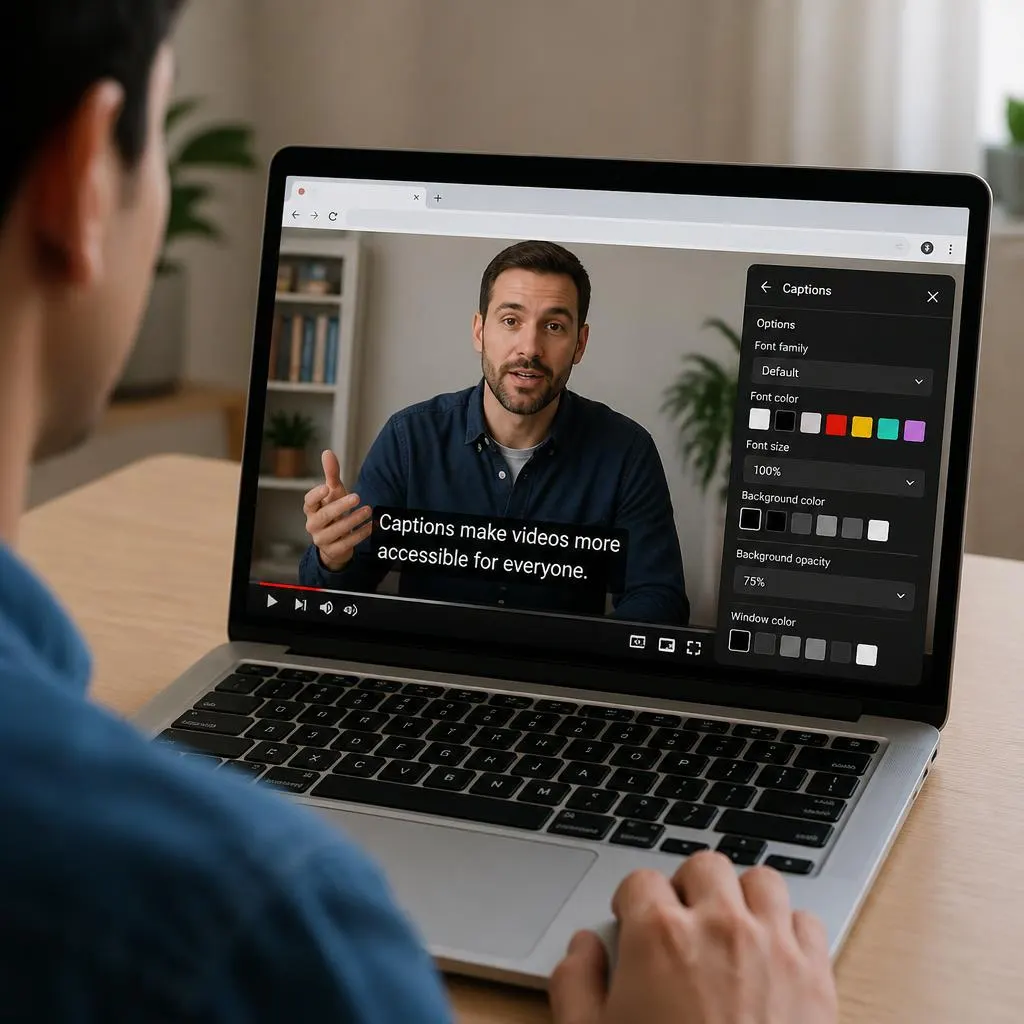
A YouTube captioning extension is a browser add-on that improves how captions or subtitles appear while you watch videos. Depending on the extension, it may let you display two languages simultaneously, adjust subtitle appearance, access a transcript, or generate captions from audio.
These tools can be especially useful for:
- People who are deaf or hard of hearing.
- English learners who want to connect spoken words with written text.
- Students watching lectures and educational videos.
- Viewers watching content in another language.
- Researchers who need to review spoken information or copy transcript text.
Not every extension provides all these features. Some work only with subtitles already available on YouTube, while others use speech recognition to create new captions. Always check the extension’s current features, pricing, supported languages, and privacy policy before installing it.
5 Best YouTube Captioning Extensions for Google Chrome
The following options cover different needs, from built-in captions to subtitle translation and community-created subtitles. Features and availability can change, so check the linked official pages before choosing a tool.
1. Subtitles Tool for YouTube
Best for: Dual subtitles, translations, and transcript exports
Subtitles Tool for YouTube is a Chrome extension designed for viewers who want more control over YouTube subtitles. It provides features such as translated subtitles, a transcript panel, and subtitle export options.
According to the developer’s website, the extension supports dual subtitles and lets users export subtitles as SRT or TXT files. Some advanced usage may require a paid plan.
Key features
- Display original subtitles alongside a translation.
- Read a transcript with timestamps.
- Adjust subtitle display settings.
- Export subtitles in supported file formats.
- Use subtitles to support language learning.
How to use it
- Visit the OFFICIAL WEB SIT
- Follow the link to its Chrome Web Store listing.
- Install the extension and open a YouTube video.
- Open its subtitle panel using the available player control.
- Select the language and transcript options you need.
Pros
- Useful for language learners.
- Offers transcript and export features.
- Provides more subtitle controls than basic captions.
Cons
- Some features may require payment.
- Translation quality depends on the available captions and translation system.
- You should review its current permissions and privacy details before use.
Choose this extension if you regularly watch foreign-language videos or need transcripts for study and review.
2. Substital: Add Subtitles to Videos and Movies
Best for: Adding external subtitles to videos
Substital is a browser extension that allows users to add subtitles to supported videos across several streaming websites, including YouTube. It can be useful when you want to display a subtitle file rather than rely only on the captions supplied by the video creator.
This is different from an extension that simply translates existing YouTube captions. Its main purpose is to help you add subtitles to compatible video content.
Key features
- Add external subtitle files to supported videos.
- Watch videos with additional subtitle options.
- Use subtitles for language learning and accessibility.
- Work with supported video platforms beyond YouTube.
How to use it
- Open th subcital crome web store page
- Review the extension details and permissions.
- Add it to Chrome.
- Open a supported video.
- Follow the extension’s instructions to select and display subtitles.
Pros
- Helpful when a suitable subtitle file is available.
- Supports more than one video platform.
- Provides an alternative when built-in subtitles do not meet your needs.
Cons
- You may need to find a compatible subtitle file yourself.
- Compatibility can vary by website and video.
- It does not guarantee that every YouTube video can use external subtitles.
Substital is worth considering if you already have subtitle files or want to add subtitles to supported videos that do not provide the language you need.
3. YouTube Subtitles +
Best for: Watching videos with two languages
YouTube Subtitles + is designed to improve subtitle viewing on YouTube by displaying original captions alongside translated text. This can help viewers understand unfamiliar vocabulary without completely losing track of the original spoken language.
The extension’s Chrome Web Store listing describes real-time translation, customizable subtitle appearance, and support for multiple languages.
Key features
- Display original and translated subtitles together.
- Translate captions as they appear.
- Customize subtitle size, color, and position.
- Support language learning through side-by-side text.
How to use it
- Visit the subcital crome web store page
- Check the supported languages and permissions.
- Install the extension.
- Open a YouTube video and enable captions.
- Choose your preferred translation language and subtitle settings.
Pros
- Useful for bilingual viewers.
- Can make language learning more convenient.
- Offers subtitle display customization.
Cons
- Translation depends on supported languages and available caption text.
- Automatically translated text may contain mistakes.
- Features and support may change as the extension is updated.
This option may suit you if you frequently watch English videos but prefer to see another language alongside the original subtitles.
4. Google Chrome Live Caption
Best for: Automatic captions across browser audio
Before installing another YouTube captioning extension, try Chrome’s built-in Live Caption feature. It can generate captions for spoken audio in supported videos and other browser media.
Unlike a YouTube-specific extension, Live Caption works at the browser level. Google states that its caption processing takes place locally on your device. Availability and supported languages can vary by operating system and Chrome version.
Key features
- Generate captions for supported browser audio.
- Work with YouTube and other compatible media.
- Customize caption appearance.
- Support selected languages through downloaded language packs.
How to enable Live Caption
- Open Google Chrome.
- Click the three-dot menu in the top-right corner.
- Select Settings.
- Open Accessibility.
- Turn on Live Caption.
- If needed, manage the available languages in the caption settings.
You can read the official instructions in google crome help
Pros
- No separate extension is required.
- Can caption audio beyond YouTube.
- Caption processing is performed locally, according to Google.
Cons
- It may not provide the same features as a dedicated subtitle manager.
- Language availability depends on your setup.
- Automatic speech recognition can make mistakes, especially with accents, background noise, and technical terms.
For many users, Live Caption is the easiest starting point because it is already built into Chrome.
5. NekoCap
Best for: Community-created subtitles
NekoCap is a browser extension that helps viewers access community-created captions on supported video platforms. It is designed for people who want subtitles that may not be available through a video’s standard caption settings.
The service supports multiple websites and languages, but the subtitles available depend on the community’s contributions. That means it may be useful for certain videos and unavailable for others.
Key features
- Access community-made captions where available.
- Support multiple video platforms.
- Help viewers follow content in other languages.
- Offer an alternative when standard subtitles are missing.
How to use it
- Visit the offical Nacokap website
- Follow the instructions for installing the browser extension.
- Open a supported video.
- Check whether community captions are available for that content.
- Select the caption track you want to use.
Pros
- Provides access to community-created subtitles.
- Can help with content that lacks suitable built-in captions.
- Supports more than one video platform.
Cons
- Caption availability depends on community contributions.
- Not every video will have subtitles.
- Caption quality and language coverage can vary.
NekoCap is a useful option if you often watch international content or videos for which the standard subtitle options are limited.
Which YouTube Captioning Extension Should You Choose?
The best option depends on what you want to do. Use this quick comparison to narrow down your choices.
| Tool | Best use | Main consideration |
|---|---|---|
| Subtitles Tool for YouTube | Transcripts, translations, and exports | Some features may be paid |
| Substital | Adding external subtitle files | Requires compatible subtitles |
| YouTube Subtitles + | Dual-language subtitles | Depends on available captions and translation |
| Chrome Live Caption | Automatic captions for browser audio | Built into Chrome, but features vary |
| NekoCap | Community-created subtitles | Not available for every video |
Our recommendation: Start with Chrome Live Caption if you simply want to read spoken audio. Choose Subtitles Tool for YouTube if you need transcripts and subtitle exports, Substital if you want to add an external subtitle file, or a dual-subtitle tool if your main goal is language learning.
How to Install a YouTube Captioning Extension in Chrome
Installing a Chrome extension is usually straightforward. However, always use an official listing and check the developer information before granting permissions.
Follow these steps:
- Open the Chrome Web Store.
- Search for the extension you want to use.
- Read its description, ratings, recent reviews, and privacy information.
- Click Add to Chrome if you decide to install it.
- Review the requested permissions and confirm the installation.
- Open YouTube and play a video.
- Click the extension icon or follow its instructions to activate its features.
If the extension does not appear in your toolbar, open Chrome’s Extensions menu and pin it if that option is available.
Only install extensions you trust. An extension may request access to website data or browsing activity to perform its functions, so review its permissions carefully.
How to Turn On Captions on YouTube Without an Extension
You may not need an additional tool if a video already has captions.
To enable YouTube’s built-in captions:
- Open the video you want to watch.
- Click the CC button in the video player.
- If the video has multiple caption languages, open the settings menu.
- Select Subtitles/CC.
- Choose an available language or select automatic translation if offered.
The available choices depend on the video. Some creators upload their own captions, while YouTube may automatically generate captions for other videos.
If the CC button is missing or no captions are available, try Chrome Live Caption or a suitable extension that can generate or add subtitles. Keep in mind that not every extension can create captions for every video.
Can a Chrome Extension Add Captions to YouTube Videos Without Subtitles?
Yes, some tools can generate captions from a video’s audio, while others only display captions that already exist.
This distinction is important. A subtitle extension that reads YouTube’s existing transcript cannot necessarily create new subtitles when none are available. A tool with speech recognition or audio transcription features may be able to generate them independently.
Before installing an extension, check whether it specifically supports:
- Automatic speech-to-text transcription.
- Videos without existing captions.
- Your preferred language.
- Real-time captions or a generated transcript.
- Transcript export, if you need a saved text file.
Automatically generated captions may misinterpret names, accents, technical terms, and overlapping speech. If accuracy is important, verify the text against the video.
How YouTube Captioning Extensions Help With Accessibility
Captions make spoken information available as text. They can help deaf and hard-of-hearing viewers, people watching videos in noisy environments, and anyone who finds written text easier to follow.
A suitable YouTube captioning extension may also help users:
- Follow lectures without relying only on sound.
- Review unfamiliar words while learning a language.
- Understand content when the speaker’s accent is difficult to follow.
- Search or review a transcript when the tool supports that feature.
- Read subtitles in a preferred language.
However, automatic captions are not always accurate enough for every situation. For important educational, legal, or professional material, use verified captions or an accurate transcript whenever possible.
How to Fix a YouTube Captioning Extension That Is Not Working
If your extension does not display subtitles, try the following troubleshooting steps.
Check whether captions are available
First, turn on YouTube’s built-in CC option. If captions are unavailable, your extension may need to generate subtitles from audio or use an external subtitle file.
Refresh the YouTube page
After installing or updating an extension, reload the video page. Some tools do not activate properly until you refresh the tab.
Check extension permissions
Open Chrome’s Extensions page and review whether the extension is enabled and has the access it needs for YouTube. Grant only permissions you understand and trust.
Update Chrome and the extension
An outdated browser or extension may stop working after YouTube changes its website. Check for updates and consult the developer’s support page if the problem continues.
Disable conflicting extensions
Two subtitle extensions may try to control the same video player. Temporarily disable other captioning tools and test the video again.
Check language and translation settings
If captions appear in the wrong language, open the extension settings and select the correct source and target languages. Remember that translation may not be available for every language pair.
Try Chrome Live Caption
If a YouTube-specific extension fails, Chrome’s built-in Live Caption may provide an alternative for supported audio. You can enable it through Settings → Accessibility → Live Caption.
Are YouTube Captioning Extensions Safe to Use?
Many Chrome extensions are legitimate, but you should not assume every extension is safe simply because it appears in the Chrome Web Store.
Before installing a YouTube captioning extension, review its developer, permissions, privacy policy, update history, and user feedback. Be cautious if a simple subtitle tool requests access that appears unrelated to its advertised features.
Also consider how the extension processes audio, transcripts, and translations. Some features may work locally, while others may send text or audio to an external service. Read the relevant privacy policy to understand what information is processed and where it goes.
Chrome’s built-in Live Caption is worth considering if you prefer not to install an additional extension. Google says its Live Caption audio and captions are processed locally and are not stored or sent away from the device. See the offical crom caption guide for details.
FAQs
Is there a YouTube closed captioning extension for Google Chrome?
Yes. Several Chrome extensions provide subtitle customization, dual-language captions, transcript tools, or external subtitle support. Chrome also has a built-in Live Caption feature that can generate captions for supported browser audio without requiring a separate extension.
What is the best YouTube captioning extension in 2026?
The best choice depends on your needs. Subtitles Tool for YouTube is worth considering for transcript and export features, Substital for adding external subtitle files, and YouTube Subtitles + for dual-language subtitles. Chrome Live Caption is a convenient starting point for automatic captions.
Can I get captions on YouTube without installing an extension?
Yes. Click the CC button in the YouTube player when captions are available. You can also enable Chrome Live Caption in the browser’s accessibility settings to generate captions for supported audio.
Can a YouTube captioning extension translate subtitles?
Some extensions can translate available subtitles or show two languages together. Translation support varies by tool and language. Automatically translated text may contain errors, so check important information against the original audio or a reliable translation.
Can extensions generate subtitles when a YouTube video has no captions?
Some tools can generate subtitles from audio, but others only read existing YouTube captions or display external subtitle files. Check the extension’s description to confirm that it supports speech recognition or transcription when no captions are provided.
Do YouTube captioning extensions work on other websites?
Some do. Chrome Live Caption can generate captions for supported audio from multiple browser sources, while extensions such as Substital and NekoCap support selected websites beyond YouTube. Compatibility varies by tool and website.
Are YouTube captioning extensions free?
Some are free, while others offer free basic features and paid plans for advanced functions. Check the current listing for pricing, usage limits, and in-app purchases before installing a tool.
Why are captions inaccurate on YouTube?
Captions may be generated automatically and can misinterpret accents, names, background noise, technical vocabulary, or fast speech. Translation adds another possible source of errors. For important content, use verified subtitles or check the transcript against the original recording.
Conclusion
A YouTube closed captioning extension can make videos easier to understand, review, and translate, but you do not always need a separate add-on.
For basic automatic captions, start with Chrome Live Caption. For dual-language subtitles, explore a dedicated subtitle extension. If you need to add your own subtitle file, consider Substital, and if community captions are important to you, check NekoCap.
Before installing any tool, confirm its current features, language support, privacy practices, and pricing. The right choice is the one that meets your accessibility or learning needs without adding unnecessary complexity to your browser.