
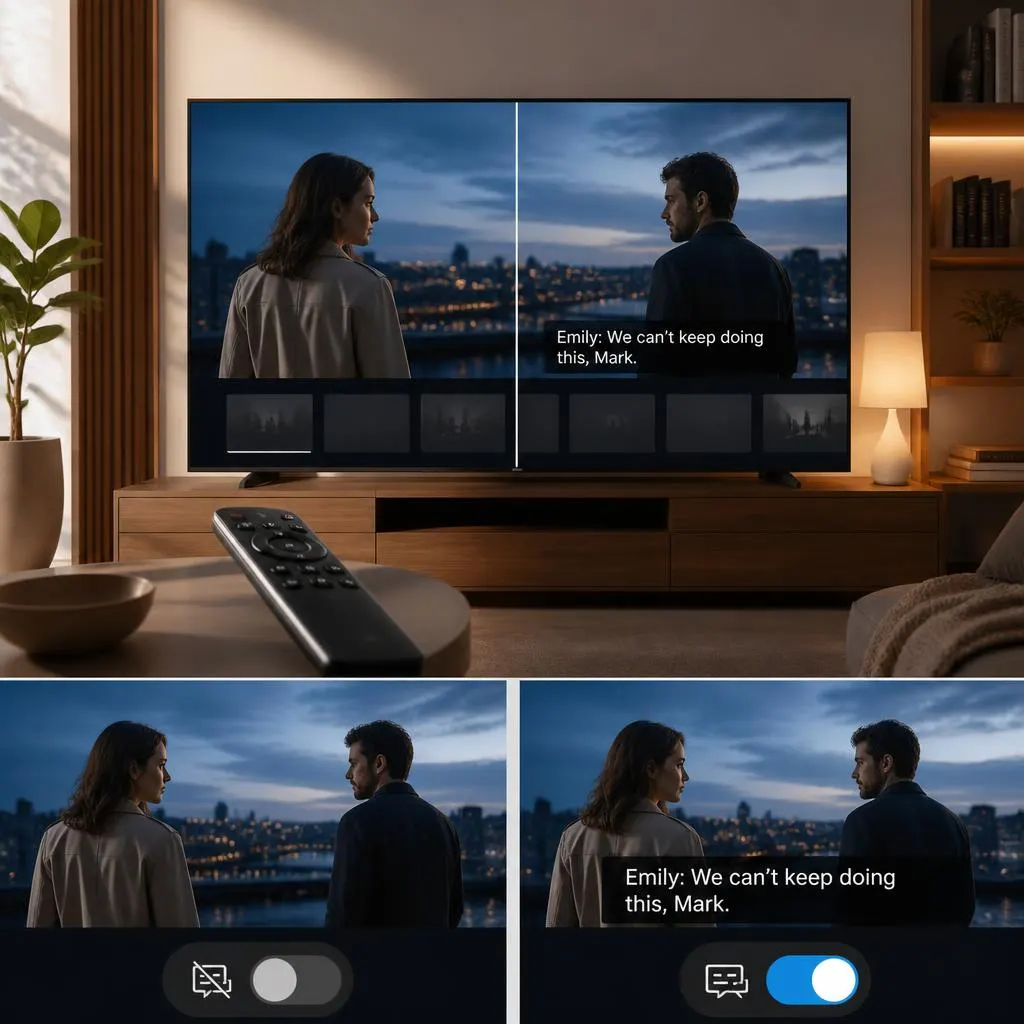
If subtitles or closed captions are covering part of your Samsung TV screen, you can usually turn them off in just a few steps. On newer Samsung Smart TVs, the caption control is located inside the Accessibility settings.
The exact wording and menu path can vary slightly depending on your TV model, software version, and region. On many current Samsung TVs, you can find the setting through Settings > General or General & Privacy > Accessibility > Caption Settings.
How to Turn Off Captions on Samsung TV
The quickest method is to change the Caption setting to Off.
Method 1: Turn Off Captions Through Settings
- Press the Home button on your Samsung TV remote.
- Open Settings.
- Select General or General & Privacy.
- Select Accessibility.
- Open Caption Settings.
- Select Caption.
- Change the setting to Off.
Once the Caption option is disabled, closed captions supplied by supported TV broadcasts should disappear. Samsung notes that menu names and available features can differ between models and software versions.
Method 2: Use the Accessibility Shortcut
Some Samsung Smart Remotes provide a faster way to reach accessibility options.
Press and hold the Mute button or the Volume button on the remote to open the Accessibility Shortcuts menu. From there, you may be able to access the caption setting directly. Samsung also notes that standard remotes may have a dedicated Caption button.
If you see a caption option in the shortcut menu, select it and switch captions off.
Samsung TV Caption Menu Paths
Samsung has changed its menu layout across different TV generations, so you may see slightly different wording.
Try these paths:
- Home > Settings > General > Accessibility > Caption Settings
- Home > Settings > General & Privacy > Accessibility > Caption Settings
- Home > Menu > Settings > All Settings > General & Privacy > Accessibility > Caption Settings
Once you reach Caption Settings, look for the main Caption switch and turn it off.
If you do not see exactly the same menu names, do not assume your TV lacks the feature. Samsung says accessibility features can vary by model, software version, and geographical area.
Captions Are Still Showing After You Turn Them Off
If captions continue appearing after you disable Samsung TV captions, the text may not be coming from the TV’s built-in caption setting.
This is one of the most common reasons people think the Samsung caption setting is not working.
The subtitles may instead be coming from:
- A streaming app
- A cable or satellite box
- A connected streaming device
- A Blu-ray or DVD
- Subtitles permanently included in the video
Samsung explains that some apps have their own caption controls. It also notes that captions on Blu-ray discs and DVDs can be controlled through the disc menu.
Check Whether the Captions Appear Everywhere
Try switching to another channel or opening another app.
If captions appear on several TV channels, check the Samsung TV Caption Settings again.
If captions appear only inside one app, open that app’s playback or accessibility settings and look for:
- Subtitles
- Captions
- Closed captions
- CC
- Accessibility
- Subtitle language
Turn the relevant option off inside the app.
If the captions appear only when using a cable box, satellite receiver, game console, or streaming device, check that device’s subtitle settings instead.
How to Turn Off Captions on Samsung TV for One App
Some apps manage subtitles separately from Samsung’s system caption setting.
For example, if captions are visible only while watching content through a particular streaming service, the app may be generating the subtitles rather than the Samsung TV.
Start by checking the Samsung TV’s Caption setting. If it is already off, open the controls for the app you are using.
Look for a CC, Subtitles, or Audio and Subtitles option during playback.
Select the subtitle option and choose Off.
The exact steps depend on the app, so the controls may not look the same from one service to another. Samsung specifically notes that services such as Netflix can have independent caption settings.
What Is the Difference Between Captions and Subtitles?
Captions and subtitles can look similar on the screen, but they do not always come from the same source.
Closed captions are usually controlled through the TV or the app and can normally be switched on or off.
Open captions or text that has already been added to the video are part of the content itself. You cannot remove text that has been permanently inserted into the video by changing the Samsung TV’s caption setting. Samsung makes this distinction in its Smart TV accessibility guidance.
For example, if a movie file already contains white text as part of the actual picture, turning off closed captions will not remove it.
How to Tell Where the Captions Are Coming From
A simple test can help you identify the source.
Test 1: Change the Channel
Switch to another TV channel.
If the captions disappear, they may be related to the original broadcast.
Test 2: Open Another App
Try another streaming app.
If the captions disappear there, the first app may have its own subtitle setting.
Test 3: Check an External Device
If you use a cable box, satellite receiver, Roku, Fire TV, game console, or another HDMI device, switch to the Samsung TV’s built-in menu or another source.
If captions appear only through the external device, check its settings.
Test 4: Check the Same Video Again
If the same words remain visible even after every caption setting is turned off, the text may be part of the video itself.
How to Turn Off Captions on Older Samsung TVs
Older Samsung televisions may use a different menu structure from newer Smart TVs.
On some older models, you may need to press the Menu button and look under Setup, Function, or a similar section. From there, look for Caption or Closed Caption and set it to Off. Samsung’s older support documentation describes this type of menu structure for some models.
Because Samsung has released many TV generations, it is better to follow the menu labels shown on your own television rather than expecting every model to use the same path.
How to Turn Off Captions Without Changing Their Appearance
If you are seeing options such as Digital Caption Options, you are in the correct general area.
However, changing the font, size, color, or background does not turn captions off. Those options are designed to customize how captions appear.
To remove captions, use the main Caption setting and switch it off.
Samsung lists Digital Caption Options for changing appearance settings such as font style, size, color, and background.
What Does Separate Closed Caption Mean?
You may also see an option called Separate Closed Caption.
This setting is not the main on or off switch for captions. It is designed to separate closed captions from other text that may already be present in the content.
If your goal is simply to remove the captions, go back to Caption Settings and turn the main Caption option off.
What If the Caption Setting Keeps Turning Back On?
If captions repeatedly come back after you turn them off, check these areas:
Check the App
The streaming app may have its own subtitle preference.
Turn subtitles off inside the app and then restart the content.
Check Your External Device
A cable box or streaming device can add captions independently of the Samsung TV.
Use the external device’s remote and check its accessibility or subtitle settings.
Check for Software Updates
Samsung recommends checking for available software updates when troubleshooting Smart TV problems, because an update may address an issue affecting the television.
Restart the TV
After changing the setting, turn the TV off and back on. Then check whether the captions remain disabled.
How to Turn Off Captions on Samsung TV With a Smart Remote
If you have a newer Samsung Smart Remote, try the shortcut first.
- Press and hold the Volume or Mute button.
- Wait for the Accessibility Shortcuts menu to appear.
- Find the caption option.
- Select it.
- Turn captions off.
Samsung currently documents the Volume or Mute shortcut for Smart Remotes, although the available shortcut options can vary by model.
If this shortcut does not appear on your remote, use the regular Settings method instead.
How to Turn Off Captions on Samsung TV With a Standard Remote
If you have a traditional Samsung remote with a dedicated Caption button, pressing that button may provide direct access to caption controls.
Some Samsung models and regions use different remote controls, so this option may not be available on every television. Samsung says standard remotes can provide a Caption shortcut, while Smart Remotes can use the Mute or Volume button shortcut.
If your remote has no caption button, go through the Accessibility menu.
Can You Turn Off Captions Completely?
Yes, if the captions are closed captions controlled by the Samsung TV, you can normally disable them through the Caption setting.
The important distinction is the source of the text.
If the words are:
- Samsung closed captions, turn off Caption in TV settings.
- App subtitles, turn them off inside the app.
- Cable or satellite captions, change the external box settings.
- Streaming device captions, change that device’s settings.
- Open captions permanently included in the video, they cannot be removed through the Samsung TV caption switch.
Samsung confirms that some apps and physical media use their own caption or subtitle controls.
A Quick Fix to Try First
If you only want the shortest solution, try this:
Home → Settings → General or General & Privacy → Accessibility → Caption Settings → Caption → Off
If you cannot find that option, press and hold the Volume or Mute button on a compatible Samsung Smart Remote and look for Accessibility Shortcuts.
If the captions remain after that, check the app or external device you are using.
Common Mistakes When Trying to Remove Samsung TV Captions
Changing Digital Caption Options
Changing the font or color will not remove captions. You need to turn the main Caption setting off.
Looking Only in Picture Settings
Caption controls are generally located under Accessibility, not the normal Picture menu.
Assuming Every Subtitle Comes From the TV
Apps and connected devices can create their own subtitles. Turning off Samsung’s TV captions will not necessarily disable those subtitles.
Confusing Open Captions With Closed Captions
If text is permanently included in the video image, the TV cannot remove it.
Expecting Every Samsung Model to Have the Same Menu
Samsung uses different menu layouts across TV models and software versions, so the exact wording can vary.
FAQs
How do I turn off captions on my Samsung TV?
Go to Home > Settings > General or General & Privacy > Accessibility > Caption Settings, then select Caption and switch it off.
Why won’t captions turn off on my Samsung TV?
The captions may be coming from an app, cable box, satellite receiver, or another connected device rather than the TV itself. Check where the captions appear and change the subtitle setting at that source.
Where is the CC button on a Samsung Smart Remote?
Many Samsung Smart Remotes do not have a dedicated CC button. Samsung provides an Accessibility Shortcut that can be opened by pressing and holding the Mute or Volume button on compatible remotes.
How do I turn off subtitles on a Samsung Smart TV?
For Samsung’s built-in caption controls, open Accessibility > Caption Settings and switch Caption off. If subtitles are generated by a streaming app, turn them off through that app’s subtitle controls.
Why do subtitles only appear on Netflix or another streaming app?
The app may have its own subtitle setting. Samsung notes that some apps maintain independent caption controls.
Can I remove captions that are already part of a video?
No. If the text is permanently included in the video itself, it is part of the picture and cannot be removed through Samsung’s closed caption settings.
Why are captions appearing on TV channels?
The broadcast may provide closed captions and the Samsung TV may have the Caption feature enabled. Check Accessibility > Caption Settings > Caption and switch it off.
Do Samsung TV menus look different on different models?
Yes. Samsung states that menu options and accessibility features can vary according to the TV model, software version, and region.
How do I turn captions back on later?
Follow the same path to Caption Settings and change the Caption option back to On.
conclusion
If you want to turn off captions on a Samsung TV, start with Home > Settings > General or General & Privacy > Accessibility > Caption Settings > Caption > Off.
If the words remain on the screen, do not keep changing the Samsung TV settings. First check whether the subtitles are coming from the streaming app, cable box, satellite receiver, or another connected device. Some subtitles are controlled separately, while text permanently built into a video cannot be removed through the TV’s caption settings.
Samsung’s current support information confirms the main Caption setting and the Accessibility Shortcut options, while also noting that menu names can vary by model and software version.