
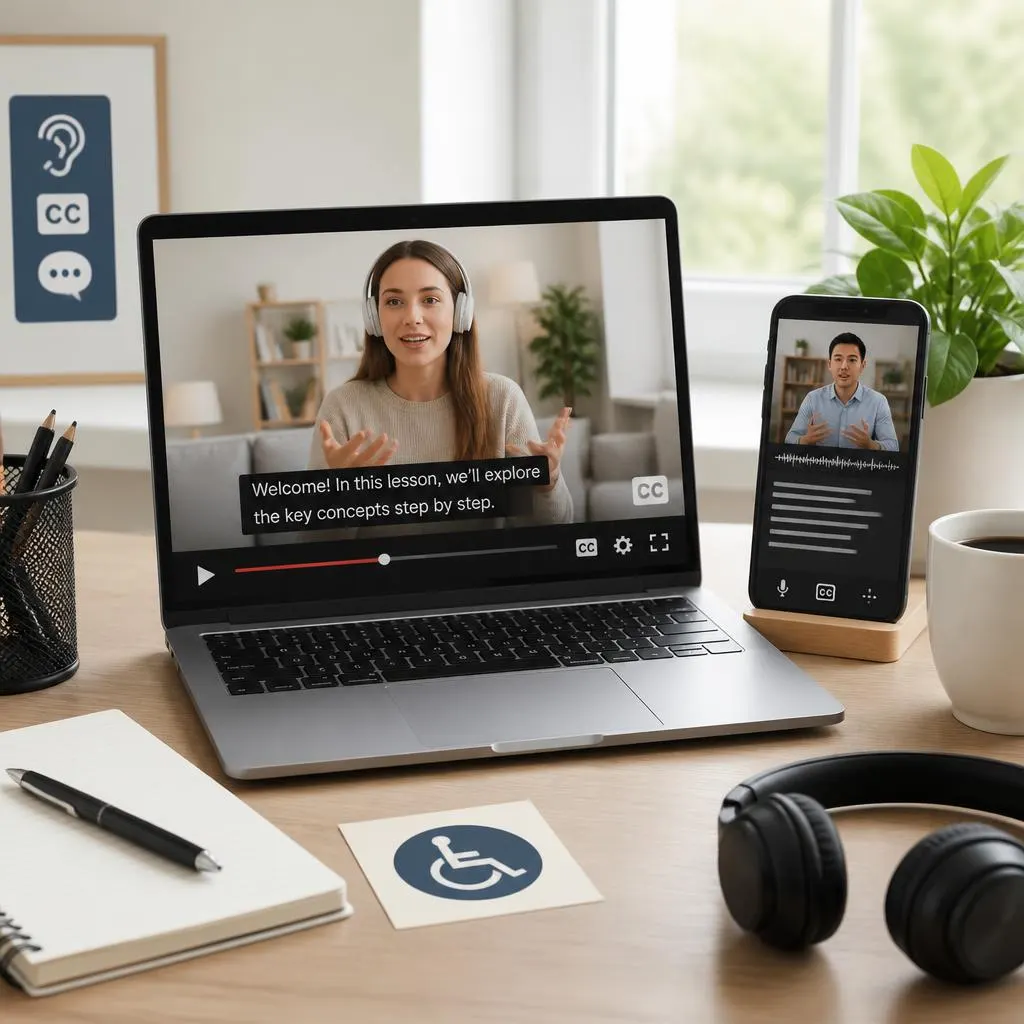
A free internet closed captioning tool can make online videos easier to understand by displaying spoken words, important sounds, and other audio information as text on the screen. Whether you watch YouTube videos, attend online classes, create social media content, or publish educational videos, captions can help more people access your content.
Closed captions are especially valuable for people who are deaf or hard of hearing. They also help viewers who watch videos in noisy environments, prefer reading along, or speak English as a second language. The best solution depends on the platform you use, whether you need captions in real time or after recording, and how accurately the tool handles different speakers and accents.
This guide explains what the phrase “a free internet closed captioning” means, how free online captioning tools work, which options to consider, and how to make captions more accessible without spending money.
What Does a Free Internet Closed Captioning Service Mean?
A free internet closed captioning service is an online tool or platform feature that creates, displays, or helps you edit captions for video and audio content without requiring payment for the basic service.
Closed captions display spoken dialogue and relevant sounds in text. Unlike subtitles that may focus mainly on dialogue or translation, captions can include information such as music, laughter, background noise, and sound effects when these details matter to understanding the content.
For example, a captioned video might display:
- Welcome back to our channel.
- Door closes.
- Audience applauds.
- Soft music plays in the background.
The exact features available depend on the captioning tool and the platform hosting the video. Some services generate captions automatically, while others let you upload a transcript, correct existing captions, or create captions manually.
Why Is It Called Closed Captioning?
Closed captions are usually optional. Viewers can turn them on or off using a CC button or the caption settings in a video player.
Open captions, by comparison, are permanently visible because they are embedded directly into the video image. Viewers generally cannot turn them off.
Both formats can improve access, but closed captions give viewers greater control over their viewing experience.
How Free Online Closed Captioning Works
Most internet captioning services use one of three methods. Understanding the differences can help you choose the right approach for your videos.
1. Automatic Speech Recognition
Automatic captioning uses speech recognition technology to convert spoken words into text. Some systems can also identify different speakers or recognize selected non speech sounds.
This option works well when you need captions quickly for lectures, interviews, tutorials, and other videos with clear audio.
However, automatic captions can make mistakes with names, technical terms, accents, overlapping voices, and background noise. Always review the transcript before publishing important content.
2. Manual Caption Creation
Manual captioning involves typing the words yourself or editing a transcript to match the audio. It takes more time, but it gives you greater control over punctuation, spelling, timing, and sound descriptions.
This method is useful for short promotional videos, professional presentations, and content where accuracy matters.
3. Automatic Captions With Manual Editing
A combination of automatic generation and human correction often offers a practical balance. Let the tool create the first draft, then correct mistakes and adjust the timing.
This approach is particularly helpful for creators who publish videos regularly and need to maintain consistent caption quality.
Best Free Internet Closed Captioning Tools to Try
The right tool depends on where your video lives and what you want to do with it. Some platforms generate captions directly, while others provide a video editor or live captioning feature.
Here are practical options to consider. Basic features may be free, but account requirements, usage limits, and advanced features can vary.
1. YouTube automatic captions
Best for creators who publish videos on YouTube. The platform can automatically generate captions for supported languages, and creators can review and correct them in YouTube Studio.
Best use: YouTube videos and Shorts.
2. Microsoft Clipchamp
Clipchamp offers automatic caption generation for supported video and audio content. You can edit the text and customize its appearance before exporting a video.
Best use: Creating captioned videos for social media, tutorials, and presentations.
3. Google Meet live captions
Live captions display recognized speech during supported online meetings. This is useful when you need to follow a conversation rather than create a caption file for a published video.
Best use: Online meetings and remote learning.
4. Free subtitle editing tools
Subtitle editors help you correct transcripts, adjust timing, and prepare caption files in formats such as SRT or WebVTT. A free editor is especially useful when a platform’s automatic captions need substantial correction.
Best use: Editing caption files for websites and video players.
These tools serve different purposes, so there is no single best option for everyone. YouTube is a convenient starting point for hosted videos, Clipchamp is useful for editing video content, and live meeting captions are more suitable for conversations happening in real time.
How to Add Closed Captions to a Video for Free
If you have a video that needs captions, follow this simple process. The exact buttons may vary by platform, but the basic workflow remains similar.
Step 1: Choose a Captioning Method
Decide whether you need live captions, captions for an uploaded video, or a downloadable subtitle file.
- Choose live captions for meetings and online classes.
- Choose automatic video captions for recorded content.
- Choose a subtitle editor when you already have a transcript or need precise timing.
Step 2: Upload or Open Your Video
Open the video in a supported platform or editor. For YouTube, upload the video and open the subtitles section in YouTube Studio when captions become available.
For an editing tool, import your video and locate its automatic captions or transcription feature.
Step 3: Generate the Captions
Select the language spoken in the recording whenever the tool asks you to do so. Allow the service to process the audio.
Clear speech, a quiet recording environment, and a good microphone generally help speech recognition produce a better first draft.
Step 4: Review Every Caption
Listen to the audio while reading the generated text. Correct names, numbers, technical terms, punctuation, and words the system misunderstood.
Also check whether the captions identify speakers and include important sounds that affect the meaning of the video.
Step 5: Check Timing and Readability
Make sure each caption appears when the corresponding words are spoken. Avoid displaying too much text at once, and ensure that captions remain readable on a phone screen.
Step 6: Publish or Export
Depending on your tool, you may be able to save captions directly to the platform, export them as a separate subtitle file, or embed them in the video.
If you need captions that viewers can switch on and off, confirm that you are publishing a supported closed caption track rather than only embedding permanent text in the image.
Closed Captions vs. Subtitles: What Is the Difference?
People often use the terms interchangeably, and the distinction can vary between platforms and regions. However, they have different traditional purposes.
Closed captions
Explain spoken dialogue and meaningful audio information, including sound effects, music cues, and speaker identification when relevant. Viewers can generally turn them on or off.
Subtitles
Usually present spoken dialogue as text, often to help viewers understand a language they do not speak. They may not include sound descriptions.
Open captions
Remain visible because the text is embedded in the video. Viewers cannot normally switch them off.
For example, an English video with Spanish subtitles may translate the speaker’s words into Spanish. English closed captions may instead display the original dialogue along with meaningful sounds.
For accessibility, the important question is whether the text conveys the audio information needed to understand the content. The W3C Web Accessibility Initiative provides detailed guidance on
Why Closed Captioning Matters for Internet Accessibility
Captions are not merely an editing feature. They help make online information available to people with different hearing abilities, language skills, and viewing circumstances.
Supporting People Who Are Deaf or Hard of Hearing
A person who cannot hear a video needs access to its spoken information through another format. Accurate captions provide dialogue and meaningful audio details that might otherwise be unavailable.
Captions should not omit important words or sound information simply because automatic software finds them difficult to recognize.
Making Online Learning Easier
Students can use captions to follow recorded lessons, revisit important explanations, and check unfamiliar terms. Teachers can also provide transcripts so students can review material without replaying the entire video.
Helping Viewers in Noisy or Quiet Environments
Someone watching a video on public transport, in a waiting room, or at work may not be able to play audio. Captions allow the viewer to follow the content without relying on sound.
Supporting People Learning English
Captions can help viewers connect spoken words with written language. They may make unfamiliar vocabulary, pronunciation, and sentence structure easier to follow.
However, captions should match the spoken language accurately unless the creator deliberately provides translated subtitles.
Improving Access to Information
Captions can help viewers understand interviews, demonstrations, recorded meetings, and educational videos. A searchable transcript can provide additional convenience by letting readers locate a particular topic without watching the entire recording.
What Makes Closed Captions Accessible and High Quality?
Free captioning software can save time, but the result still needs to meet viewers’ needs. Use these principles when preparing captions for your website, course, or social media channel.
Include All Important Spoken Words
Do not remove words simply to make captions shorter. If the speaker explains a safety instruction, gives a phone number, or describes an essential step, preserve the information accurately.
Identify Speakers When Necessary
When several people are speaking, identify each person whenever the viewer might otherwise become confused. This is especially important when a conversation happens off-screen or the voices sound similar.
Describe Meaningful Sounds
Include sound information that contributes to understanding the scene. For example:
- Door slams.
- Phone rings.
- Audience laughs.
- Alarm sounds.
- Music becomes louder.
Do not add unnecessary sound descriptions that distract from the content. Focus on audio details that matter to the viewer.
Use Clear Timing and Punctuation
Captions should appear in sync with the audio and remain visible long enough to read comfortably. Use punctuation to preserve meaning and distinguish different speakers or sentences.
Make Text Easy to Read
Use sufficient contrast between text and its background. Avoid placing captions over important visual information, and test them on smaller screens.
For captions permanently embedded in a video, check that the font, size, placement, and background remain readable throughout the recording.
Provide a Transcript When Useful
A transcript lets people read the content separately from the video. It can also help users search for information and revisit specific passages.
A descriptive transcript can include relevant visual details as well as speech and audio information, which may be particularly helpful for people who cannot access both the visual and audio parts of a recording.
How to Choose the Right Free Captioning Tool
Before choosing an online closed captioning service, consider the kind of content you publish and how much editing you expect to do.
Use these questions to narrow down your options.
- Do you publish videos on YouTube? Start with YouTube’s built in captioning feature.
- Do you edit videos for Instagram, TikTok, or other social platforms? Consider a video editor that generates captions and lets you adjust their appearance.
- Do you need captions during a meeting? Look for a live captioning feature in your meeting platform.
- Do you need a downloadable subtitle file? Choose a tool that supports exporting SRT or WebVTT files.
- Do you need captions in another language? Check whether the tool supports your spoken language and whether it can translate captions.
- Is accuracy your main concern? Choose a workflow that lets you edit the transcript and verify every line against the recording.
Remember that a free plan may have restrictions on video length, exports, processing, or advanced editing. Check the current terms before relying on a tool for a large project.
Common Closed Captioning Mistakes to Avoid
Even a good captioning tool can produce a poor result if you skip the final checks. Avoid these mistakes to make your videos more useful and accessible.
Publishing Automatic Captions Without Reviewing Them
Speech recognition can confuse similar sounding words, miss names, and misinterpret accents. Review the captions before publishing, particularly when the video contains instructions, numbers, or technical information.
Confusing Captions With a Transcript
A transcript presents text in a document or page. Closed captions synchronize text with the video or audio as it plays.
A transcript is useful, but a transcript alone does not provide synchronized captions in a video player.
Leaving Out Important Sounds
Captions that contain only dialogue may miss important information conveyed through an alarm, an approaching vehicle, or a significant sound effect.
Include meaningful audio details whenever they help the viewer understand what is happening.
Using Text That Is Difficult to Read
Tiny fonts, poor contrast, excessive text, and captions that cover essential visuals can make content harder to follow.
Test the finished video on both a desktop screen and a mobile device.
Assuming Every Free Tool Has the Same Features
Some tools generate captions only for recorded videos. Others offer live captions, translation, or caption file exports. Verify that the features you need are included in the free version.
Forgetting About Privacy
Some online tools process uploaded audio or video on remote servers. Before uploading confidential meetings, private recordings, or sensitive information, review the service’s privacy policy and your organization’s requirements.
FAQs
What does a free internet closed captioning tool do?
It helps users create, display, or edit captions for online videos without paying for the basic feature. Depending on the tool, it may generate captions automatically, support live transcription, or let you edit subtitle files.
What is the best free online closed captioning service?
The best option depends on your needs. YouTube’s automatic captions are a practical starting point for YouTube videos, Microsoft Clipchamp is useful for video editing, and live caption features help during online meetings.
Compare language support, accuracy, editing options, and free plan limits before choosing.
Can I get closed captions for free on YouTube?
Yes. YouTube can automatically generate captions for supported videos and languages. Creators can review and edit available captions in YouTube Studio. Automatic caption availability and quality can vary, so check the result before publishing.
Are automatic captions accurate?
They can be helpful, but they are not always accurate. Background noise, unfamiliar names, accents, overlapping speakers, and technical vocabulary can cause errors.
Review the captions against the original audio to correct mistakes.
Are closed captions the same as subtitles?
Not always. Closed captions traditionally include spoken dialogue and meaningful sound information, while subtitles often focus on dialogue and translation. Both can improve access, but their purpose and content may differ.
Can I create captions without downloading software?
Yes. Some web platforms provide caption generation and editing directly in a browser. YouTube Studio and supported online video editors are examples. Features and account requirements vary.
What are SRT and WebVTT caption files?
SRT and WebVTT are text based formats that store caption text with timing information. They allow compatible video players to display captions at the appropriate moments.
WebVTT is a web focused caption and subtitle format, while SRT is widely used for video subtitles. Check which format your hosting platform supports before exporting.
Do closed captions help people who are not deaf?
Yes. Captions can help people watching in noisy environments, people learning another language, and viewers who prefer reading while listening. They also make it easier to follow content when audio is unavailable.
Are free captioning tools suitable for professional videos?
They can be, provided you review the captions carefully and the tool meets your technical requirements. For important educational, business, or public information videos, prioritize accuracy, synchronization, readability, and accessibility over convenience alone.
Do captions improve SEO?
Captions and transcripts can make video content more accessible and give audiences another way to engage with its information. A transcript can also make useful content available as readable text on a webpage.
However, captions do not guarantee higher search rankings. Use descriptive page titles, helpful surrounding content, appropriate metadata, and a good user experience alongside accessibility features.
Conclusion
A free internet closed captioning service can make online videos more accessible without requiring a large budget. Start with a tool that fits your platform, generate captions, and review them carefully before publishing.
The most useful captions do more than display spoken words. They communicate important sounds, remain synchronized with the audio, and give viewers a clear way to understand the content. By making caption accuracy and accessibility part of your regular publishing process, you can create a better viewing experience for a wider audience.